Apple iPhone 14 Pro Max

Apple iPhone 14 Pro Max

Use Visual Voicemail on your Apple iPhone 14 Pro Max iOS 26

Read help info

Using Visual Voicemail, you can see a list of the messages you've received on your voicemail, play them back or delete them. You can also record a personal greeting or select a default greeting. To use the function, you need to set up Visual Voicemail.

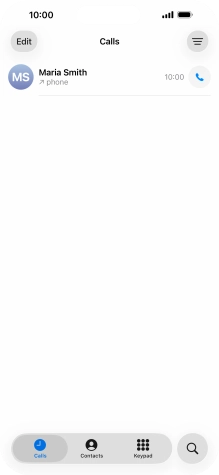
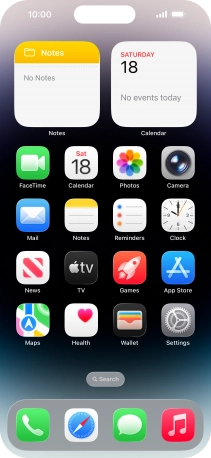
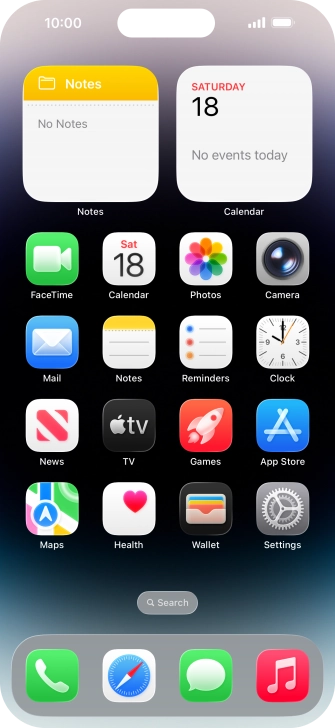
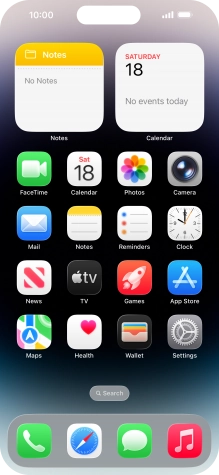
Press the phone icon.
Step 1 of 19

1. Find "Voicemail"

Press the phone icon.
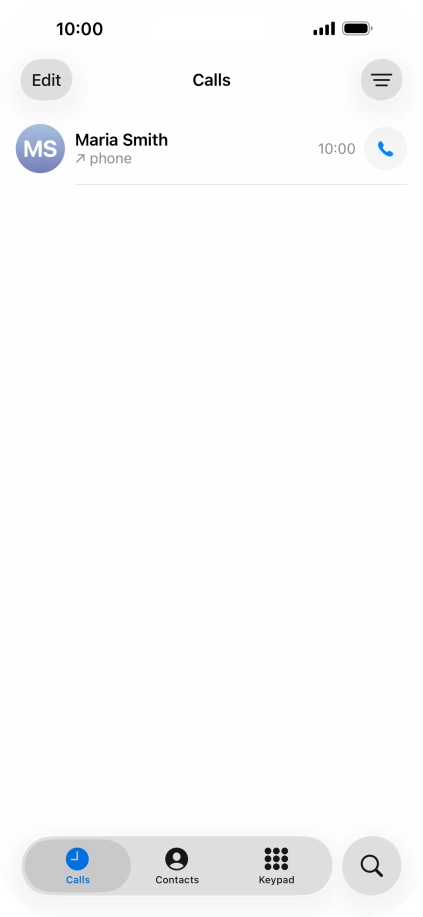
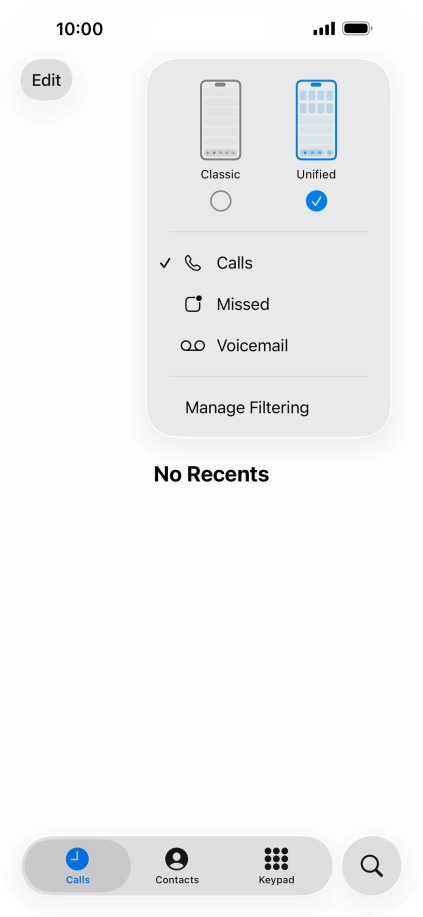
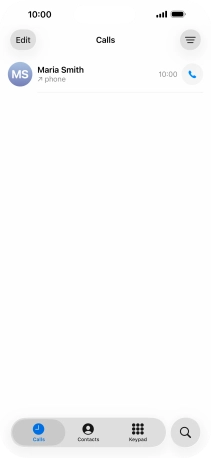
Press the menu icon.
Step 2 of 19

1. Find "Voicemail"

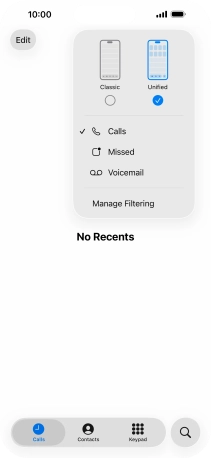
Press the menu icon.

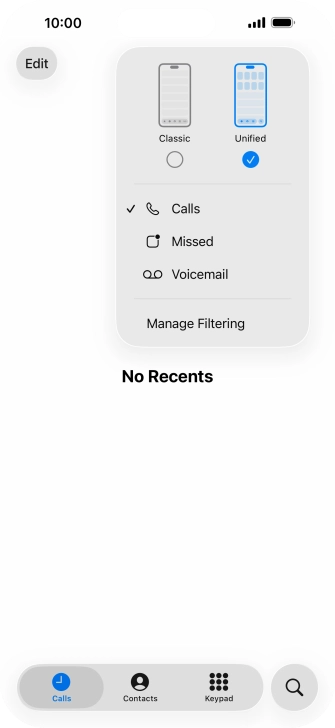
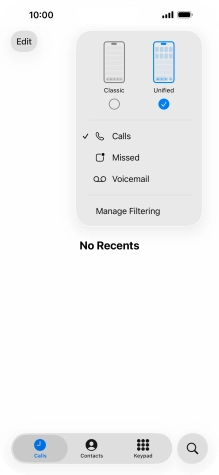
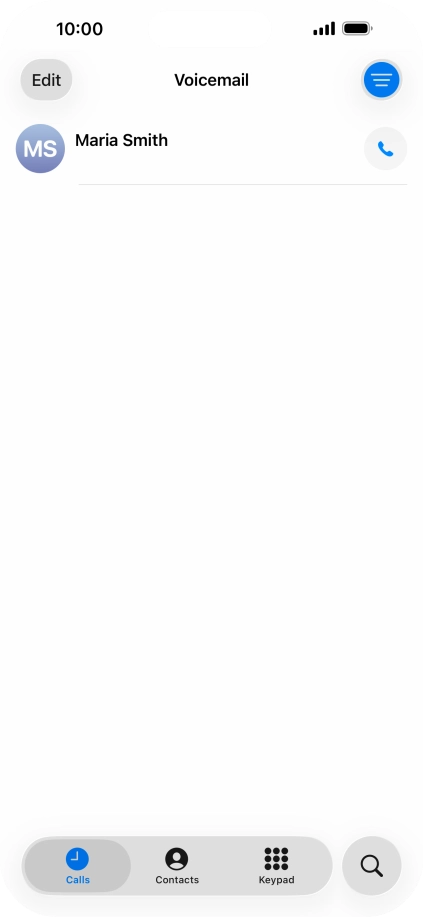
Press Voicemail.
Step 3 of 19

1. Find "Voicemail"

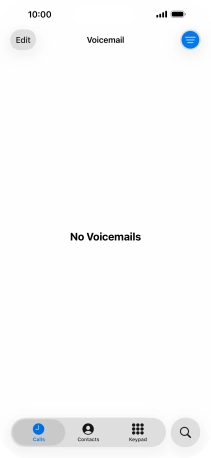
Press Voicemail.

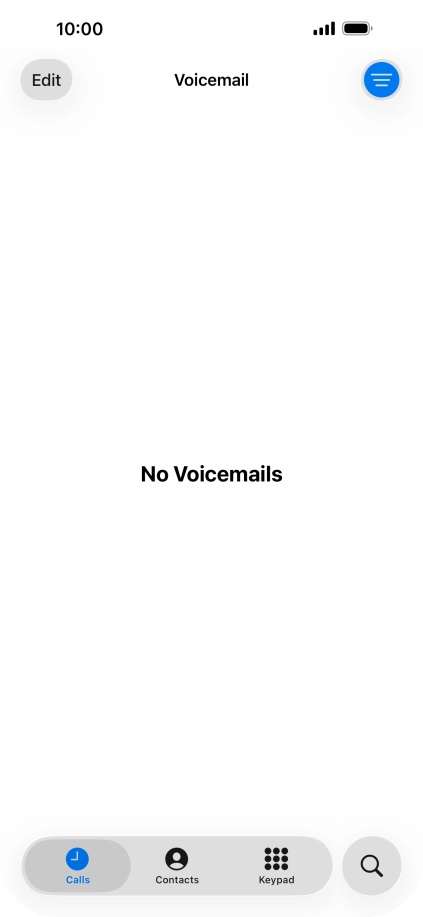
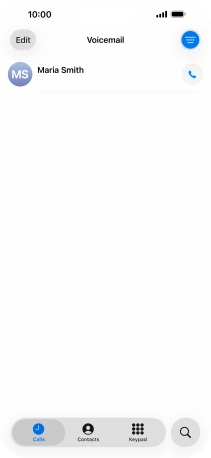
Press Edit.
Step 4 of 19

2. Edit greeting

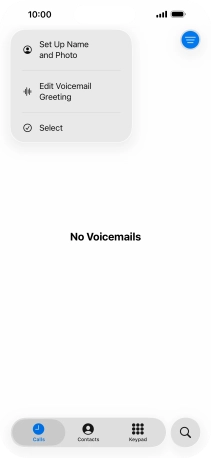
Press Edit.

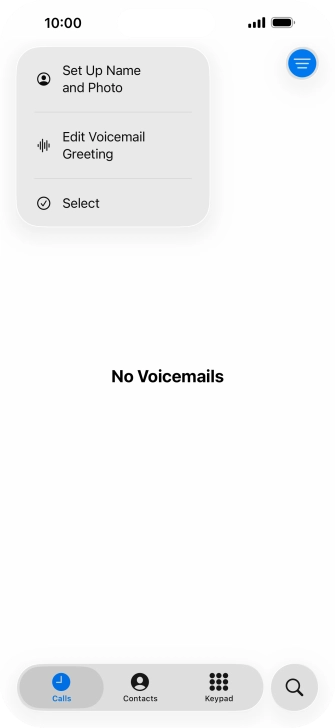
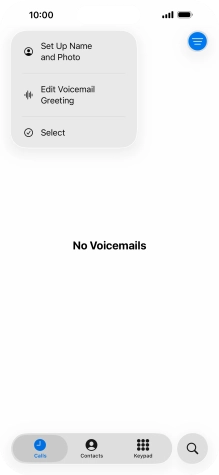
Press Edit Voicemail Greeting.
Step 5 of 19

2. Edit greeting

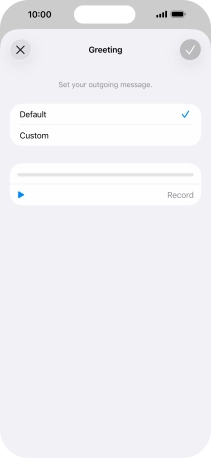
Press Edit Voicemail Greeting.

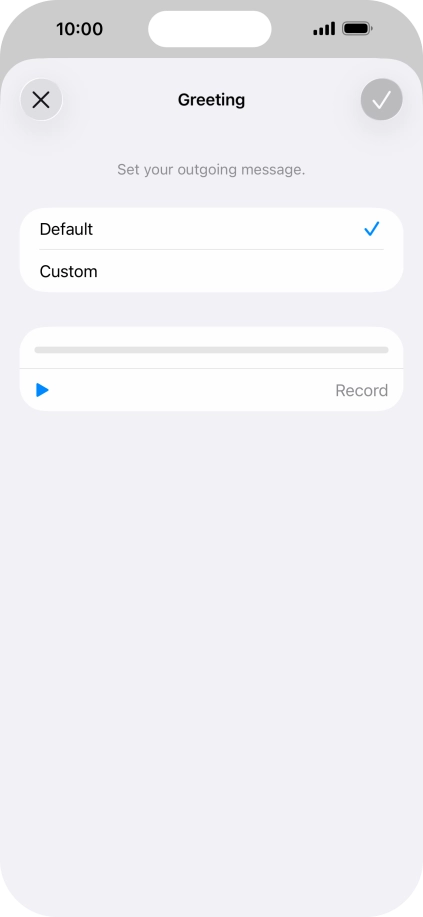
Press Default to select the default greeting.
Step 6 of 19

2. Edit greeting

Press Default to select the default greeting.

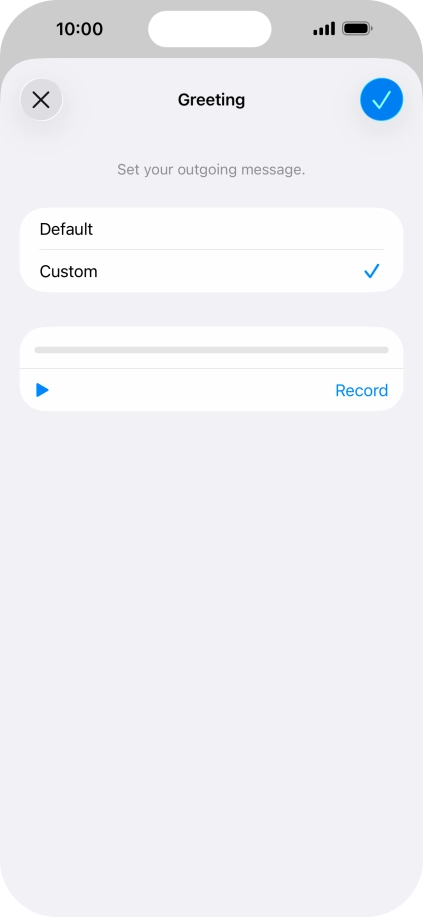
Press Custom to select a personal greeting.
Step 7 of 19

2. Edit greeting

Press Custom to select a personal greeting.

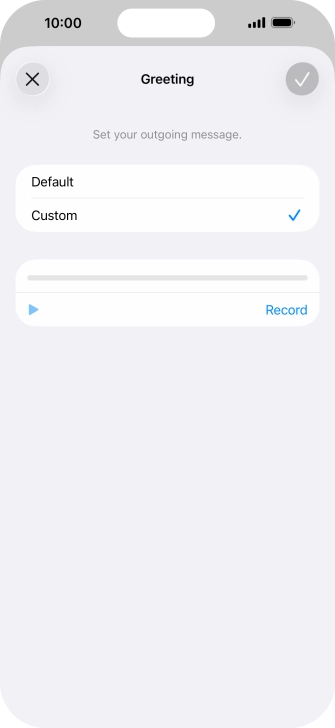
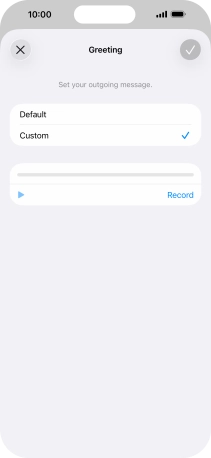
Press Record to start recording a personal greeting.
Step 8 of 19

2. Edit greeting

Press Record to start recording a personal greeting.

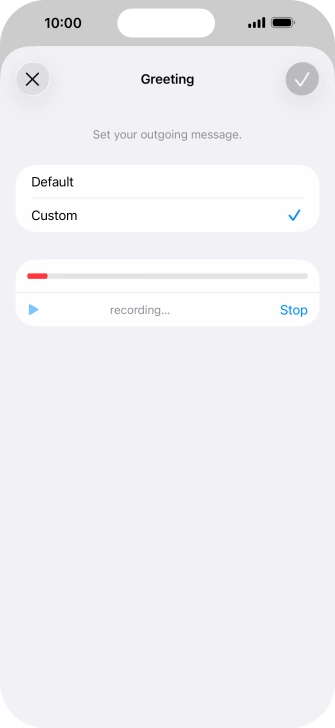
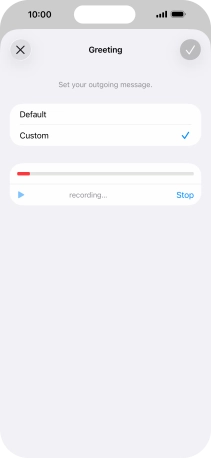
Press Stop to stop recording.
Step 9 of 19

2. Edit greeting

Press Stop to stop recording.

Press the play icon to play back your greeting.
Step 10 of 19

2. Edit greeting

Press the play icon to play back your greeting.

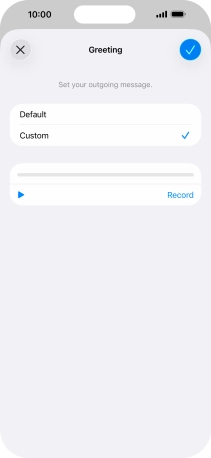
Press the confirm icon.
Step 11 of 19

2. Edit greeting

Press the confirm icon.

Press the required message.
Step 12 of 19

3. Listen to message

Press the required message.

Press the play icon.
Step 13 of 19

3. Listen to message

Press the play icon.

Press the speaker icon to turn the speaker on or off.
Step 14 of 19

3. Listen to message

Press the speaker icon to turn the speaker on or off.

Press the call icon to call the sender.
Step 15 of 19

4. Call sender

Press the call icon to call the sender.

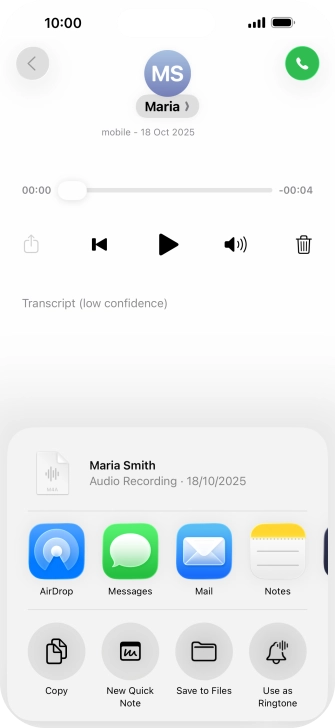
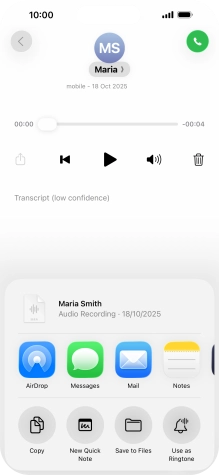
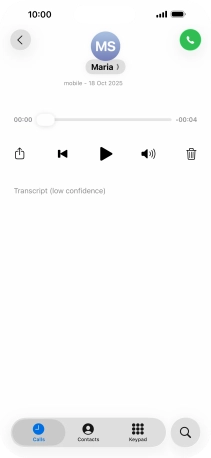
Press the share icon.
Step 16 of 19

5. Share or save message

Press the share icon.

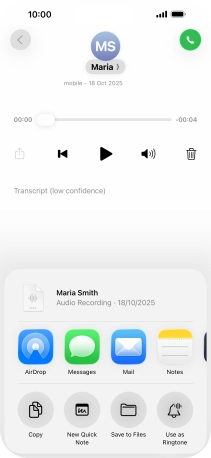
Press the required setting and follow the instructions on the screen to share or save the message.
Step 17 of 19

5. Share or save message

Press the required setting and follow the instructions on the screen to share or save the message.

Press the delete icon.
Step 18 of 19

6. Delete message

Press the delete icon.

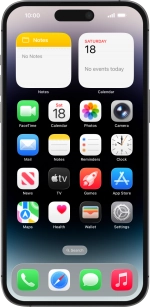
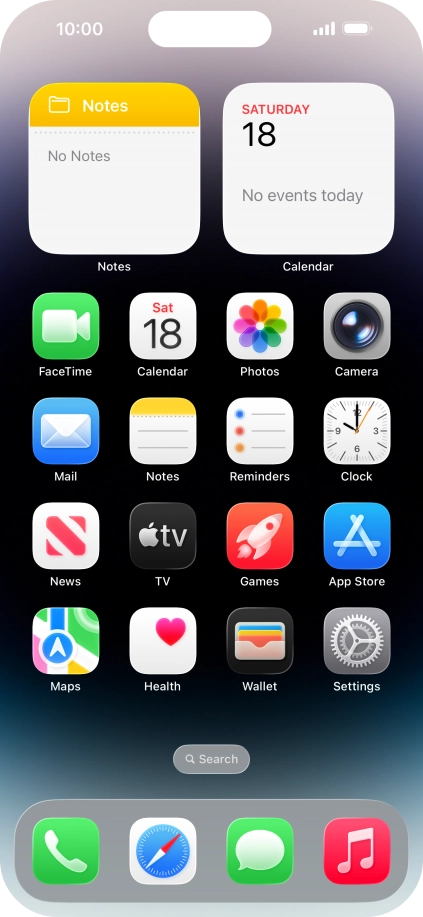
Slide your finger upwards starting from the bottom of the screen to return to the home screen.
Step 19 of 19

7. Return to the home screen

Slide your finger upwards starting from the bottom of the screen to return to the home screen.

1. Find "Voicemail"

Press the phone icon.
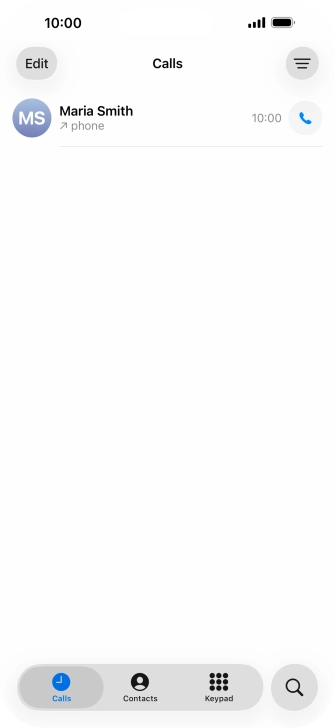
Press the menu icon.
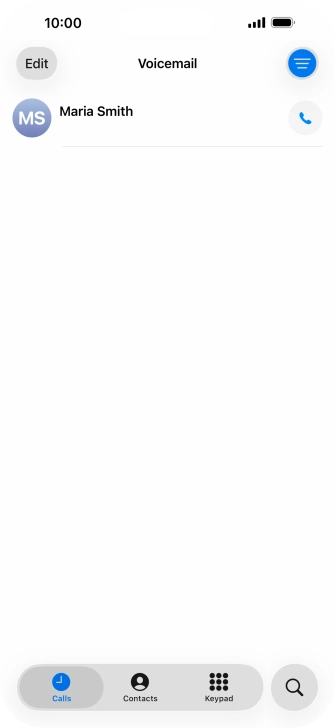
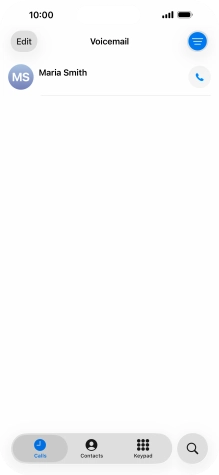
Press Voicemail.

2. Edit greeting

Press Edit.
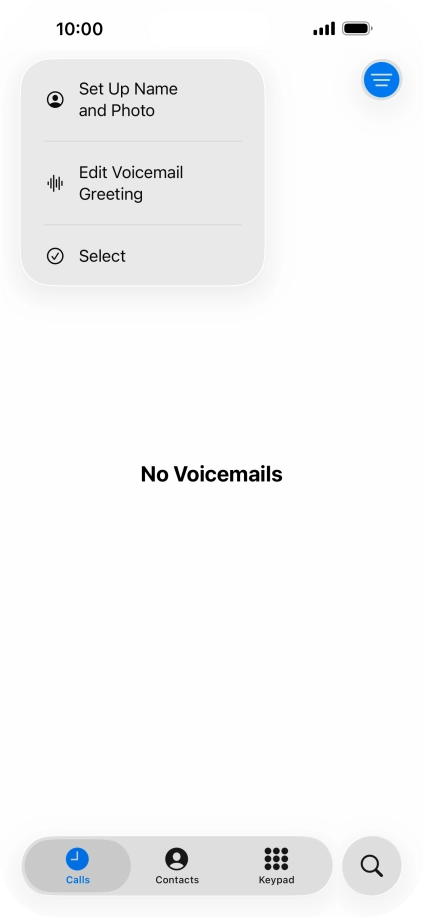
Press Edit Voicemail Greeting.
Press Default to select the default greeting.
Press Custom to select a personal greeting.
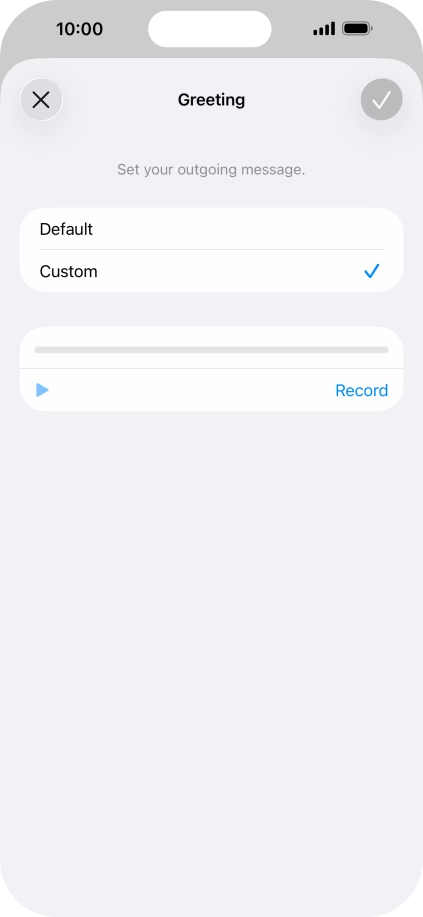
Press Record to start recording a personal greeting.
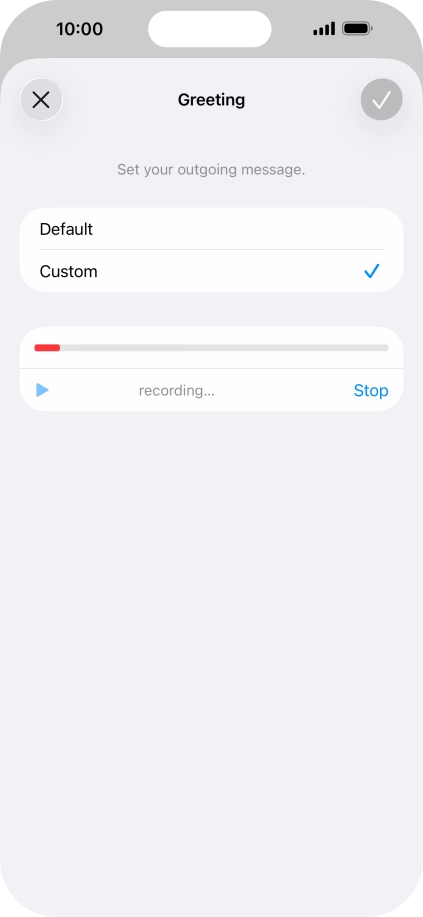
Press Stop to stop recording.
Press the play icon to play back your greeting.
Press the confirm icon.

3. Listen to message

Press the required message.
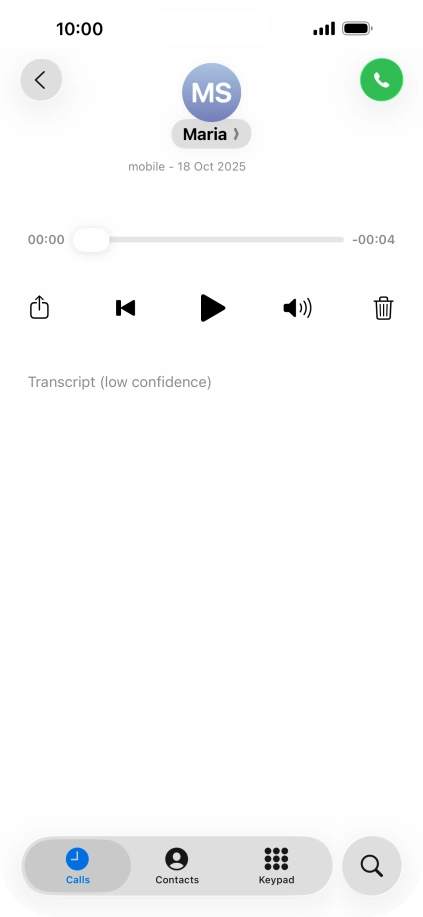
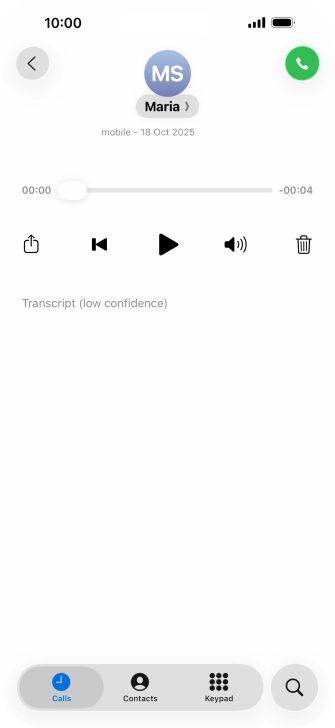
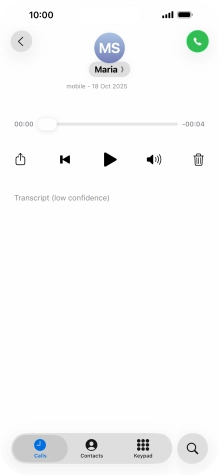
Press the play icon.
Press the speaker icon to turn the speaker on or off.

4. Call sender

Press the call icon to call the sender.

5. Share or save message

Press the share icon.
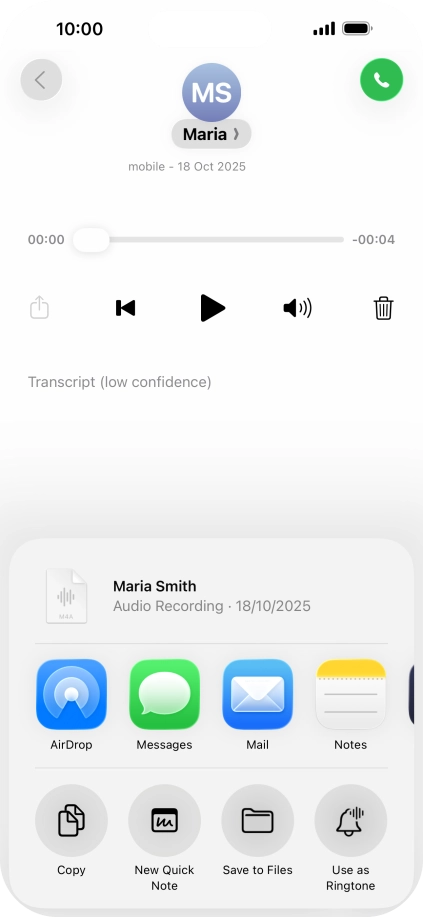
Press the required setting and follow the instructions on the screen to share or save the message.

6. Delete message

Press the delete icon.

7. Return to the home screen

Slide your finger upwards starting from the bottom of the screen to return to the home screen.

Get information on...

Or choose...

Another device