
Samsung Galaxy A17 5G

1. Turn on voice control
Press and hold the Side key.
![Say, in your own words, what you would like your phone to do, e.g.: OPEN [app], CALL [contact], SEARCH THE WEB FOR [information].](http://wmstatic.global.ssl.fastly.net/ml/7141125-f-55098717-97f3-42a2-9ee3-7b4e8350dcf2.png?width=412&height=892 "Say, in your own words, what you would like your phone to do, e.g.: OPEN [app], CALL [contact], SEARCH THE WEB FOR [information].")
![Say, in your own words, what you would like your phone to do, e.g.: OPEN [app], CALL [contact], SEARCH THE WEB FOR [information].](http://wmstatic.global.ssl.fastly.net/ml/7141125-f-55098717-97f3-42a2-9ee3-7b4e8350dcf2.png?width=326&height=706 "Say, in your own words, what you would like your phone to do, e.g.: OPEN [app], CALL [contact], SEARCH THE WEB FOR [information].")
![Say, in your own words, what you would like your phone to do, e.g.: OPEN [app], CALL [contact], SEARCH THE WEB FOR [information].](http://wmstatic.global.ssl.fastly.net/ml/7141125-f-55098717-97f3-42a2-9ee3-7b4e8350dcf2.png?width=214&height=462 "Say, in your own words, what you would like your phone to do, e.g.: OPEN [app], CALL [contact], SEARCH THE WEB FOR [information].")
2. Use voice control
Say, in your own words, what you would like your phone to do, e.g.: OPEN [app], CALL [contact], SEARCH THE WEB FOR [information].
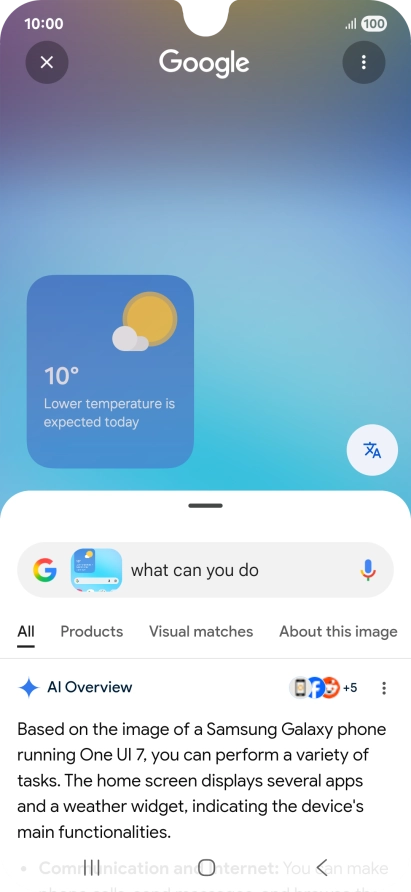
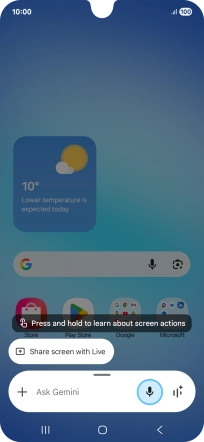
3. View more Google Assistant examples
Say "What can you do?" to see more examples of voice control commands from Google Assistant.
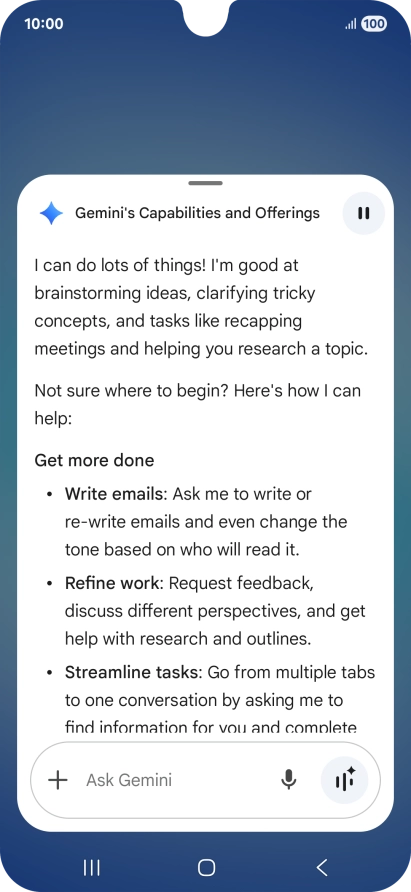
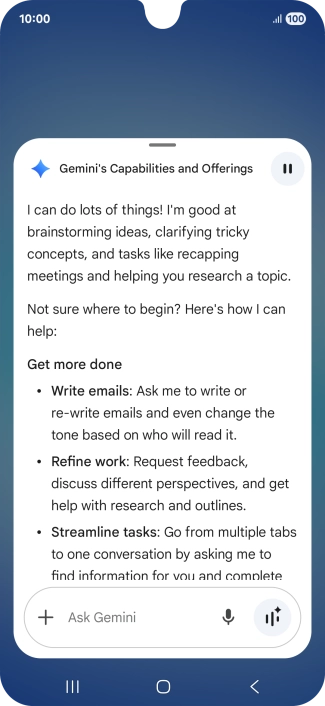
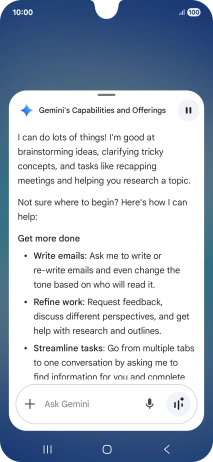
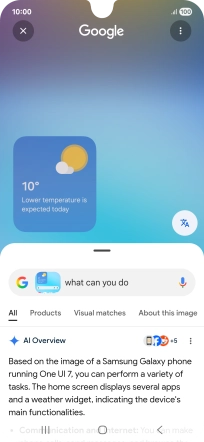
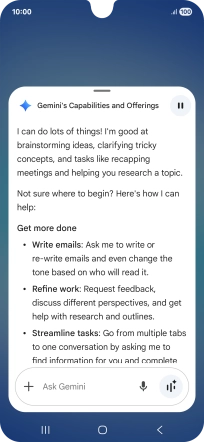
4. View more Gemini examples
Say "What can you do?" to see more examples of voice control commands from Gemini.
5. Return to the home screen
Press the Home key to return to the home screen.
1. Turn on voice control
2. Use voice control
3. View more Google Assistant examples
4. View more Gemini examples
5. Return to the home screen