
Samsung Galaxy Tab A11+
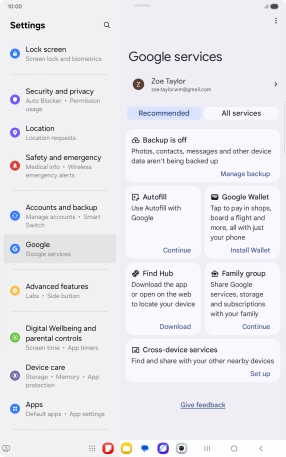
1. Find "Manage backup"
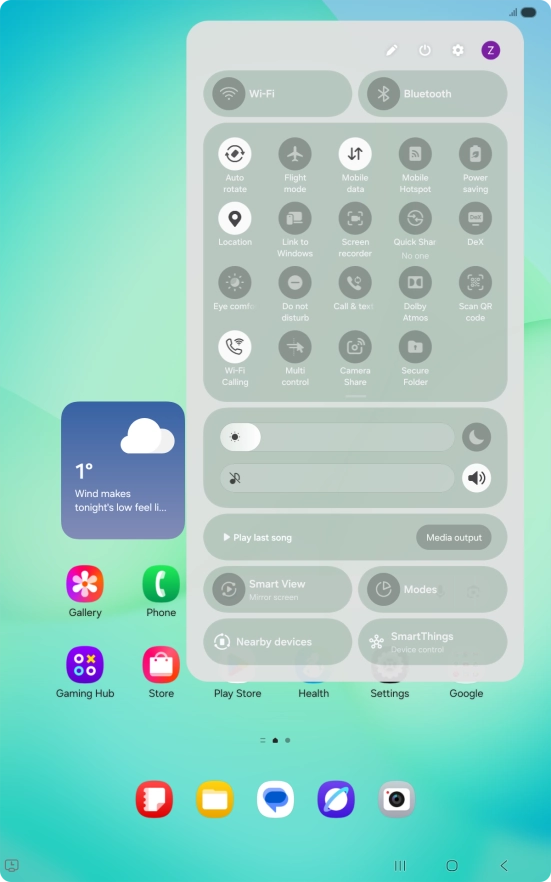
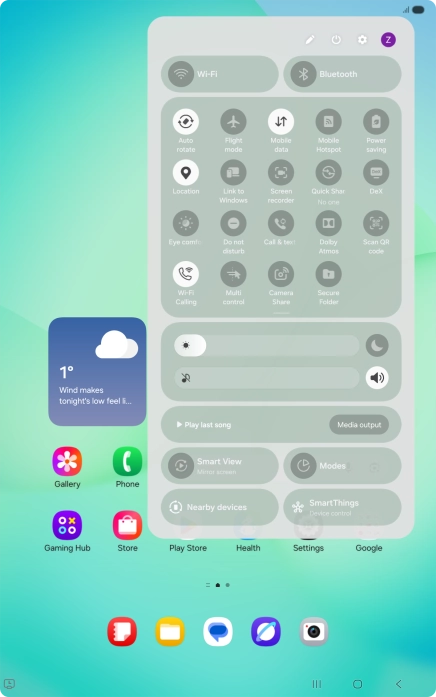
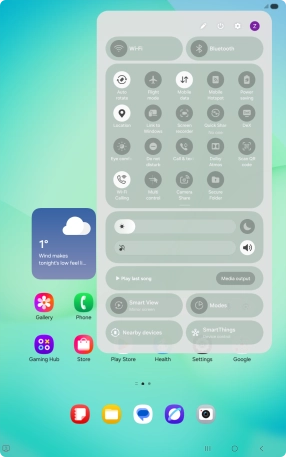
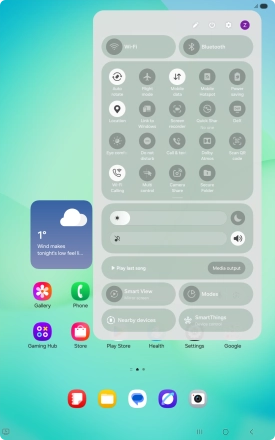
Slide your finger downwards starting from the top right side of the screen.
1. Find "Manage backup"
Press the settings icon.


1. Find "Manage backup"
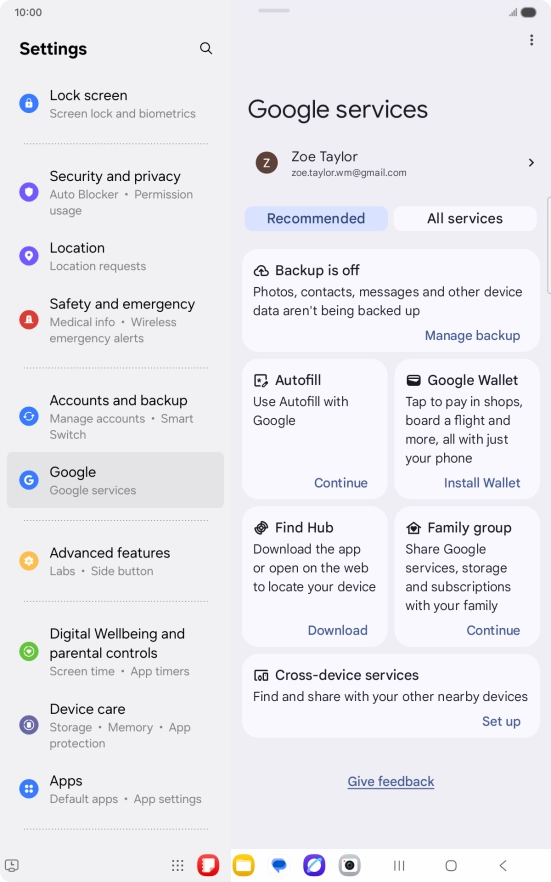
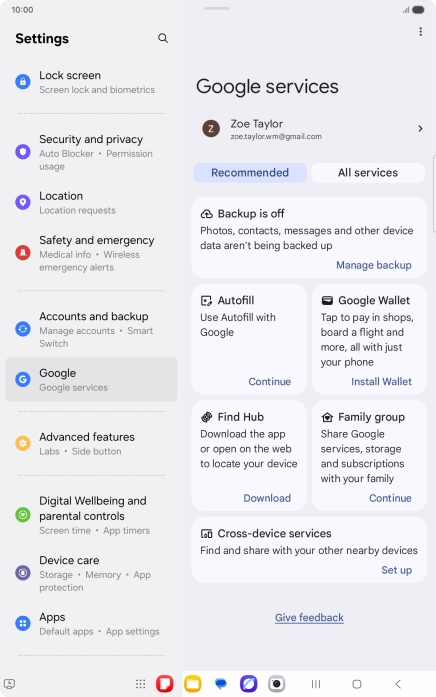
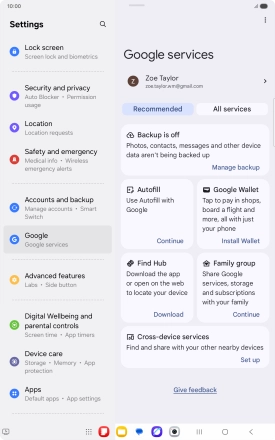
Press Google.
1. Find "Manage backup"
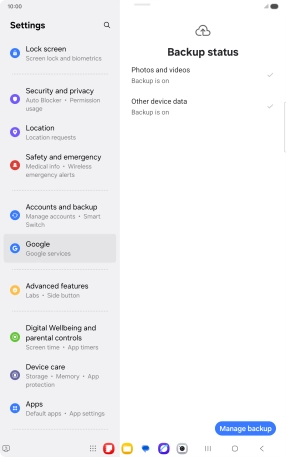
Press Manage backup.
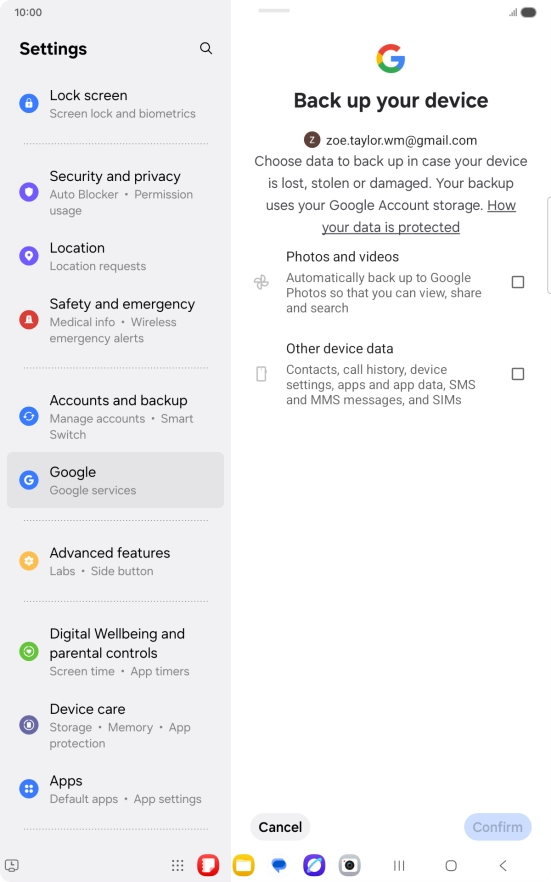
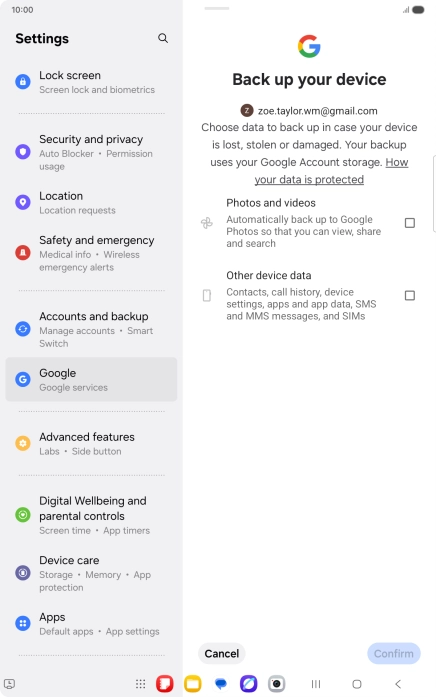
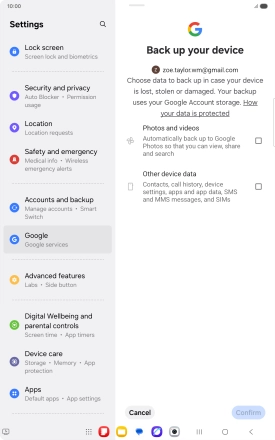
2. Select data types for backup
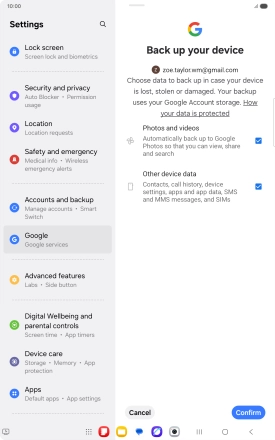
Press the fields next to the required data types to select them.
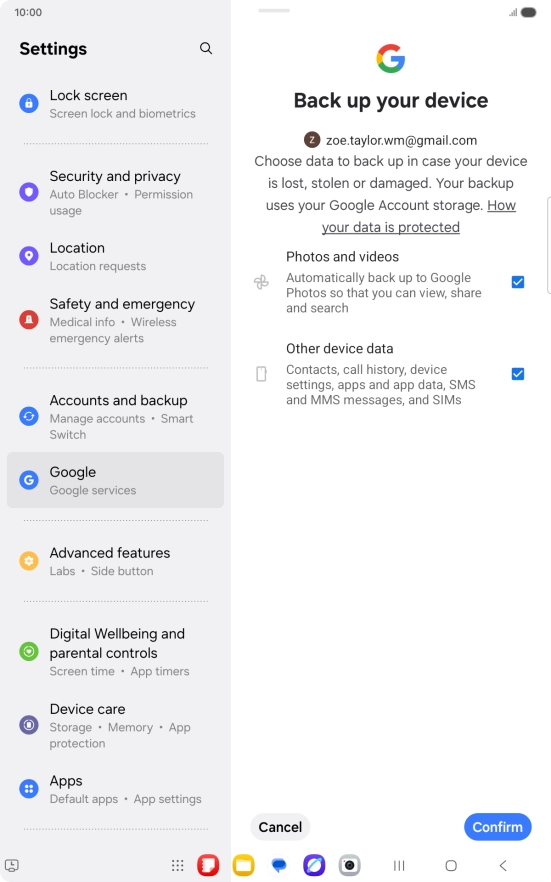
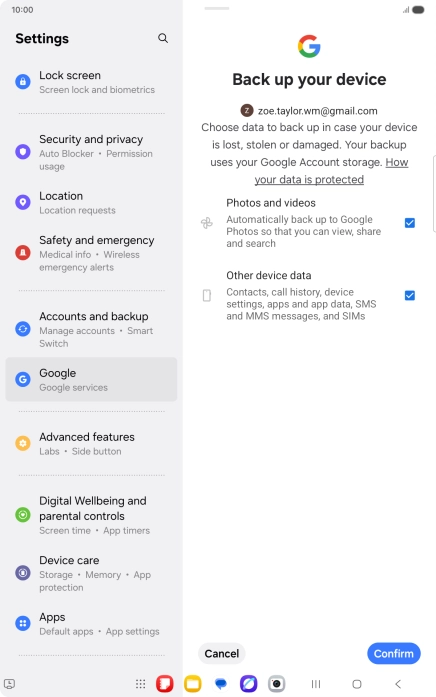
2. Select data types for backup
Press Confirm.
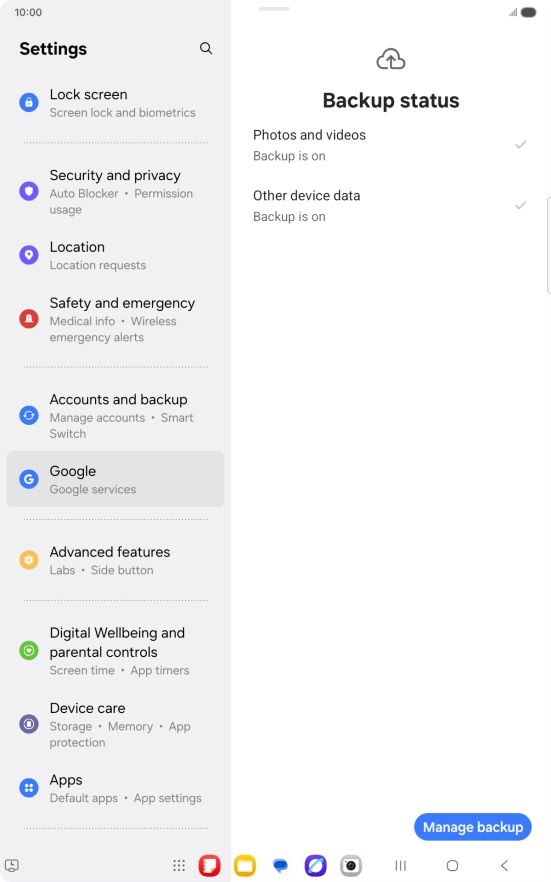
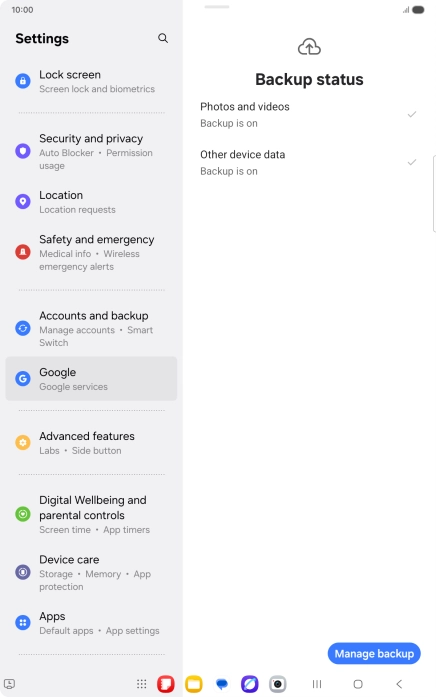
2. Select data types for backup
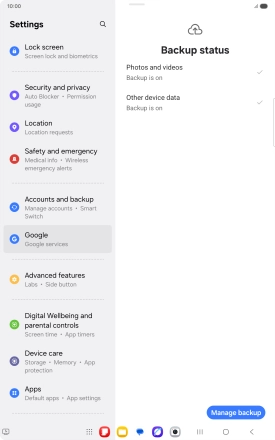
Press Manage backup.
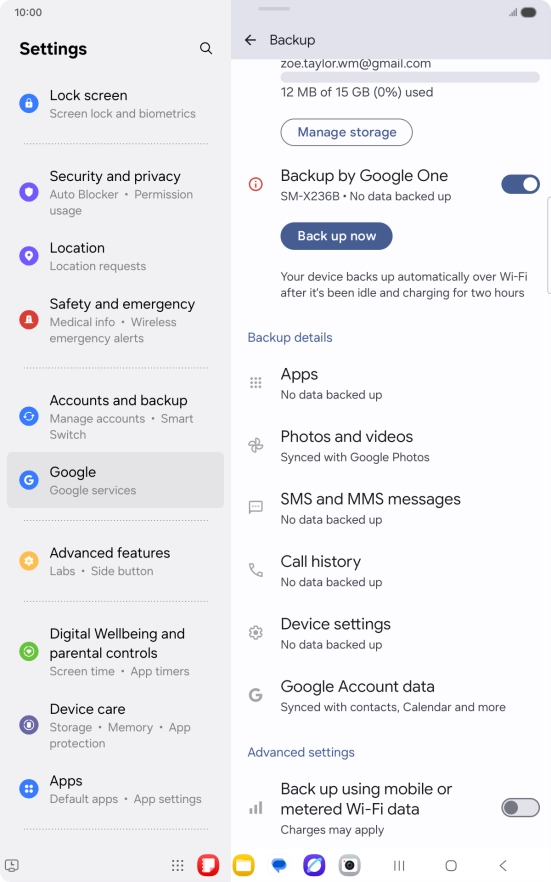
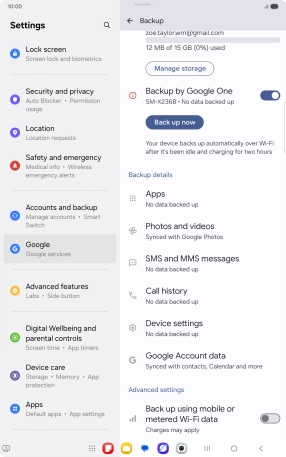
3. Turn on automatic Google One backup
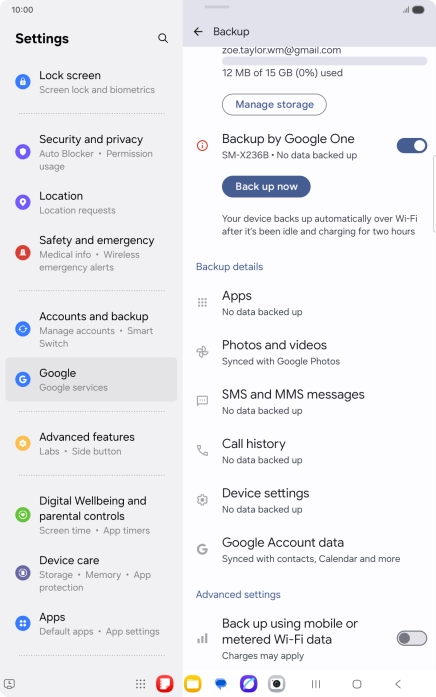
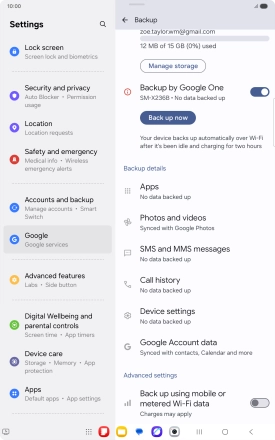
Press the indicator next to "Backup by Google One" to turn on the function.
4. Turn automatic back up using mobile network on or off
Press the indicator next to "Back up using mobile or metered Wi-Fi data" to turn the function on or off.
5. Back up memory to Google One
Press Back up now and wait while the memory is backed up.
6. Return to the home screen
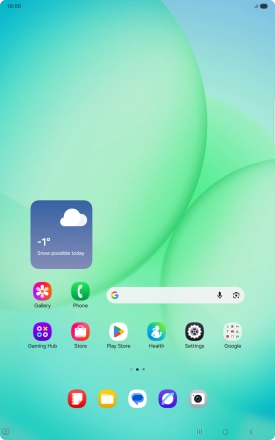
Press the Home key to return to the home screen.
1. Find "Manage backup"

2. Select data types for backup
3. Turn on automatic Google One backup
4. Turn automatic back up using mobile network on or off
5. Back up memory to Google One
6. Return to the home screen