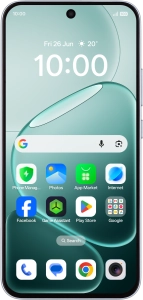
OPPO A6 Pro 5G
Android 16
1. Find "Backup"
Slide your finger downwards starting from the top right side of the screen.

Press the settings icon.

Press Google.

Press All services.

Press Backup.

2. Turn on backup
Press Turn on.
The phone memory will be backed up automatically when your phone is charging, the screen lock is turned on and a Wi-Fi connection is established.

3. Select data types for backup
Press the fields next to the required data types to select them.

Press Confirm.

4. Turn on automatic backup of pictures and videos via Google One
Press Photos and videos.

Press the indicator to turn on the function.

Press arrow left.

5. Turn on automatic backup of other data via Google One
Press Other device data.

Press the indicator next to "Back up other device data" to turn on the function.

6. Turn automatic back up using mobile network on or off
Press the indicator next to "Use mobile or metered Wi-Fi data" to turn the function on or off.
The phone memory will be backed up automatically using the mobile network when no Wi-Fi networks are within range.

Press arrow left.

7. Back up phone memory to Google One
To back up the phone memory to Google One immediately , press Back up now and wait while the phone memory is backed up.

8. Return to the home screen
Slide your finger upwards starting from the bottom of the screen to return to the home screen.


