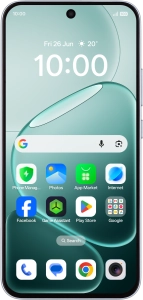
OPPO A6 Pro 5G

OPPO A6 Pro 5G

Android 16

Turn use of phone lock code on your OPPO A6 Pro 5G Android 16 on or off

Read help info

The phone lock code prevents others from accessing the contents of your phone (such as pictures and messages). When the phone lock code is turned on, it needs to be used every time you turn on your phone and when it has been in sleep mode.

Slide your finger downwards starting from the top right side of the screen.
Step 1 of 19

1. Find "Device unlock"

Slide your finger downwards starting from the top right side of the screen.

Press the settings icon.
Step 2 of 19

1. Find "Device unlock"

Press the settings icon.

Press Security and privacy.
Step 3 of 19

1. Find "Device unlock"

Press Security and privacy.

Press Device unlock.
Step 4 of 19

1. Find "Device unlock"

Press Device unlock.

Press Face and Fingerprint Unlock.
Step 5 of 19

2. Create phone lock code using a fingerprint

Press Face and Fingerprint Unlock.

Press Fingerprint.
Step 6 of 19

2. Create phone lock code using a fingerprint

Press Fingerprint.

Press Agree.
Step 7 of 19

2. Create phone lock code using a fingerprint

Press Agree.

Press Next.
Step 8 of 19

2. Create phone lock code using a fingerprint

Press Next.

Press the required phone lock code.
Step 9 of 19

2. Create phone lock code using a fingerprint

Press the required phone lock code.

Press Next and follow the instructions on the screen to create an additional phone lock code.
Step 10 of 19

2. Create phone lock code using a fingerprint

Press Next and follow the instructions on the screen to create an additional phone lock code.

Press Add now.
Step 11 of 19

2. Create phone lock code using a fingerprint

Press Add now.

Follow the instructions on the screen to create the phone lock code using your fingerprint.
Step 12 of 19

2. Create phone lock code using a fingerprint

Follow the instructions on the screen to create the phone lock code using your fingerprint.

Press Done.
Step 13 of 19

2. Create phone lock code using a fingerprint

Press Done.

Press the required setting.
Step 14 of 19

2. Create phone lock code using a fingerprint

Press the required setting.

Press arrow left twice.
Step 15 of 19

2. Create phone lock code using a fingerprint

Press arrow left twice.

Press Screen lock and key in the additional phone lock code you created earlier.
Step 16 of 19

3. Turn off use of phone lock code

Press Screen lock and key in the additional phone lock code you created earlier.

Press Turn off password.
Step 17 of 19

3. Turn off use of phone lock code

Press Turn off password.

Press Disable and key in the additional phone lock code you created earlier.
Step 18 of 19

3. Turn off use of phone lock code

Press Disable and key in the additional phone lock code you created earlier.

Slide your finger upwards starting from the bottom of the screen to return to the home screen.
Step 19 of 19

4. Return to the home screen

Slide your finger upwards starting from the bottom of the screen to return to the home screen.

1. Find "Device unlock"

Slide your finger downwards starting from the top right side of the screen.
Press the settings icon.
Press Security and privacy.
Press Device unlock.

2. Create phone lock code using a fingerprint

Press Face and Fingerprint Unlock.
Press Fingerprint.
Press Agree.
Press Next.
Press the required phone lock code.
Press Next and follow the instructions on the screen to create an additional phone lock code.
Press Add now.
Follow the instructions on the screen to create the phone lock code using your fingerprint.
Press Done.
Press the required setting.
Press arrow left twice.

3. Turn off use of phone lock code

Press Screen lock and key in the additional phone lock code you created earlier.
Press Turn off password.
Press Disable and key in the additional phone lock code you created earlier.

4. Return to the home screen

Slide your finger upwards starting from the bottom of the screen to return to the home screen.

Get information on...

Or choose...

Another device