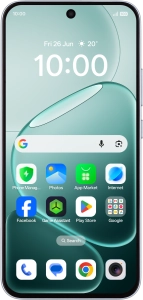
OPPO A6 Pro 5G

OPPO A6 Pro 5G

Android 16

Use dark mode on your OPPO A6 Pro 5G Android 16

Read help info

You can set your phone to use a dark theme so you can use your phone in dark surroundings and not inconvenience other people. Furthermore, you can create a schedule for automatic change of theme at certain times.

Slide your finger downwards starting from the top right side of the screen.
Step 1 of 9

1. Find "Display & brightness"

Slide your finger downwards starting from the top right side of the screen.

Press the settings icon.
Step 2 of 9

1. Find "Display & brightness"

Press the settings icon.

Press Display & brightness.
Step 3 of 9

1. Find "Display & brightness"

Press Display & brightness.

Press Dark mode.
Step 4 of 9

2. Turn on dark mode

Press Dark mode.

Press Scheduled.
Step 5 of 9

3. Turn automatic dark mode activation on or off

Press Scheduled.

Press the indicator next to
Step 6 of 9

3. Turn automatic dark mode activation on or off

Press the indicator next to "Scheduled" to turn the function on or off.

Press the required setting.
Step 7 of 9

3. Turn automatic dark mode activation on or off

Press the required setting.

If you select Custom, follow the instructions on the screen to select the required period of time for dark mode.
Step 8 of 9

3. Turn automatic dark mode activation on or off

If you select Custom, follow the instructions on the screen to select the required period of time for dark mode.

Slide your finger upwards starting from the bottom of the screen to return to the home screen.
Step 9 of 9

4. Return to the home screen

Slide your finger upwards starting from the bottom of the screen to return to the home screen.

1. Find "Display & brightness"

Slide your finger downwards starting from the top right side of the screen.
Press the settings icon.
Press Display & brightness.

2. Turn on dark mode

Press Dark mode.

3. Turn automatic dark mode activation on or off

Press Scheduled.
Press the indicator next to "Scheduled" to turn the function on or off.
Press the required setting.
If you select Custom, follow the instructions on the screen to select the required period of time for dark mode.

4. Return to the home screen

Slide your finger upwards starting from the bottom of the screen to return to the home screen.

Get information on...

Or choose...

Another device