Choose a help topic
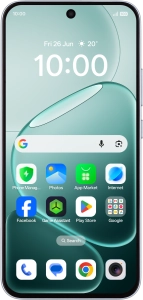
Insert memory card into your OPPO A6 Pro 5G Android 16
The memory card gives you additional space for saving apps, music, videos clips etc.
Registered in England and Wales. Company No 01471587. Registered Office: Vodafone House, The Connection, Newbury, Berkshire, RG14 2FN.
*Annual Price Increase: The monthly cost will increase each year on 1 April by £2.50 for Pay monthly plans with Airtime/Data, and £3.50 for Home Broadband plans. This doesn't affect Device Plans. More information: vodafone.co.uk/pricechanges
© 2026 Vodafone Limited is authorised and regulated by the Financial Conduct Authority for consumer credit lending and insurance distribution activity (Financial Services Register No. 712210)