OPPO A6 Pro 5G

OPPO A6 Pro 5G

Android 16

Clear browser data on your OPPO A6 Pro 5G Android 16

Read help info

When you use your phone's internet browser, various data is stored temporarily in the browser memory, such as cache and cookies. If you have problems loading web pages, deleting this data may help.

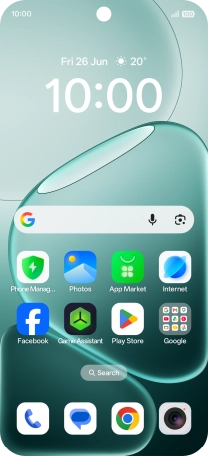
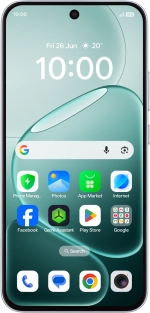
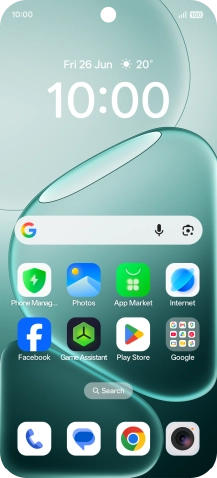
Slide your finger upwards on the screen.
Step 1 of 9

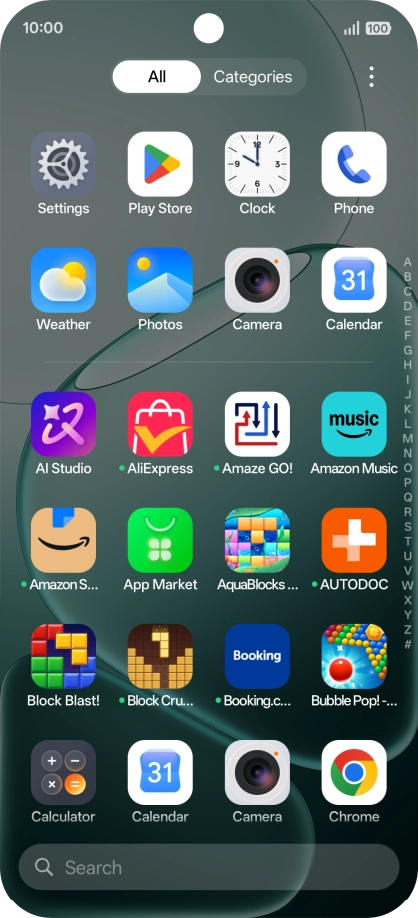
1. Find "Chrome"

Slide your finger upwards on the screen.
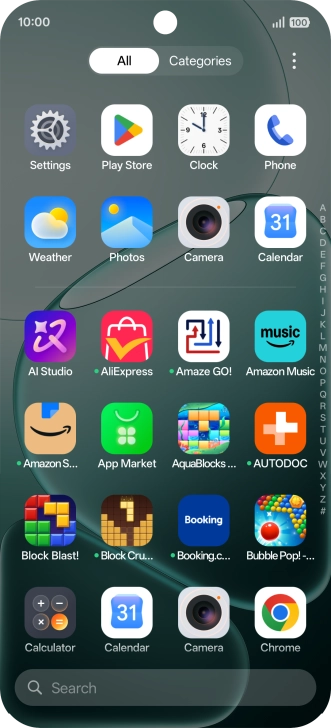
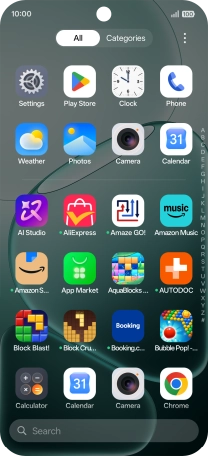
Press Chrome.
Step 2 of 9

1. Find "Chrome"

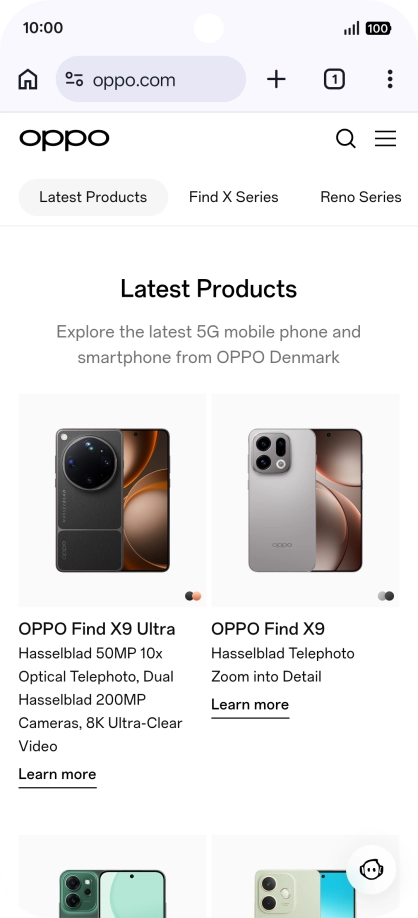
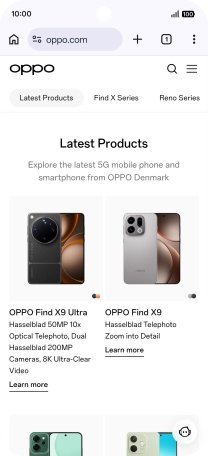
Press Chrome.

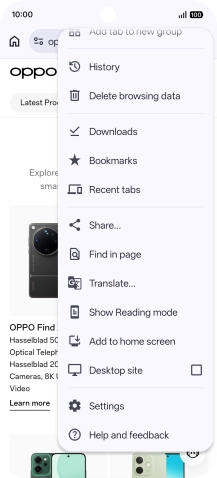
Press the menu icon.
Step 3 of 9

2. Clear browser data

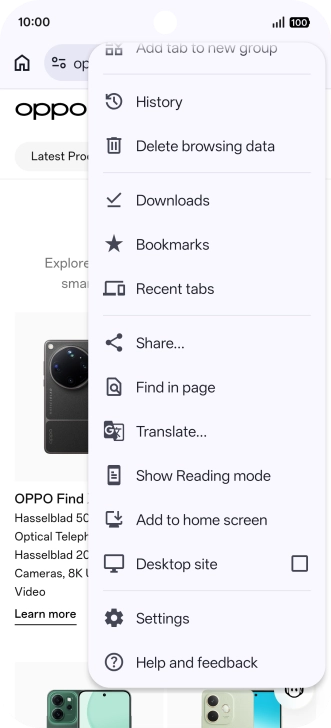
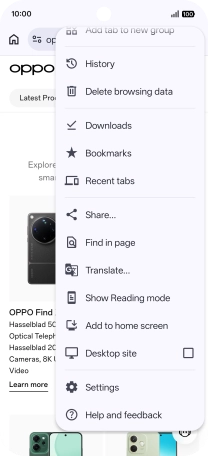
Press the menu icon.

Press Settings.
Step 4 of 9

2. Clear browser data

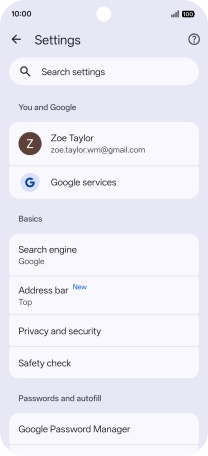
Press Settings.

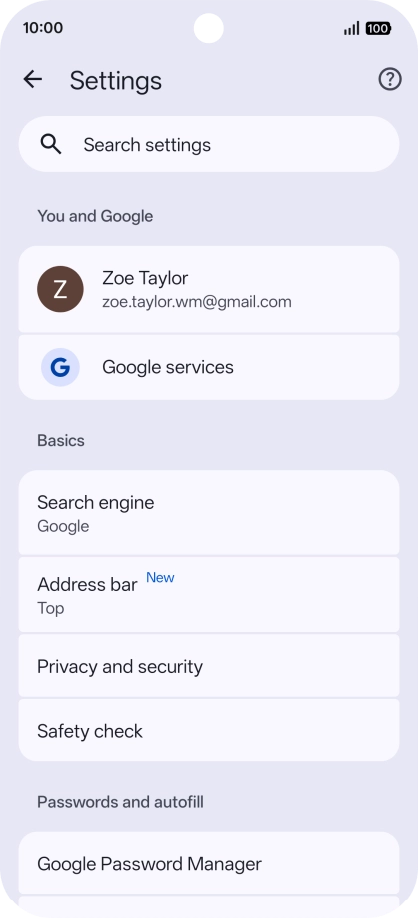
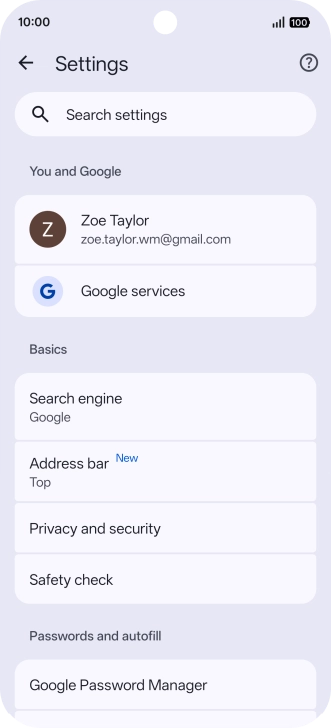
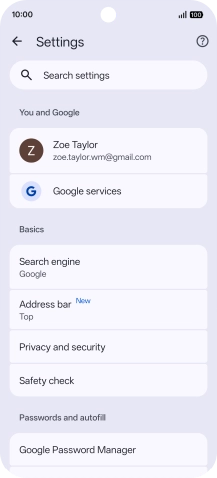
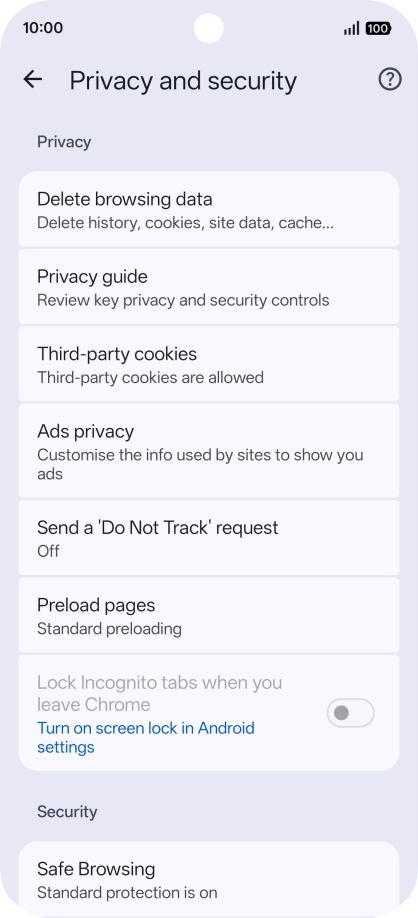
Press Privacy and security.
Step 5 of 9

2. Clear browser data

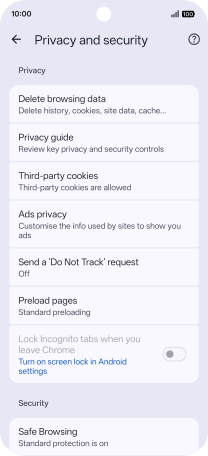
Press Privacy and security.

Press Delete browsing data.
Step 6 of 9

2. Clear browser data

Press Delete browsing data.

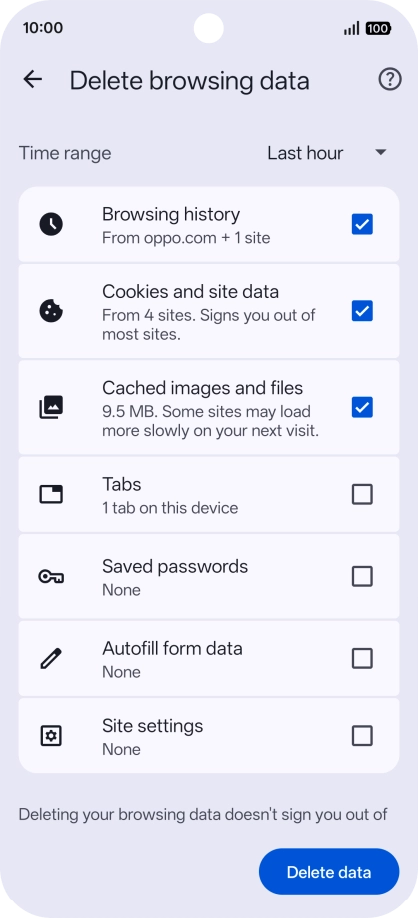
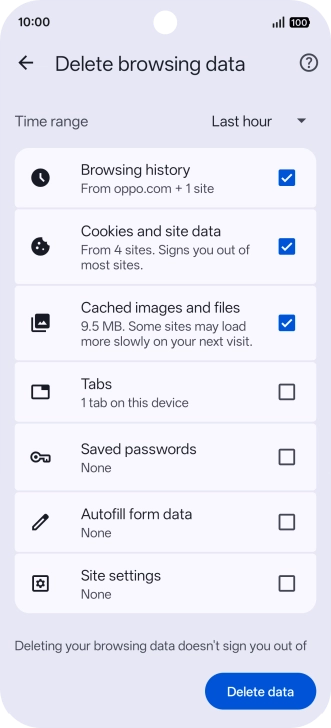
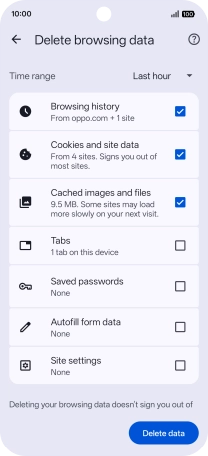
Press the fields next to the required data types.
Step 7 of 9

2. Clear browser data

Press the fields next to the required data types.

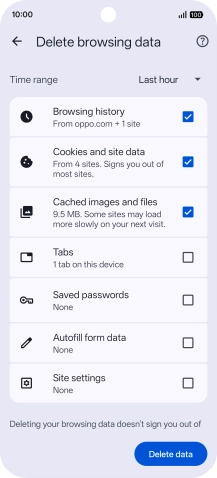
Press Delete data.
Step 8 of 9

2. Clear browser data

Press Delete data.

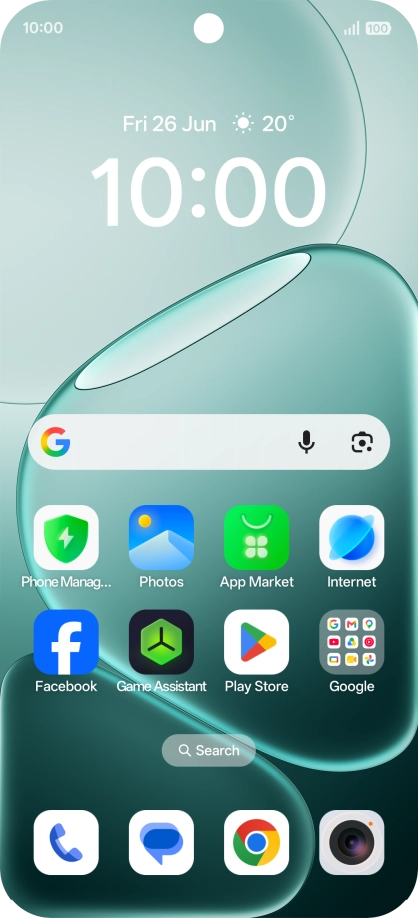
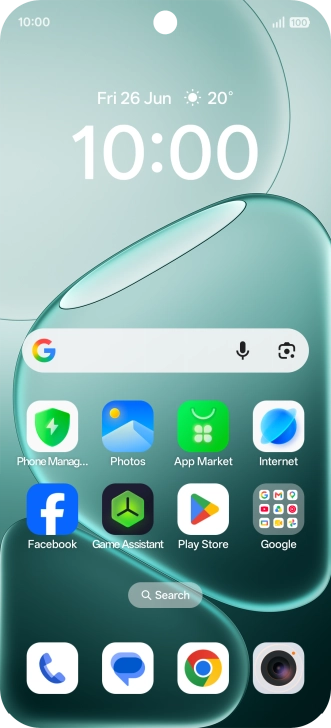
Slide your finger upwards starting from the bottom of the screen to return to the home screen.
Step 9 of 9

3. Return to the home screen

Slide your finger upwards starting from the bottom of the screen to return to the home screen.

1. Find "Chrome"

Slide your finger upwards on the screen.
Press Chrome.

2. Clear browser data

Press the menu icon.
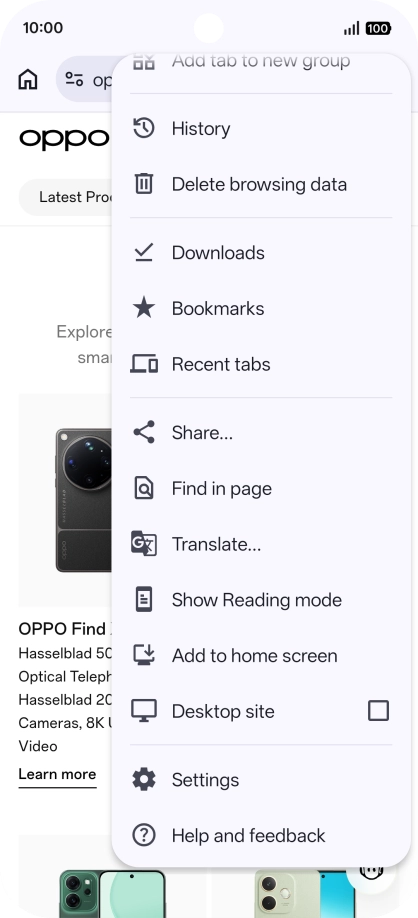
Press Settings.
Press Privacy and security.
Press Delete browsing data.
Press the fields next to the required data types.
Press Delete data.

3. Return to the home screen

Slide your finger upwards starting from the bottom of the screen to return to the home screen.

Get information on...

Or choose...

Another device