OPPO A6 Pro 5G

OPPO A6 Pro 5G

Android 16

View app activity on your OPPO A6 Pro 5G Android 16

Read help info

Your phone saves information about what data your apps have had access to during the last period of time.

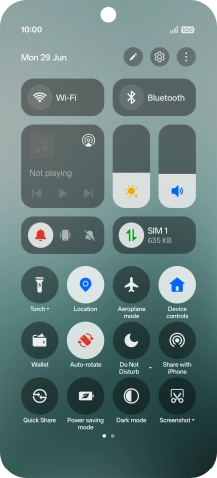
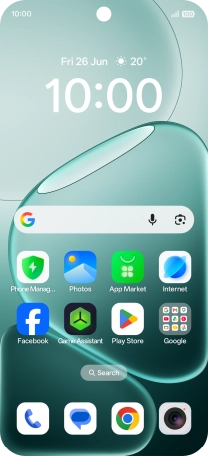
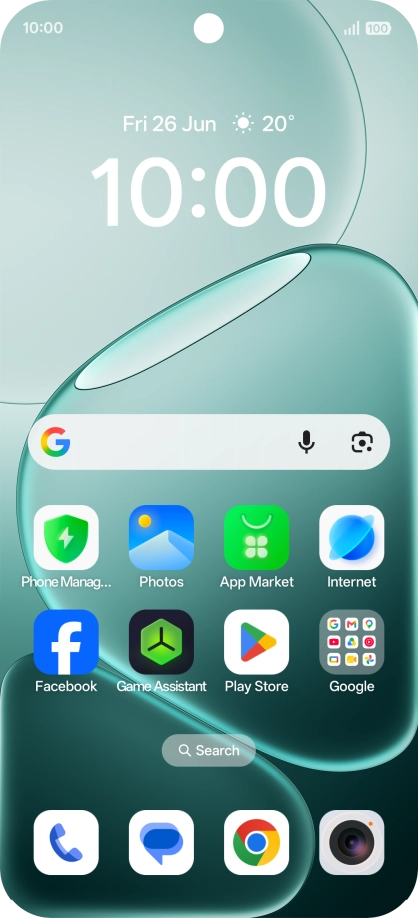
Slide your finger downwards starting from the top right side of the screen.
Step 1 of 9

1. Find "Privacy dashbord"

Slide your finger downwards starting from the top right side of the screen.
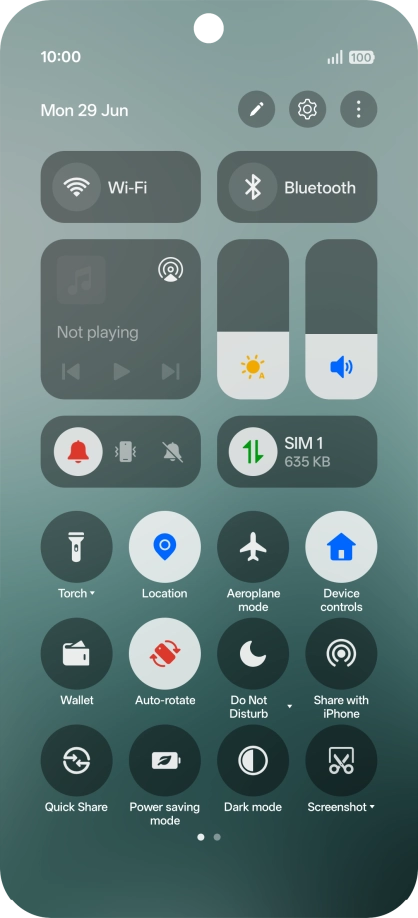
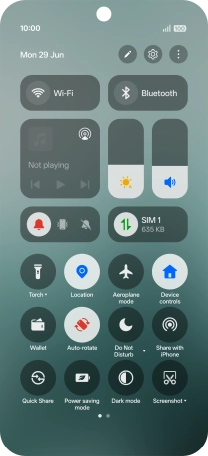
Press the settings icon.
Step 2 of 9

1. Find "Privacy dashbord"

Press the settings icon.

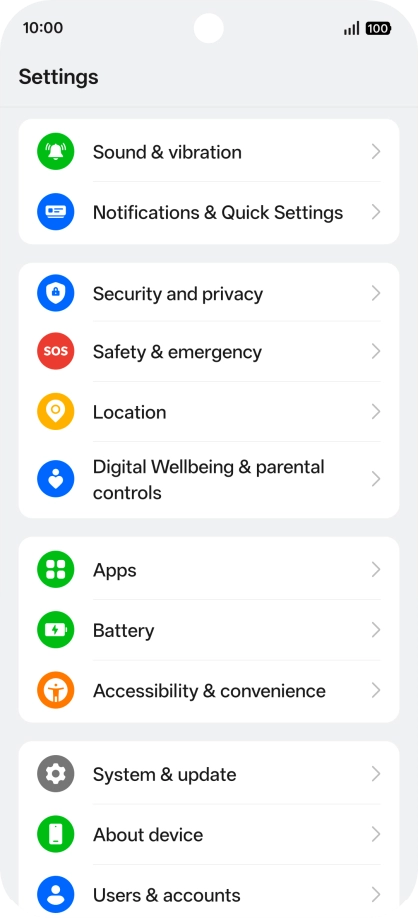
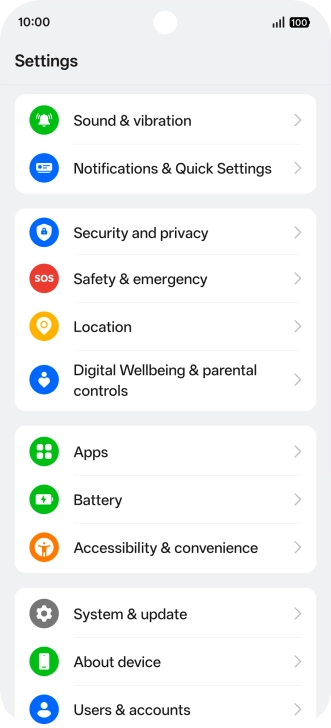
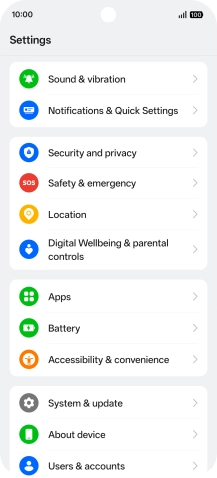
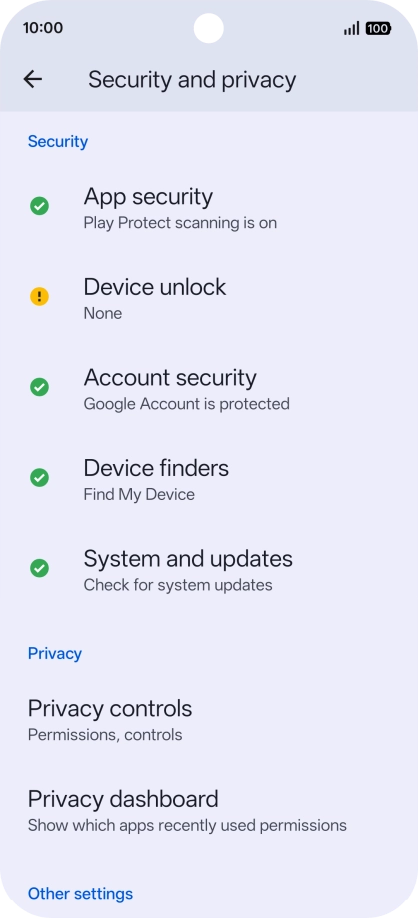
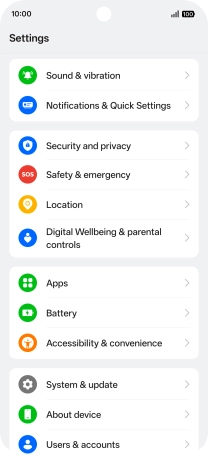
Press Security and privacy.
Step 3 of 9

1. Find "Privacy dashbord"

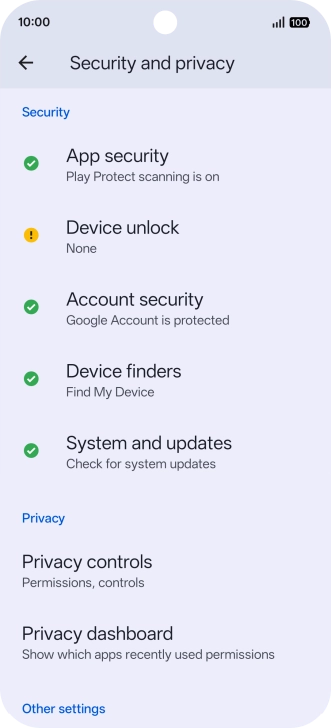
Press Security and privacy.

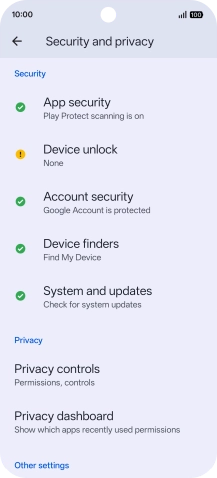
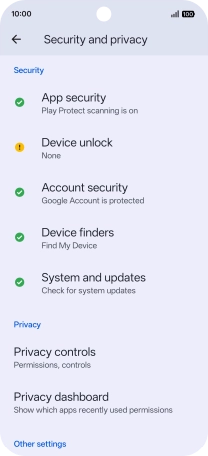
Press Privacy dashbord.
Step 4 of 9

1. Find "Privacy dashbord"

Press Privacy dashbord.

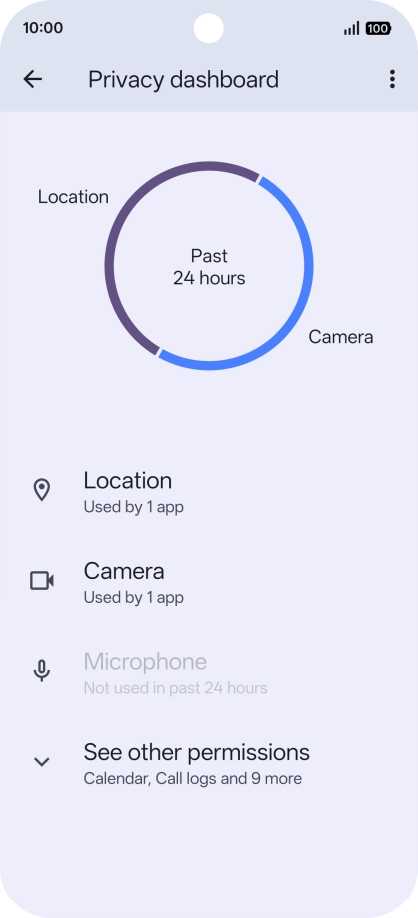
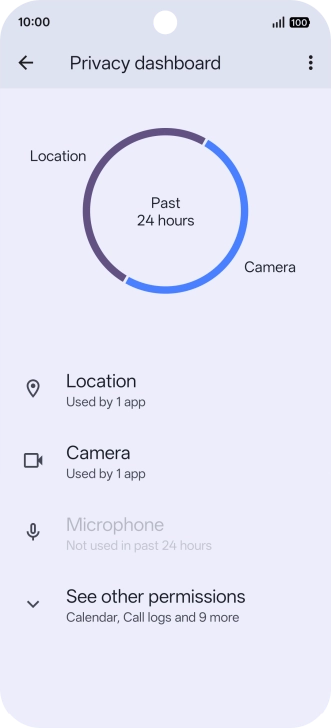
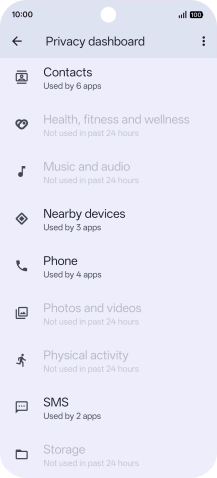
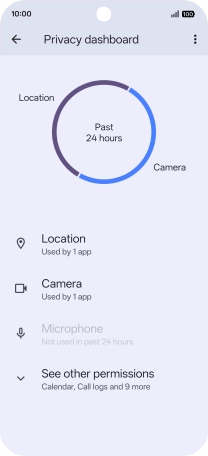
The total app activity for the last 24 hours is displayed.
Step 5 of 9

2. View app activity

The total app activity for the last 24 hours is displayed.

Press See other permissions.
Step 6 of 9

2. View app activity

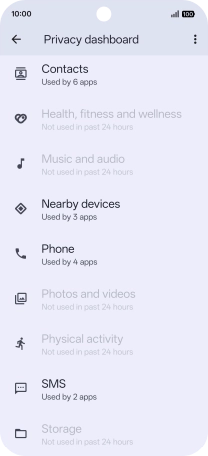
Press See other permissions.

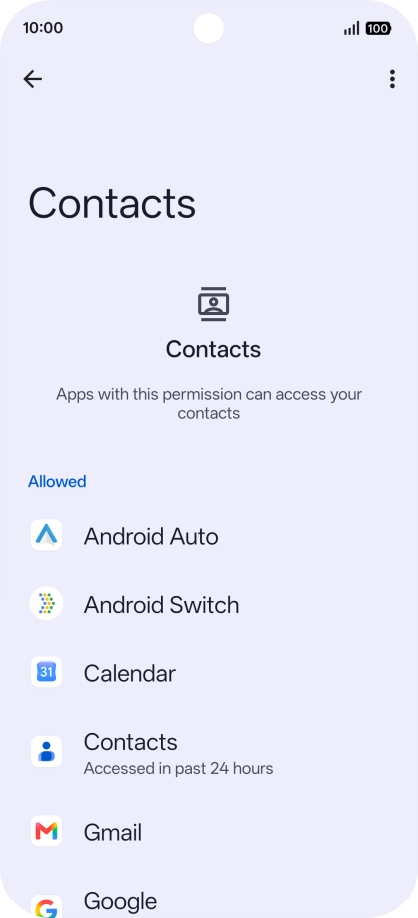
Press the required app.
Step 7 of 9

2. View app activity

Press the required app.

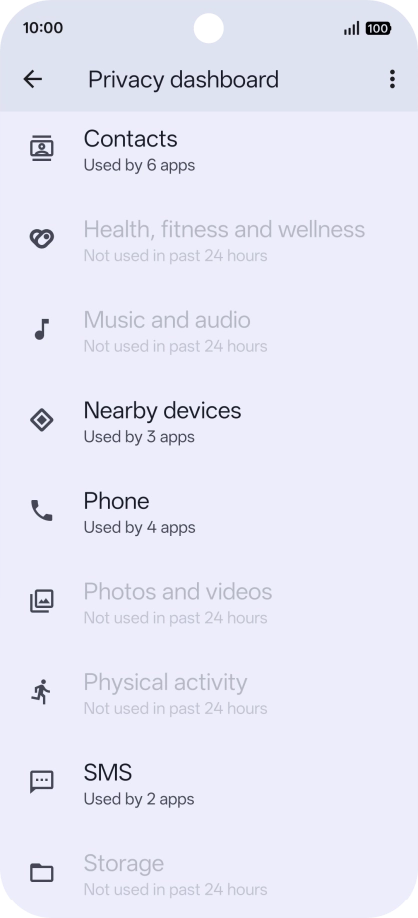
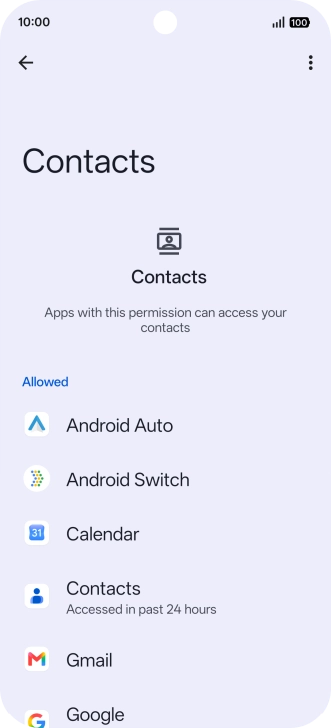
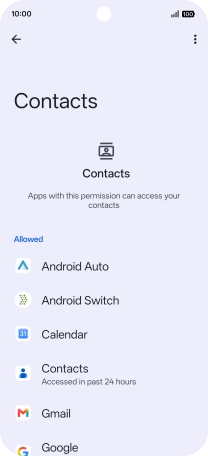
The app activity for the selected app is displayed.
Step 8 of 9

2. View app activity

The app activity for the selected app is displayed.

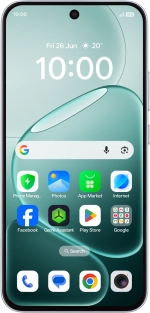
Slide your finger upwards starting from the bottom of the screen to return to the home screen.
Step 9 of 9

3. Return to the home screen

Slide your finger upwards starting from the bottom of the screen to return to the home screen.

1. Find "Privacy dashbord"

Slide your finger downwards starting from the top right side of the screen.
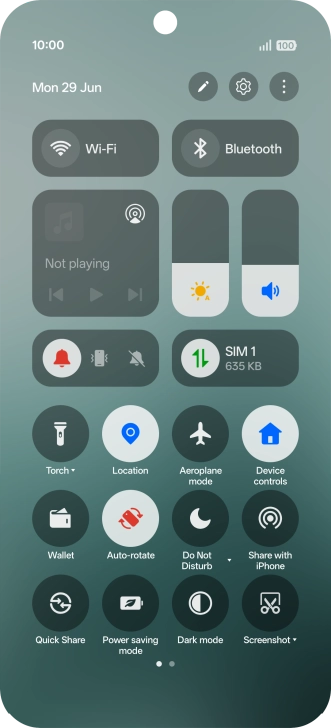
Press the settings icon.
Press Security and privacy.
Press Privacy dashbord.

2. View app activity

The total app activity for the last 24 hours is displayed.
Press See other permissions.
Press the required app.
The app activity for the selected app is displayed.

3. Return to the home screen

Slide your finger upwards starting from the bottom of the screen to return to the home screen.

Get information on...

Or choose...

Another device