OPPO A6 Pro 5G

OPPO A6 Pro 5G

Android 16

Select help function settings on your OPPO A6 Pro 5G Android 16

Read help info

You can select various accessibility settings for screen, sound and interaction making it easier to use the phone functions.

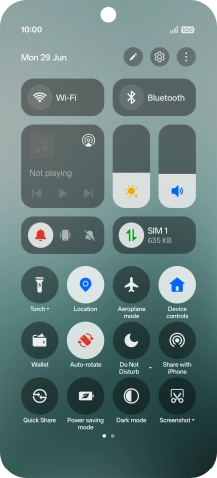
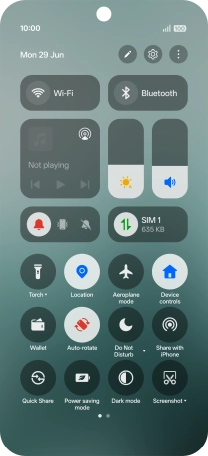
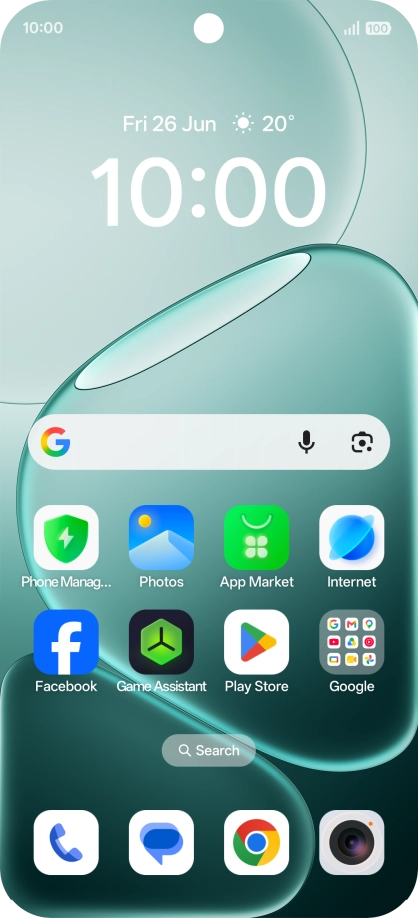
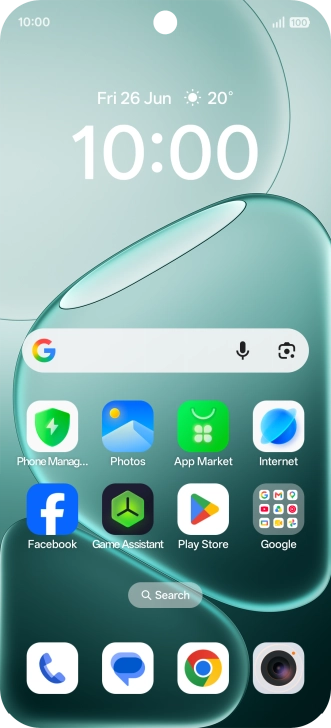
Slide your finger downwards starting from the top right side of the screen.
Step 1 of 9

1. Find "Accessibility"

Slide your finger downwards starting from the top right side of the screen.
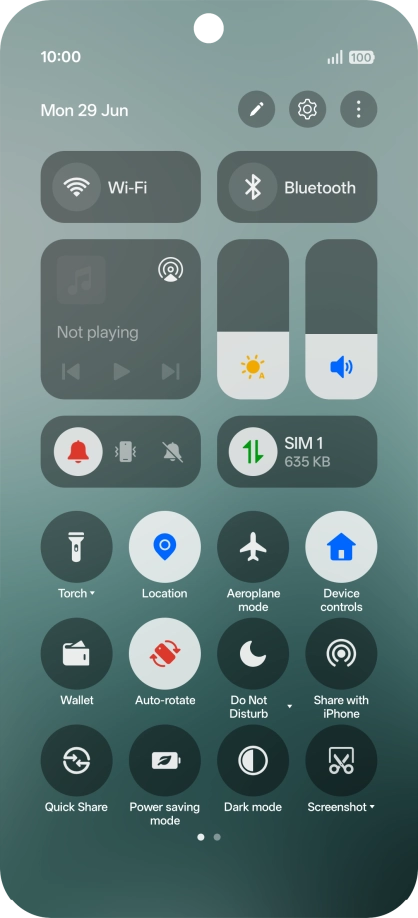
Press the settings icon.
Step 2 of 9

1. Find "Accessibility"

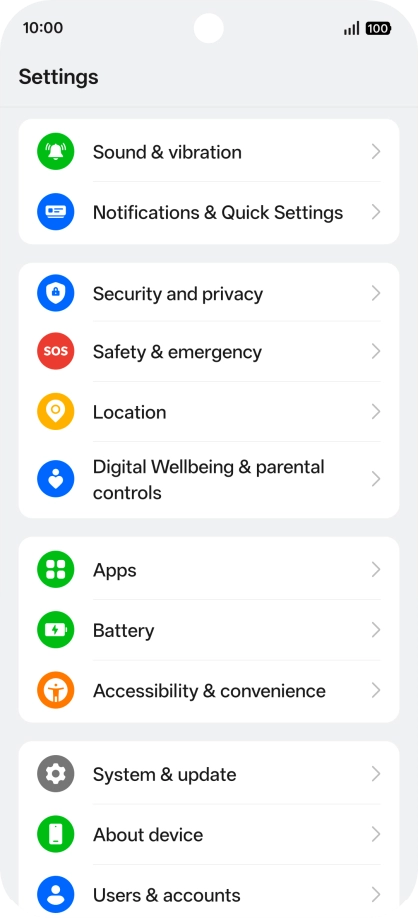
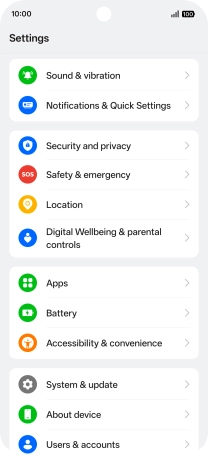
Press the settings icon.

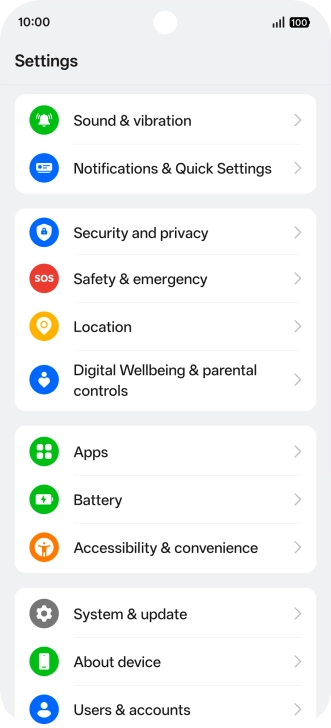
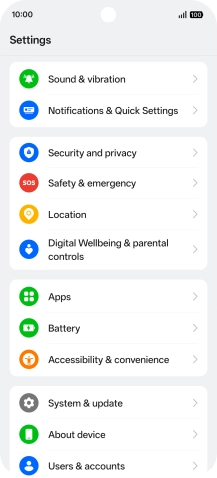
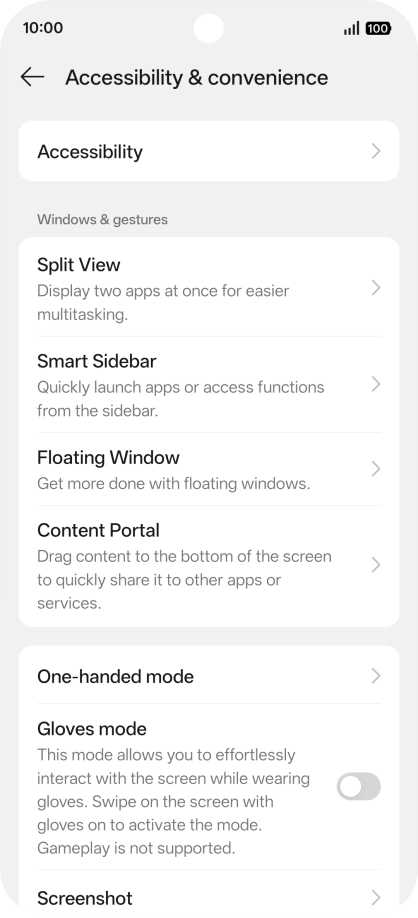
Press Accessibility & convenience.
Step 3 of 9

1. Find "Accessibility"

Press Accessibility & convenience.

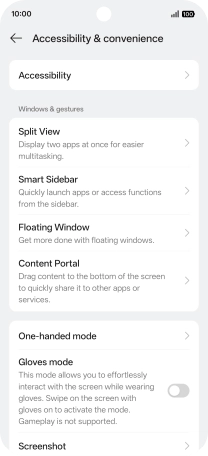
Press Accessibility.
Step 4 of 9

1. Find "Accessibility"

Press Accessibility.

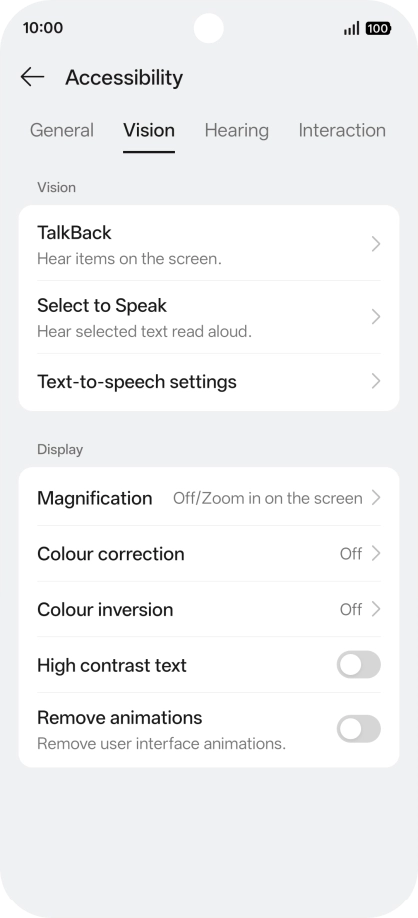
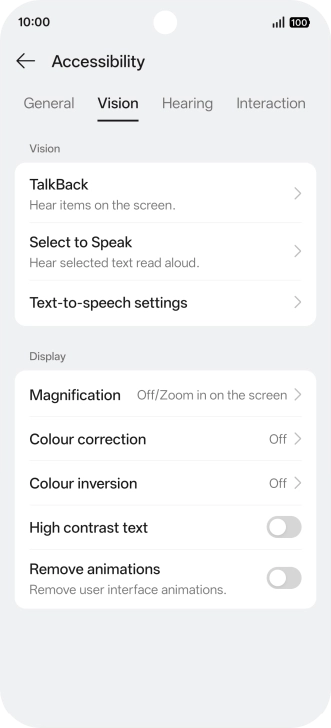
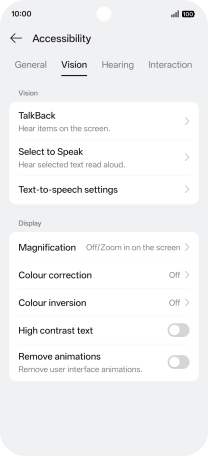
Press Vision and follow the instructions on the screen to select the required settings.
Step 5 of 9

2. Select screen visibility settings

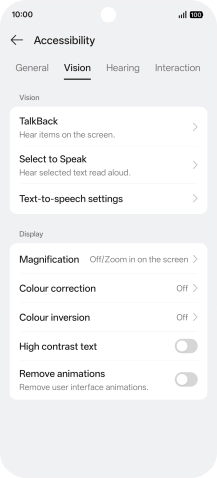
Press Vision and follow the instructions on the screen to select the required settings.

You can set your phone to change contrast, colour, font size and select settings for text reading.
Press Hearing and follow the instructions on the screen to select the required settings.
Step 6 of 9

3. Select sound adjustment settings

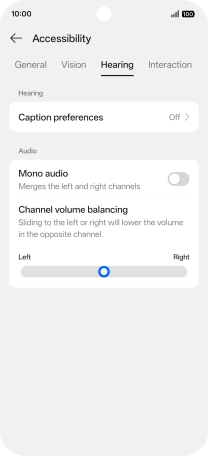
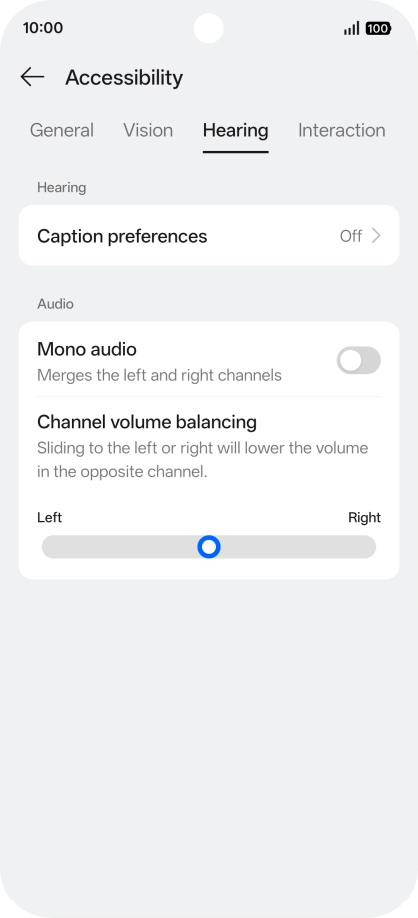
Press Hearing and follow the instructions on the screen to select the required settings.

You can select different sound enhancement settings on your phone and turn on word transcription and subtitle generation during media playback.
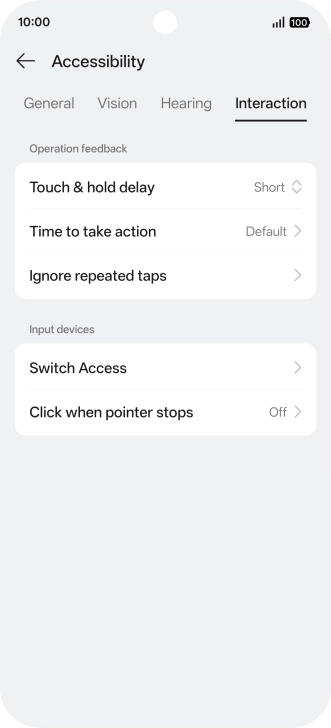
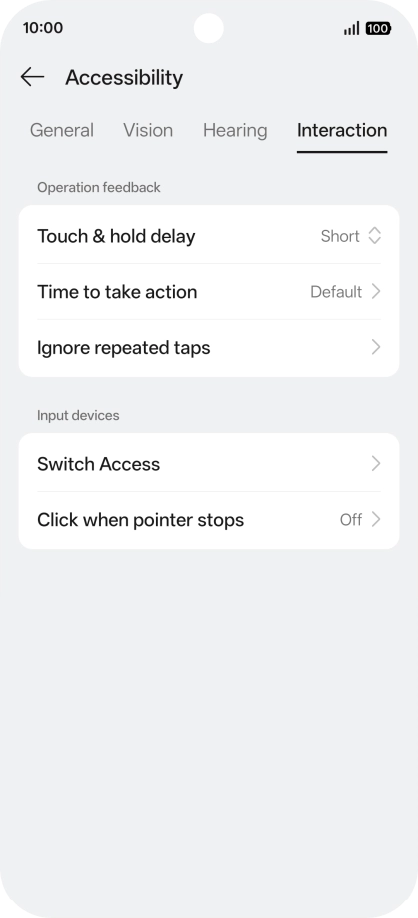
Press Interaction and follow the instructions on the screen to select the required settings.
Step 7 of 9

4. Select interaction control settings

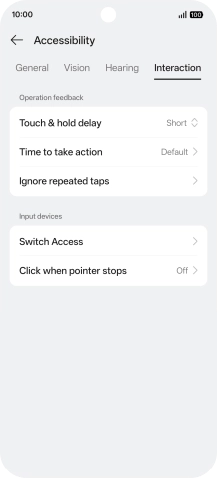
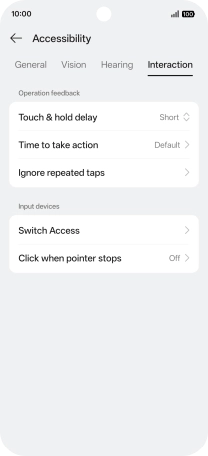
Press Interaction and follow the instructions on the screen to select the required settings.

You can select different interaction control settings on your phone, e.g. voice control and dexterity.
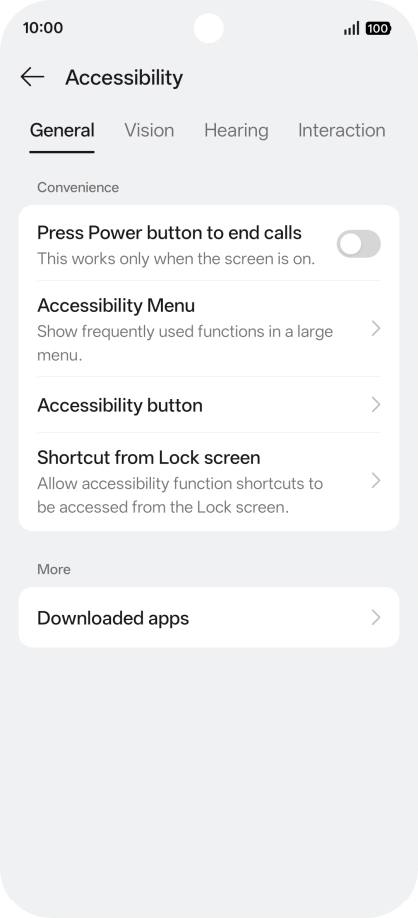
Press General and follow the instructions on the screen to select the required settings.
Step 8 of 9

5. Select more settings

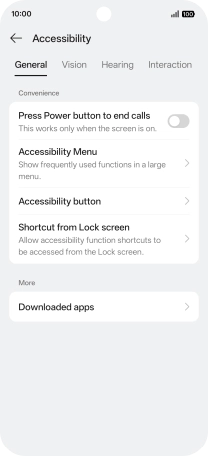
Press General and follow the instructions on the screen to select the required settings.

You can select more help function settings, e.g. turn display of shortcut key for the help function menu on or off and assign certain functions to the phone keys.
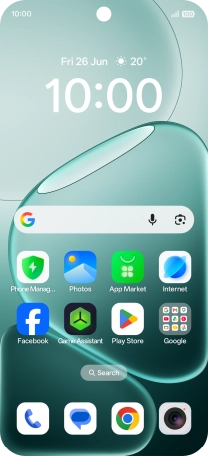
Slide your finger upwards starting from the bottom of the screen to return to the home screen.
Step 9 of 9

6. Return to the home screen

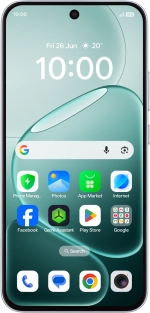
Slide your finger upwards starting from the bottom of the screen to return to the home screen.

1. Find "Accessibility"

Slide your finger downwards starting from the top right side of the screen.
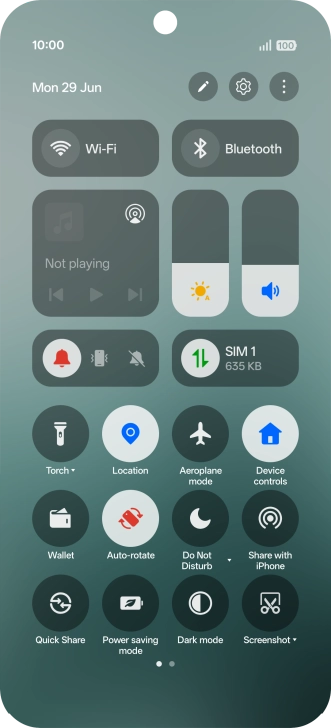
Press the settings icon.
Press Accessibility & convenience.
Press Accessibility.

2. Select screen visibility settings

Press Vision and follow the instructions on the screen to select the required settings.
You can set your phone to change contrast, colour, font size and select settings for text reading.

3. Select sound adjustment settings

Press Hearing and follow the instructions on the screen to select the required settings.
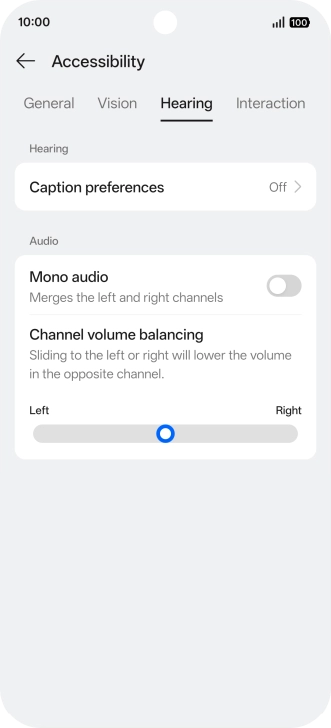
You can select different sound enhancement settings on your phone and turn on word transcription and subtitle generation during media playback.

4. Select interaction control settings

Press Interaction and follow the instructions on the screen to select the required settings.
You can select different interaction control settings on your phone, e.g. voice control and dexterity.

5. Select more settings

Press General and follow the instructions on the screen to select the required settings.
You can select more help function settings, e.g. turn display of shortcut key for the help function menu on or off and assign certain functions to the phone keys.

6. Return to the home screen

Slide your finger upwards starting from the bottom of the screen to return to the home screen.

Get information on...

Or choose...

Another device