OPPO A6 Pro 5G

OPPO A6 Pro 5G

Android 16

Select message tone on your OPPO A6 Pro 5G Android 16

Read help info

You can select the message tone you want to hear when you get a message.

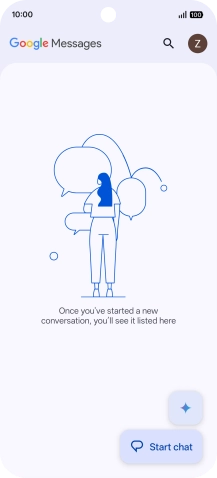
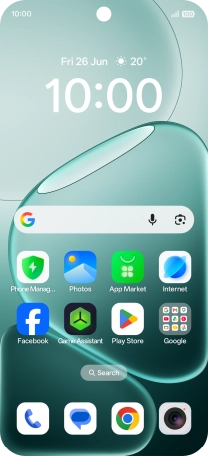
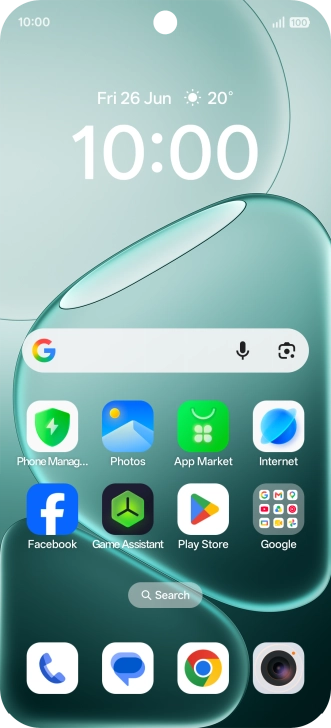
Press the message icon.
Step 1 of 11

1. Find "Incoming messages"

Press the message icon.
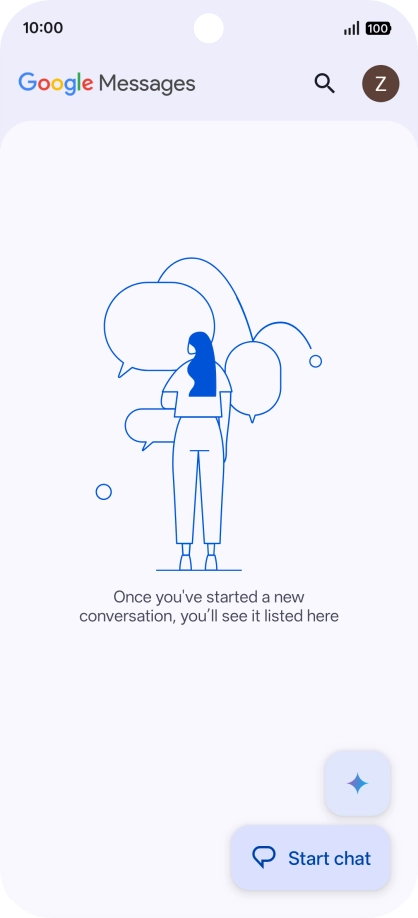
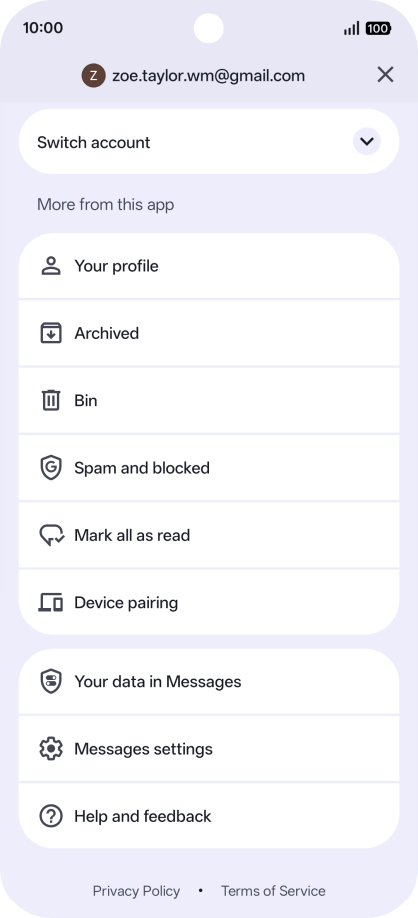
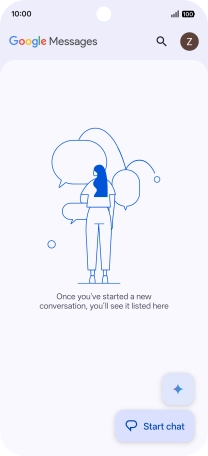
Press the profile icon.
Step 2 of 11

1. Find "Incoming messages"

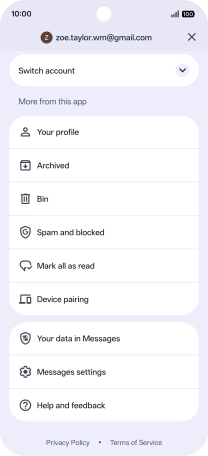
Press the profile icon.

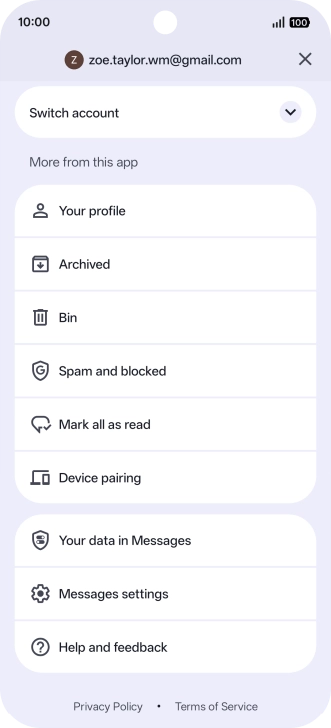
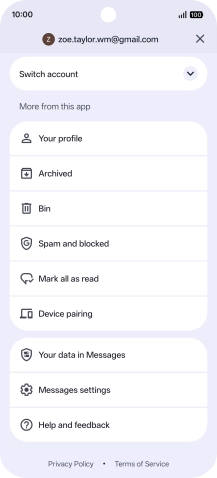
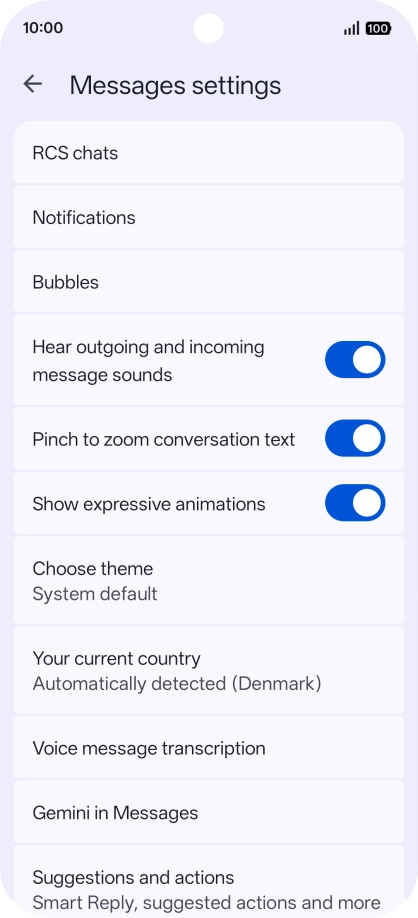
Press Messages settings.
Step 3 of 11

1. Find "Incoming messages"

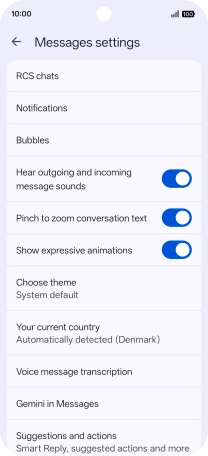
Press Messages settings.

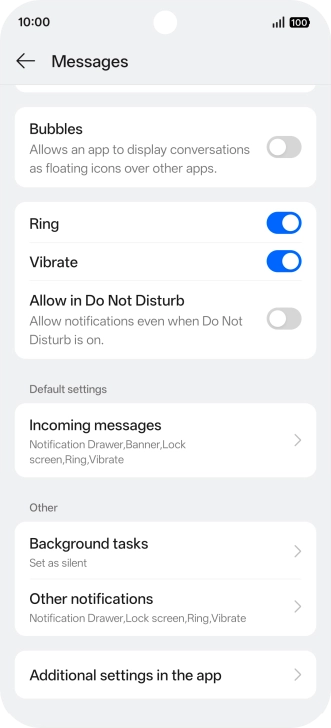
Press Notifications.
Step 4 of 11

1. Find "Incoming messages"

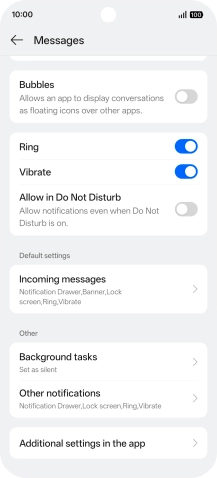
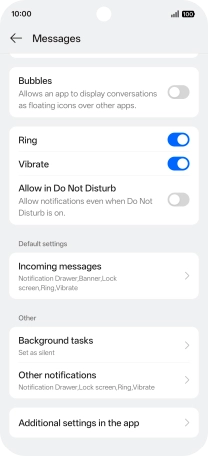
Press Notifications.

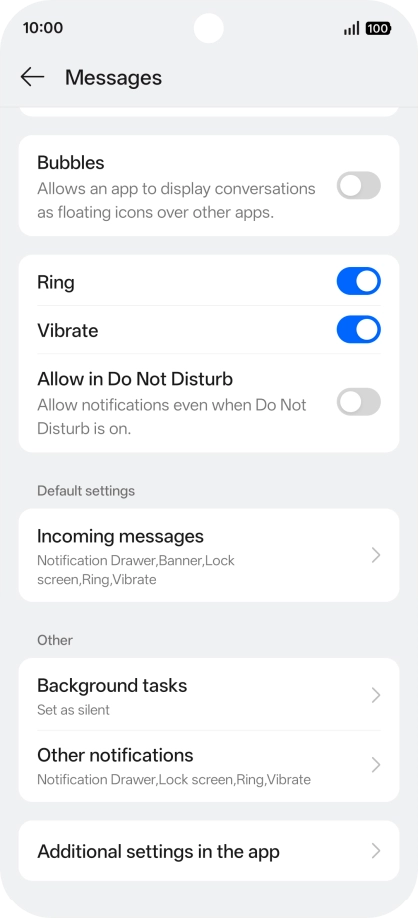
Press Incoming messages.
Step 5 of 11

1. Find "Incoming messages"

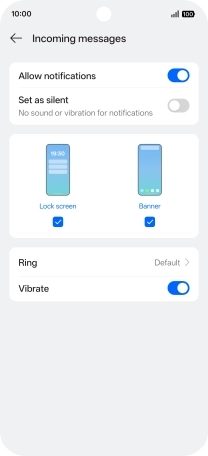
Press Incoming messages.

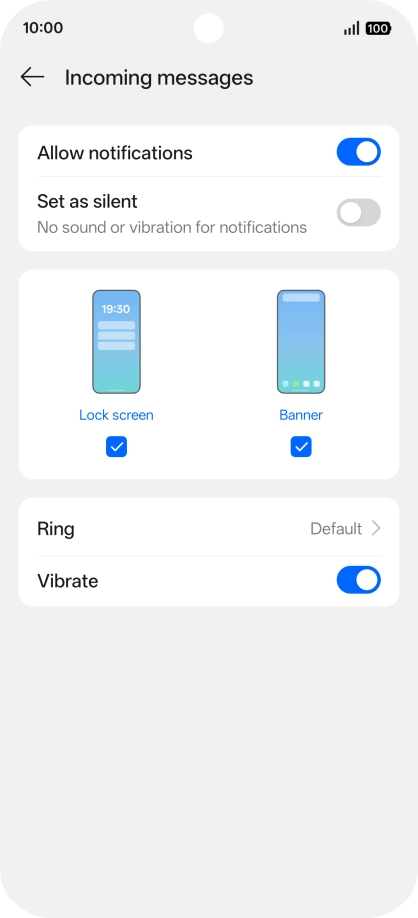
Press the indicator next to
Step 6 of 11

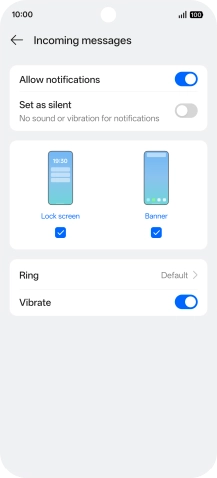
2. Turn on message notifications

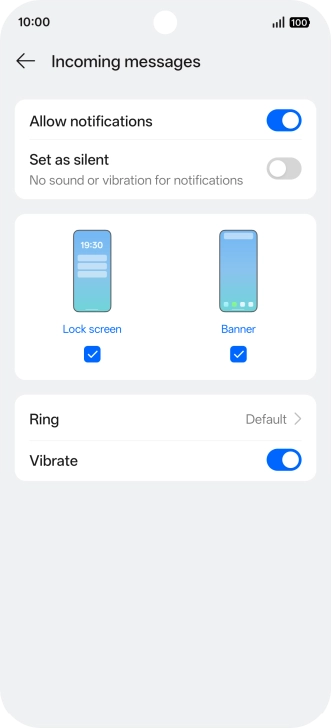
Press the indicator next to "Allow notifications" to turn on the function.

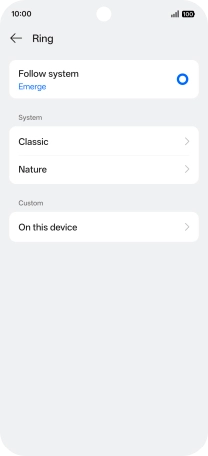
Press Ring.
Step 7 of 11

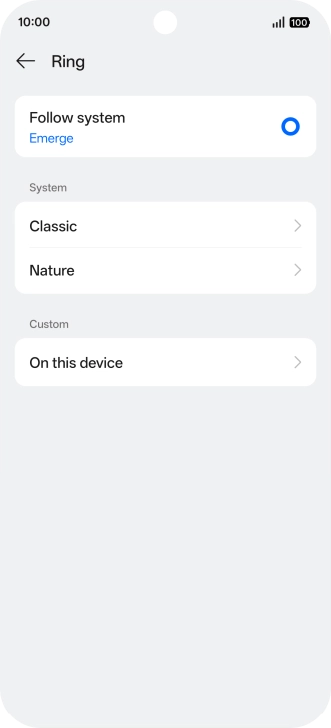
3. Select message tone

Press Ring.

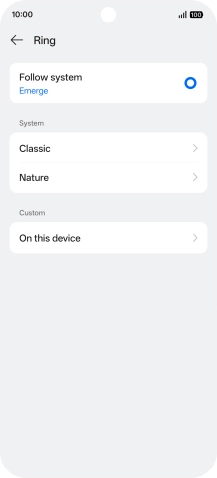
Press the required category.
Step 8 of 11

3. Select message tone

Press the required category.

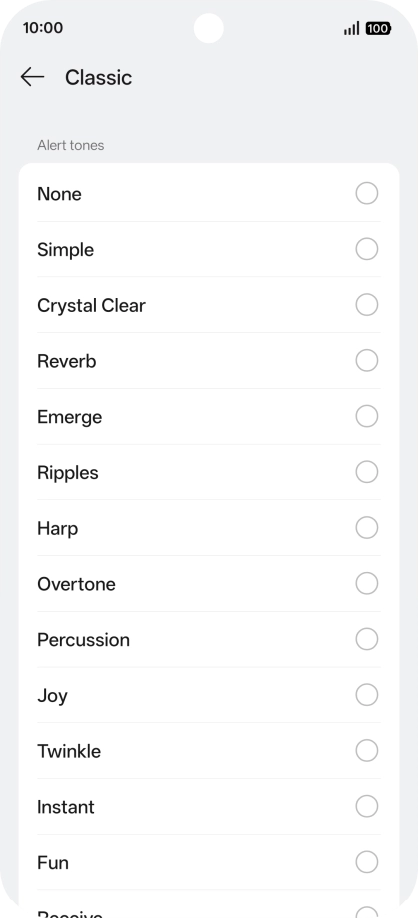
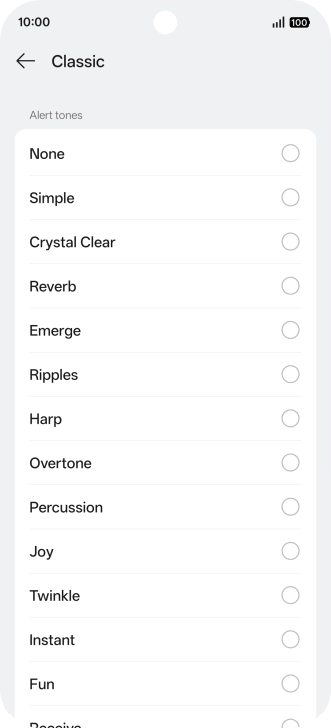
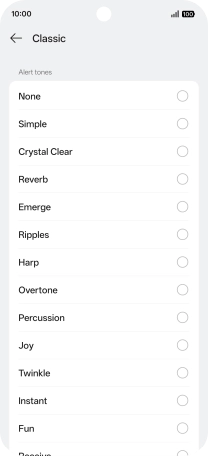
Press the required message tones to hear them.
Step 9 of 11

3. Select message tone

Press the required message tones to hear them.

Once you've found a message tone you like, press arrow left.
Step 10 of 11

3. Select message tone

Once you've found a message tone you like, press arrow left.

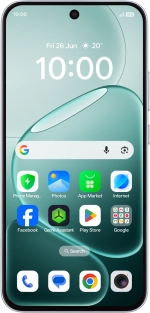
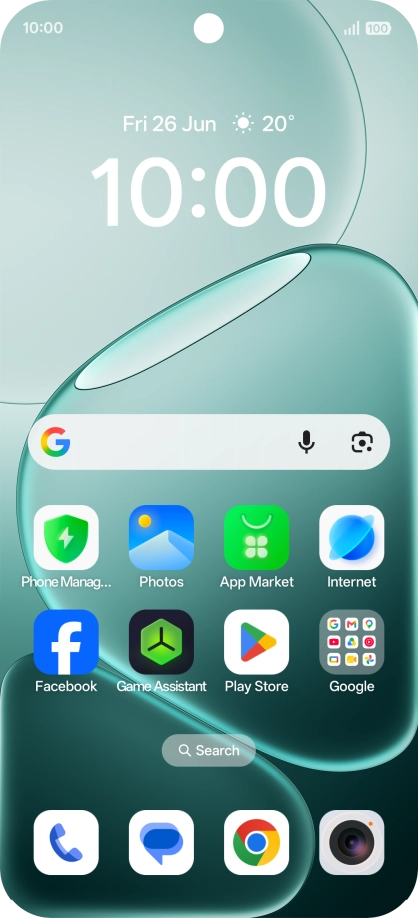
Slide your finger upwards starting from the bottom of the screen to return to the home screen.
Step 11 of 11

4. Return to the home screen

Slide your finger upwards starting from the bottom of the screen to return to the home screen.

1. Find "Incoming messages"

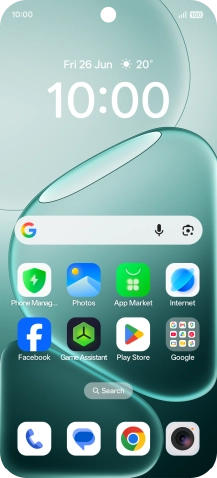
Press the message icon.
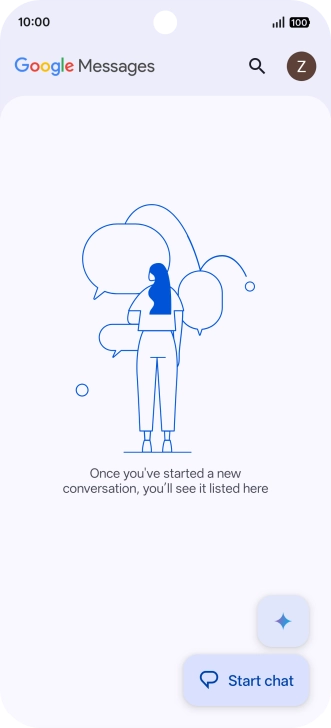
Press the profile icon.
Press Messages settings.
Press Notifications.
Press Incoming messages.

2. Turn on message notifications

Press the indicator next to "Allow notifications" to turn on the function.

3. Select message tone

Press Ring.
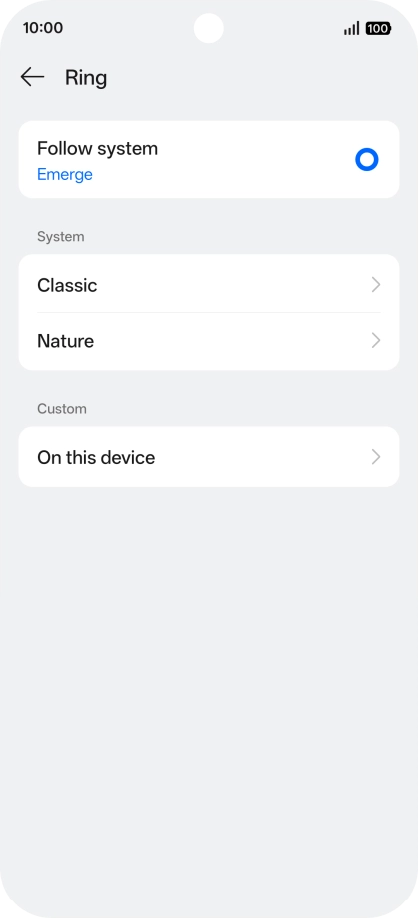
Press the required category.
Press the required message tones to hear them.
Once you've found a message tone you like, press arrow left.

4. Return to the home screen

Slide your finger upwards starting from the bottom of the screen to return to the home screen.

Get information on...

Or choose...

Another device