OPPO A6 Pro 5G

OPPO A6 Pro 5G

Android 16

Turn call waiting on your OPPO A6 Pro 5G Android 16 on or off

Read help info

When call waiting is turned on, you can answer a new call without ending your ongoing call.

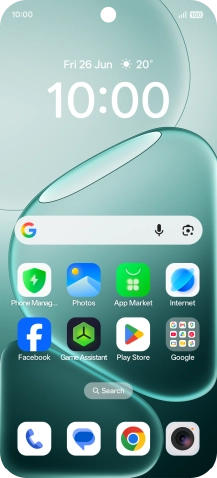
Press the call icon.
Step 1 of 7

1. Find "Operator-related settings"

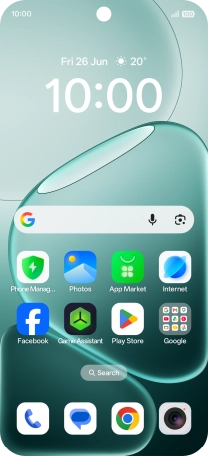
Press the call icon.
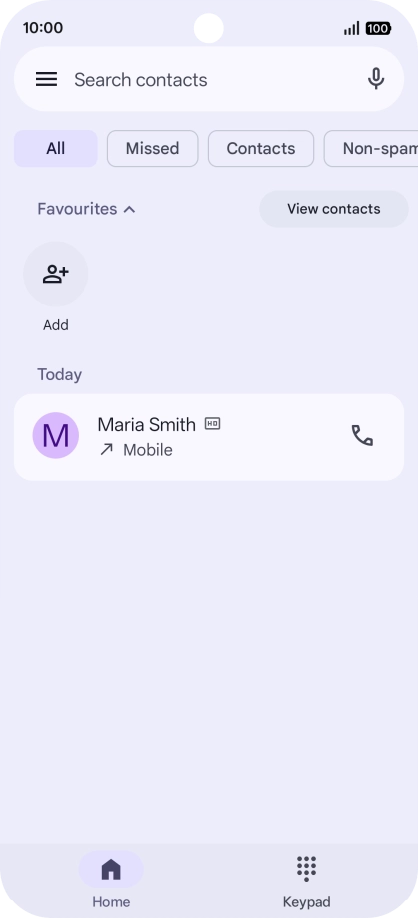
Press the menu icon.
Step 2 of 7

1. Find "Operator-related settings"

Press the menu icon.

Press Settings.
Step 3 of 7

1. Find "Operator-related settings"

Press Settings.

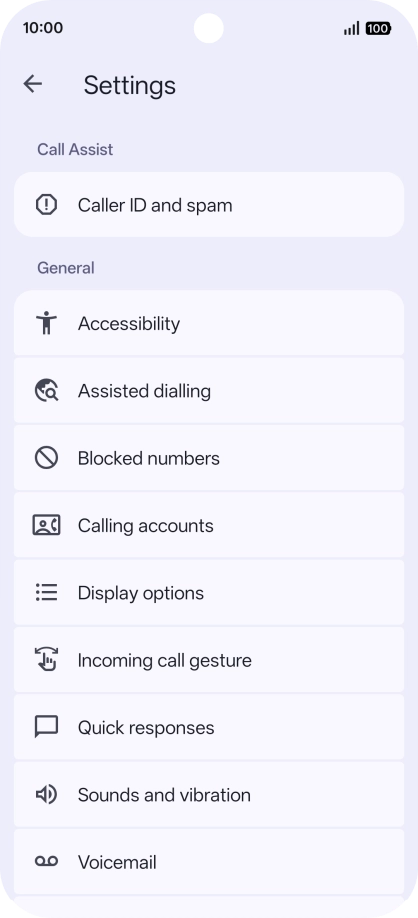
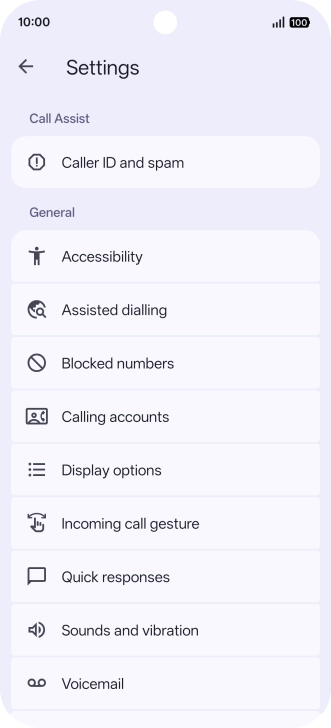
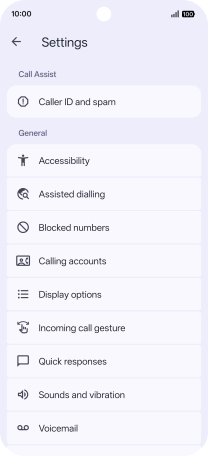
Press Calling accounts.
Step 4 of 7

1. Find "Operator-related settings"

Press Calling accounts.

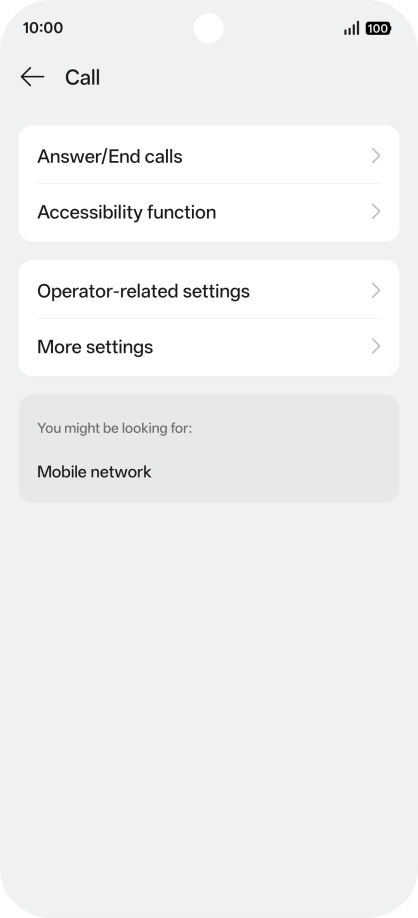
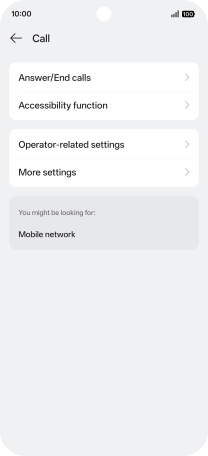
Press Operator-related settings.
Step 5 of 7

1. Find "Operator-related settings"

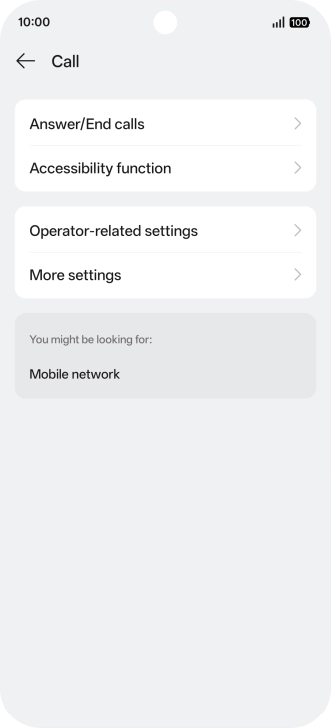
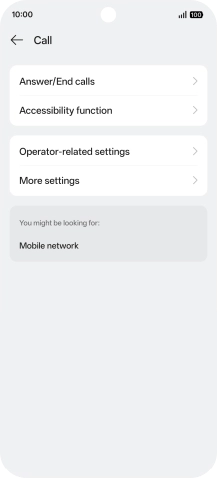
Press Operator-related settings.

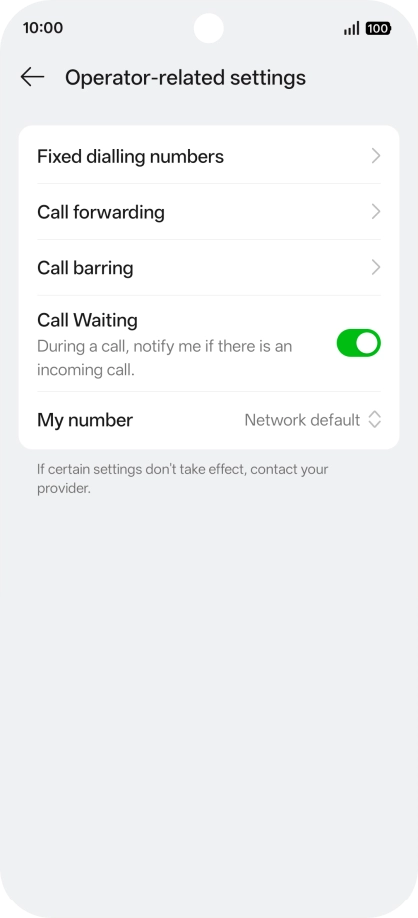
Press the indicator next to
Step 6 of 7

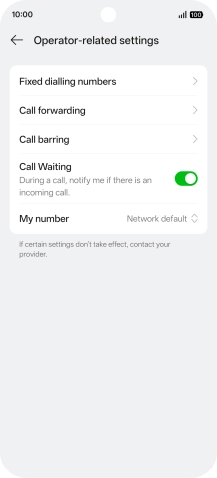
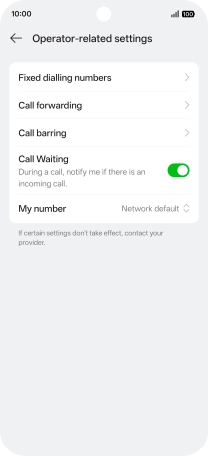
2. Turn call waiting on or off

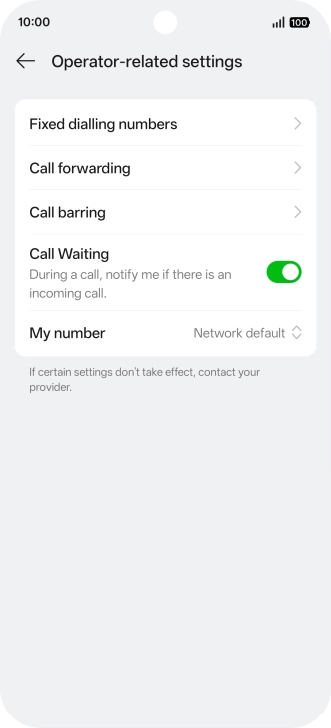
Press the indicator next to "Call Waiting" to turn the function on or off.

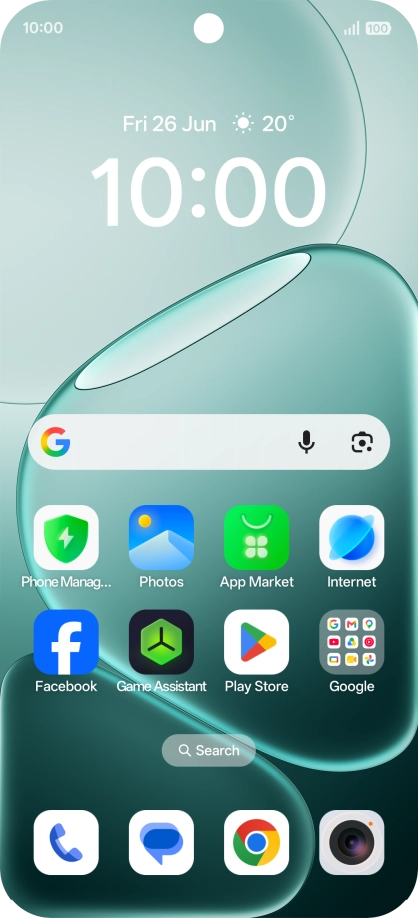
Slide your finger upwards starting from the bottom of the screen to return to the home screen.
Step 7 of 7

3. Return to the home screen

Slide your finger upwards starting from the bottom of the screen to return to the home screen.

1. Find "Operator-related settings"

Press the call icon.
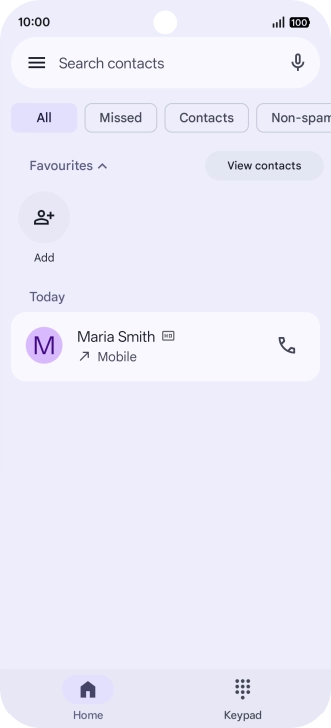
Press the menu icon.
Press Settings.
Press Calling accounts.
Press Operator-related settings.

2. Turn call waiting on or off

Press the indicator next to "Call Waiting" to turn the function on or off.

3. Return to the home screen

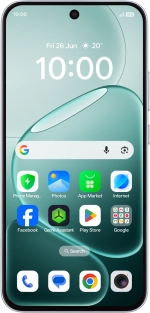
Slide your finger upwards starting from the bottom of the screen to return to the home screen.

Get information on...

Or choose...

Another device