OPPO A6 Pro 5G

OPPO A6 Pro 5G

Android 16

Back up pictures and videos on your OPPO A6 Pro 5G Android 16 to Google Drive

Read help info

You can back up pictures and videos to Google Drive to ensure that no data is lost when you update your phone's software or if you lose your phone. To back up your pictures and videos, you need to set up your phone for internet.

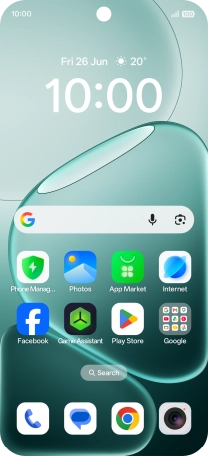
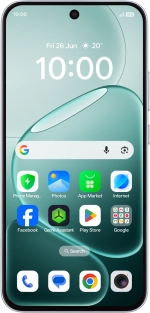
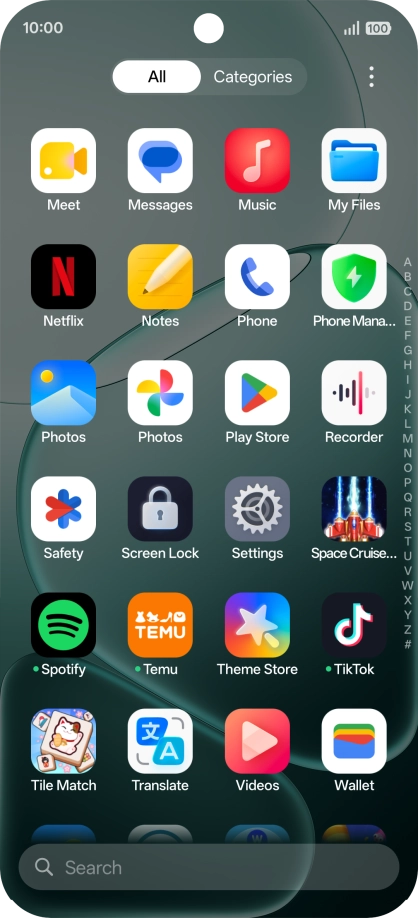
Slide your finger upwards on the screen.
Step 1 of 12

1. Find "Photos"

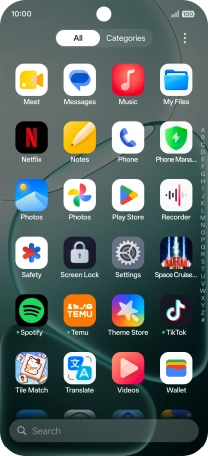
Slide your finger upwards on the screen.
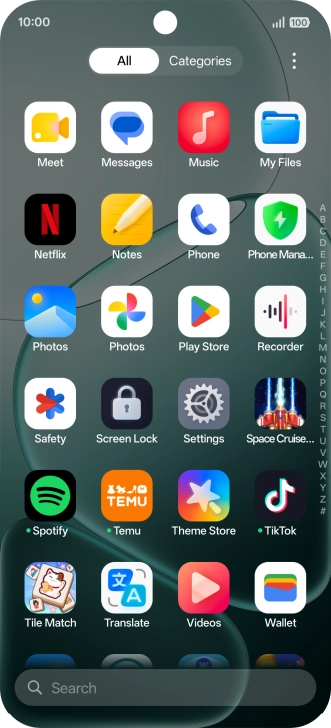
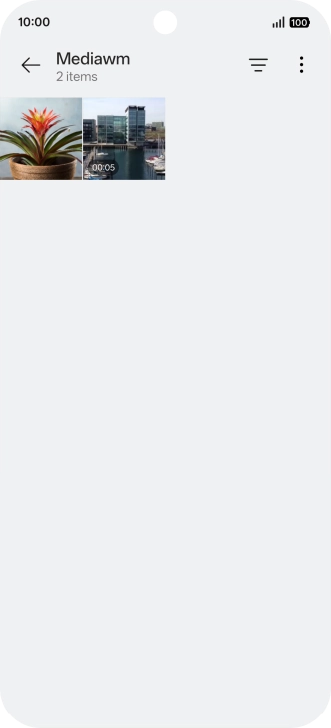
Press Photos and go to the required folder.
Step 2 of 12

1. Find "Photos"

Press Photos and go to the required folder.

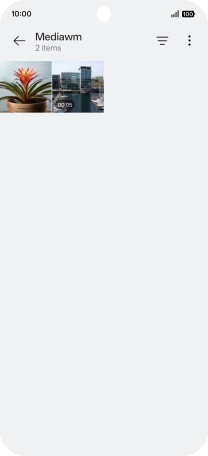
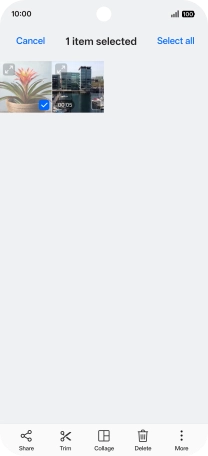
Press and hold any picture or video.
Step 3 of 12

2. Select pictures or videos

Press and hold any picture or video.

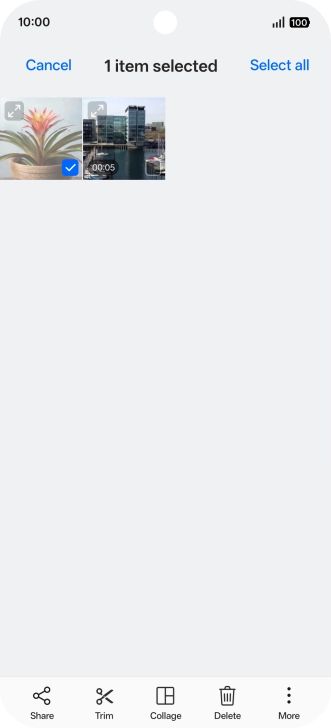
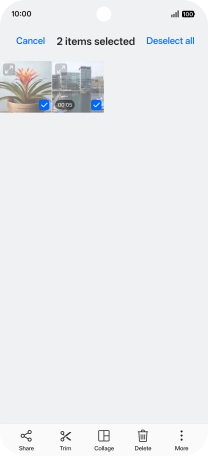
Press Select all.
Step 4 of 12

2. Select pictures or videos

Press Select all.

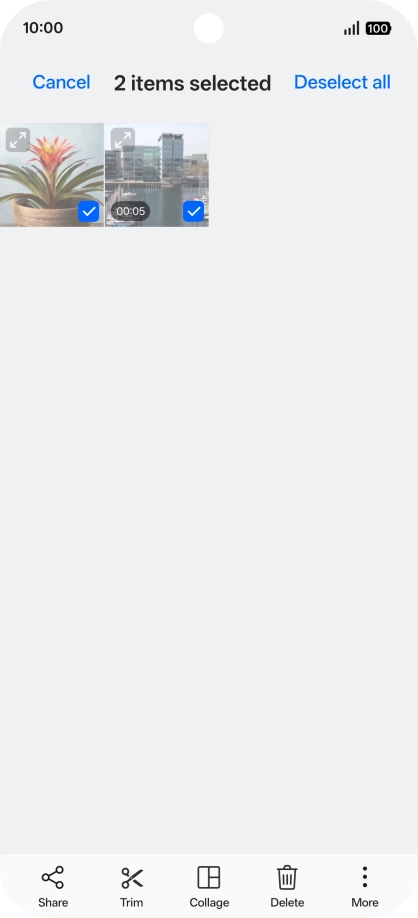
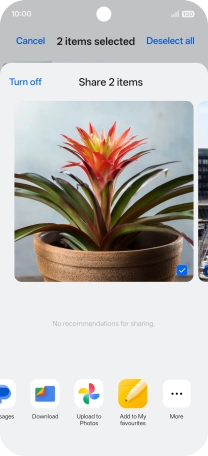
Press Share.
Step 5 of 12

2. Select pictures or videos

Press Share.

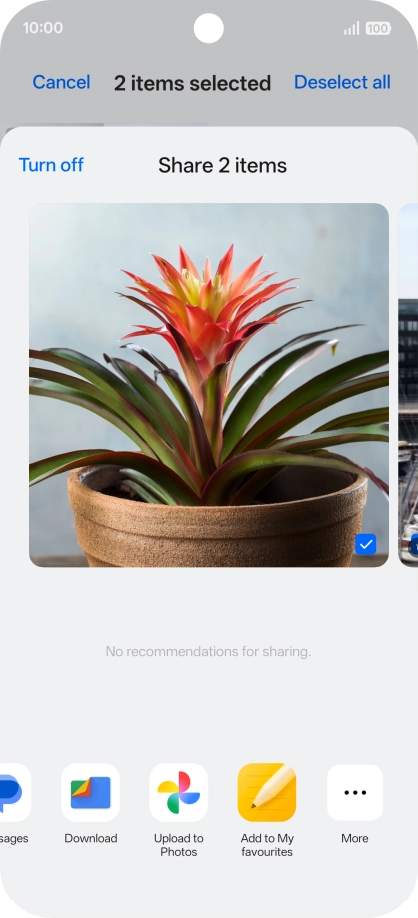
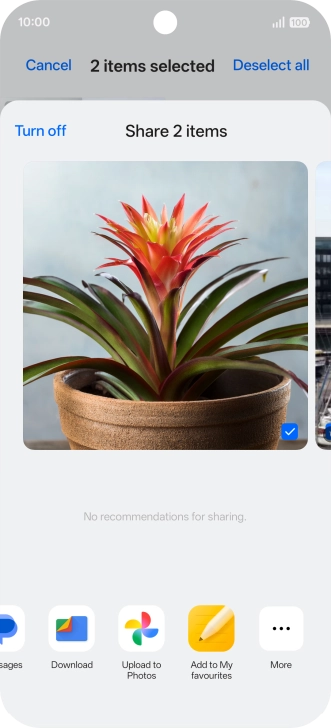
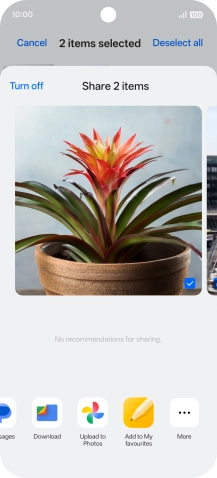
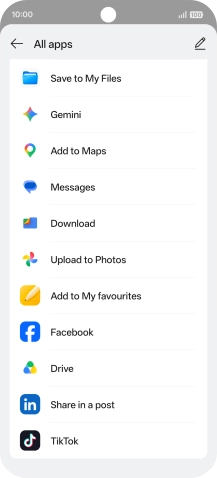
Press More.
Step 6 of 12

2. Select pictures or videos

Press More.

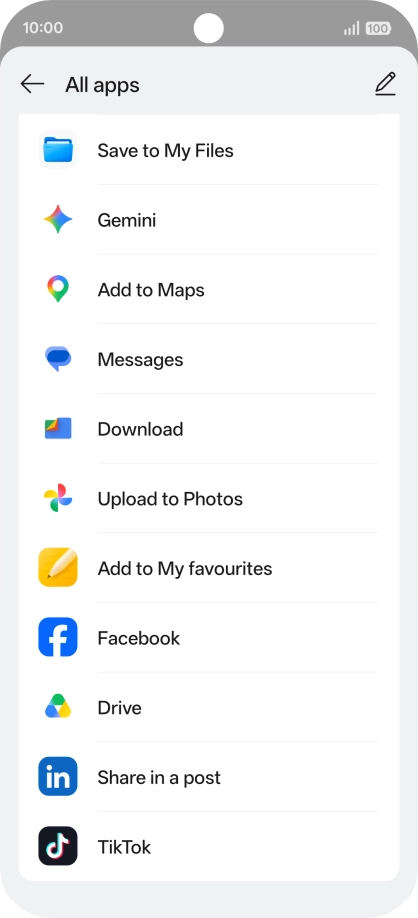
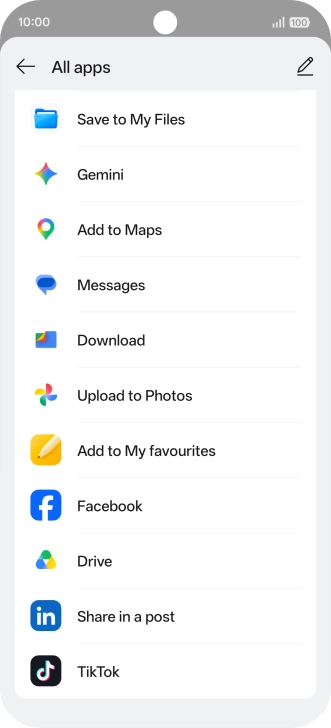
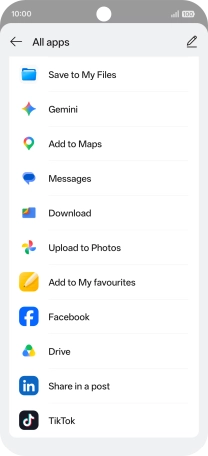
Press Drive.
Step 7 of 12

2. Select pictures or videos

Press Drive.

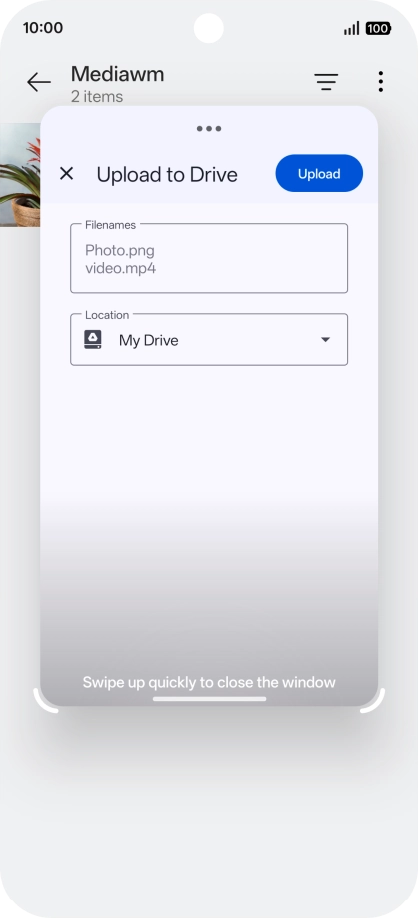
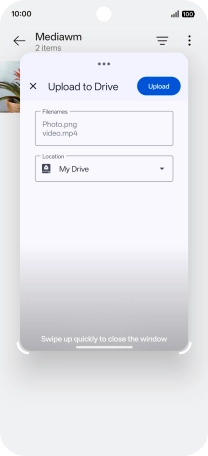
Press the field below
Step 8 of 12

3. Select location

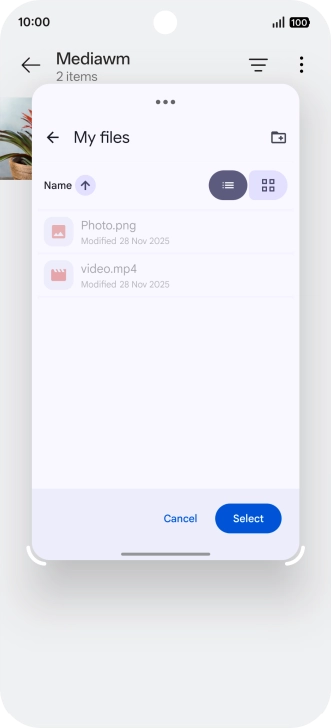
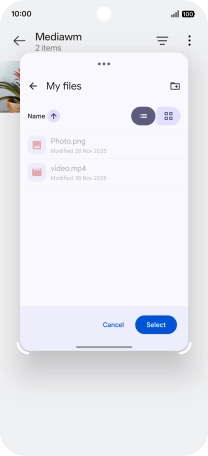
Press the field below "Location" and go to the required folder.

To create a new folder, press the new folder icon and follow the instructions on the screen to create a new folder.
Step 9 of 12

3. Select location

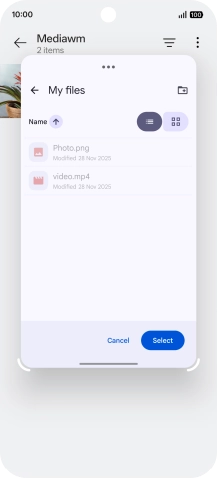
To create a new folder, press the new folder icon and follow the instructions on the screen to create a new folder.

Press Select.
Step 10 of 12

3. Select location

Press Select.

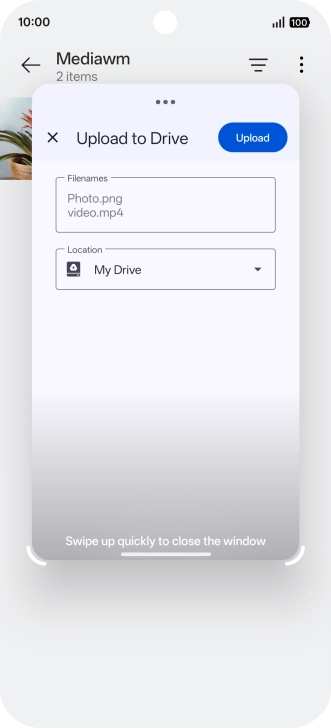
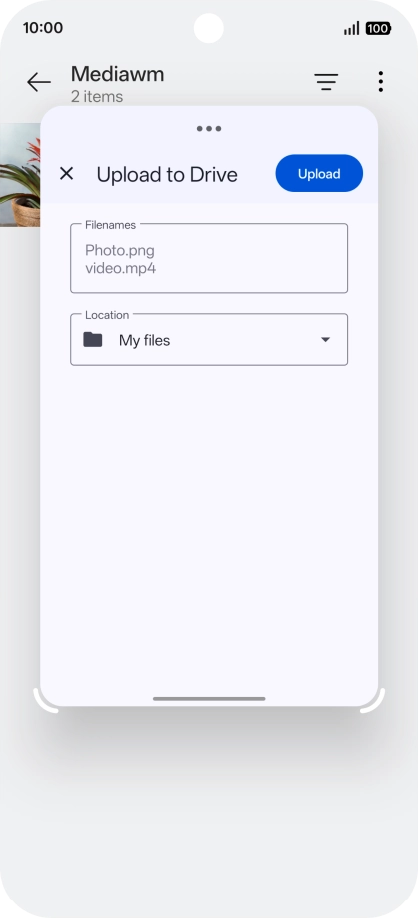
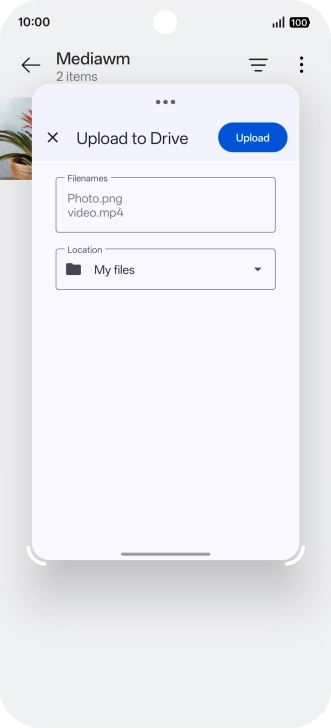
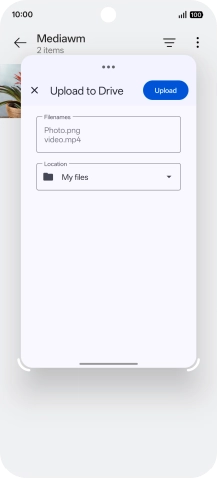
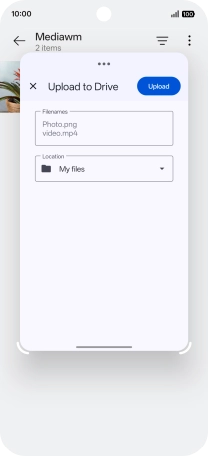
Press Upload.
Step 11 of 12

4. Back up pictures and videos

Press Upload.

Slide your finger upwards starting from the bottom of the screen to return to the home screen.
Step 12 of 12

5. Return to the home screen

Slide your finger upwards starting from the bottom of the screen to return to the home screen.

1. Find "Photos"

Slide your finger upwards on the screen.
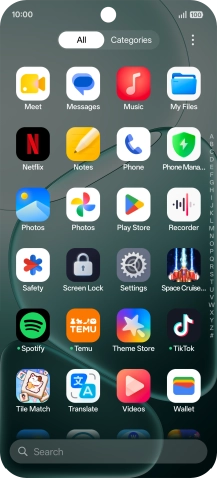
Press Photos and go to the required folder.
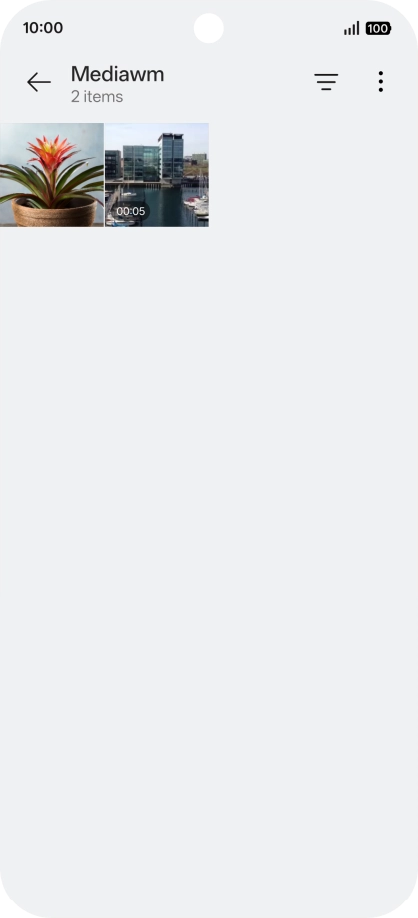
2. Select pictures or videos

Press and hold any picture or video.
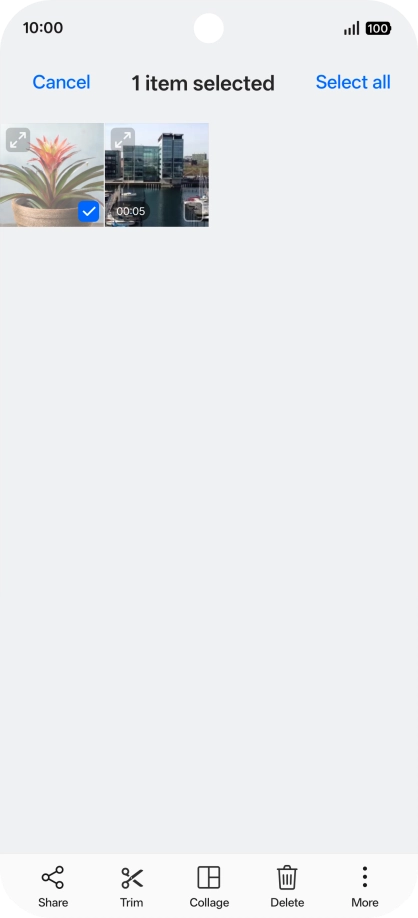
Press Select all.
Press Share.
Press More.
Press Drive.

3. Select location

Press the field below "Location" and go to the required folder.
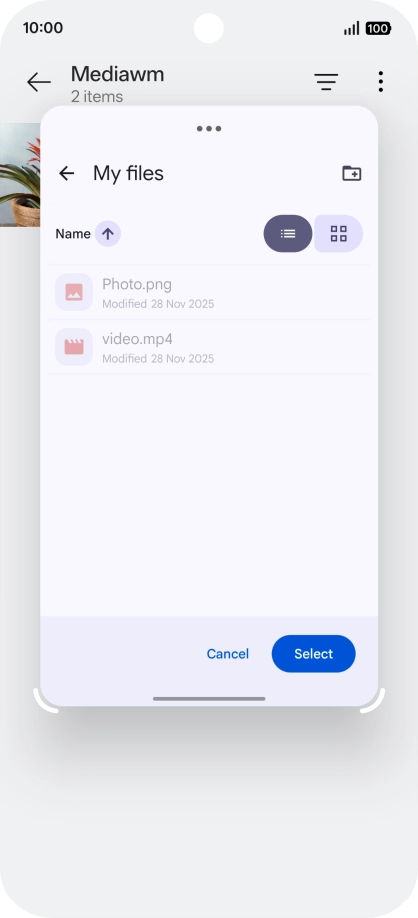
To create a new folder, press the new folder icon and follow the instructions on the screen to create a new folder.
Press Select.

4. Back up pictures and videos

Press Upload.

5. Return to the home screen

Slide your finger upwards starting from the bottom of the screen to return to the home screen.

Get information on...

Or choose...

Another device