OPPO A6 Pro 5G

OPPO A6 Pro 5G

Android 16

Use OPPO AI on your OPPO A6 Pro 5G Android 16

Read help info

OPPO AI allows you to use many of your phone's functions in a smarter and more efficient way. Here you can see some examples of OPPO AI usage. To use most of the OPPO AI functions, you need to activate your OPPO account on your phone and set up your phone for internet.

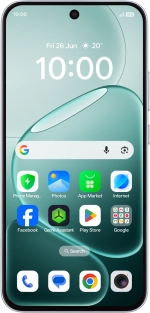
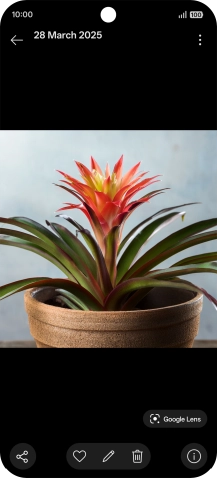
Go to the required picture.
Step 1 of 13

1. Use Google AI for picture search

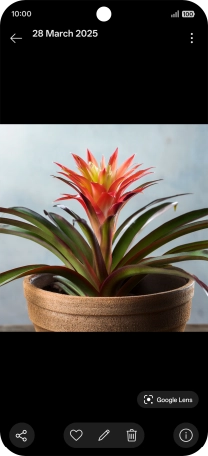
Go to the required picture.

You can search for an object in a picture on the internet. You can use the function in all apps that allow you to take screenshots. You may need to turn on the function in Settings on your phone before you can use it.
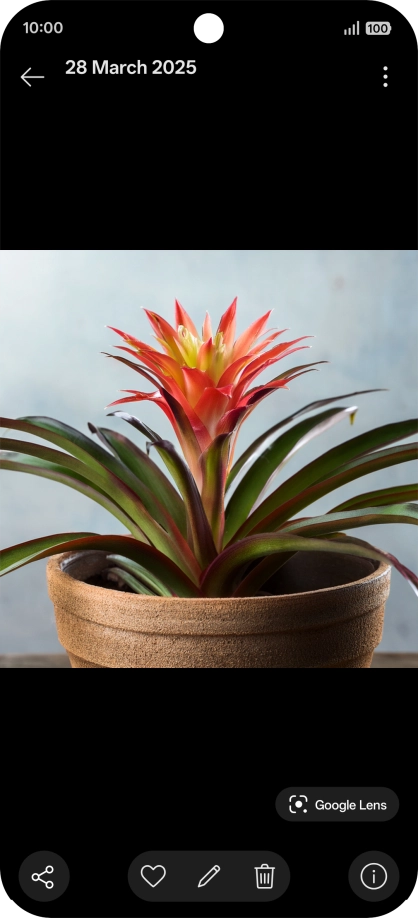
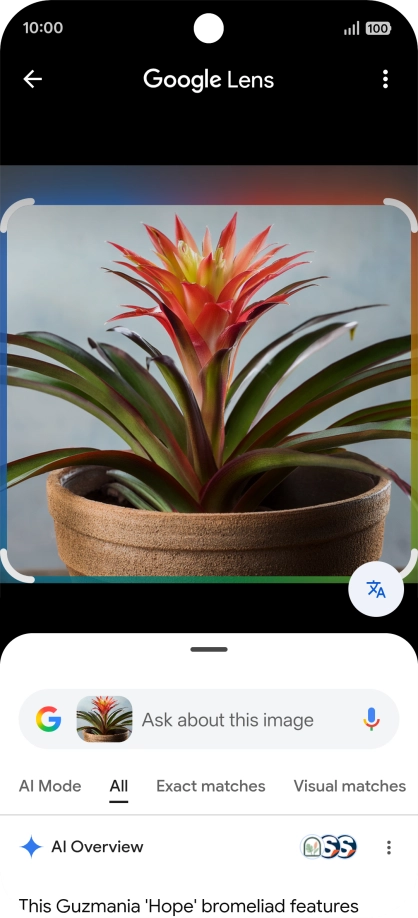
Press Google Lens and wait for the search results.
Step 2 of 13

1. Use Google AI for picture search

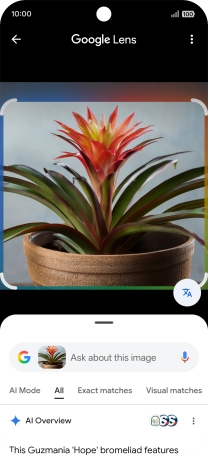
Press Google Lens and wait for the search results.
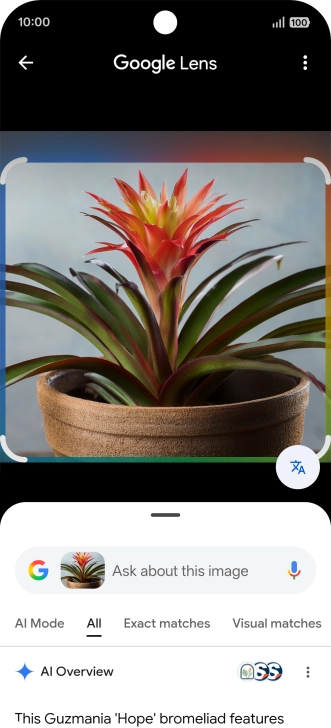
Follow the instructions on the screen to use the search results.
Step 3 of 13

1. Use Google AI for picture search

Follow the instructions on the screen to use the search results.

Press arrow left to return to the picture.
Step 4 of 13

1. Use Google AI for picture search

Press arrow left to return to the picture.

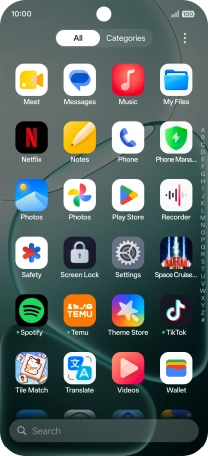
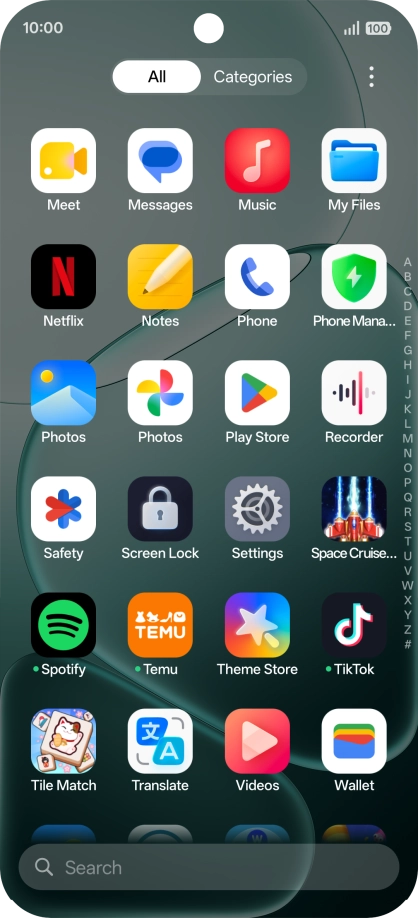
Open a supported app, e.g. Notes.
Step 5 of 13

2. Use OPPO AI for text editing

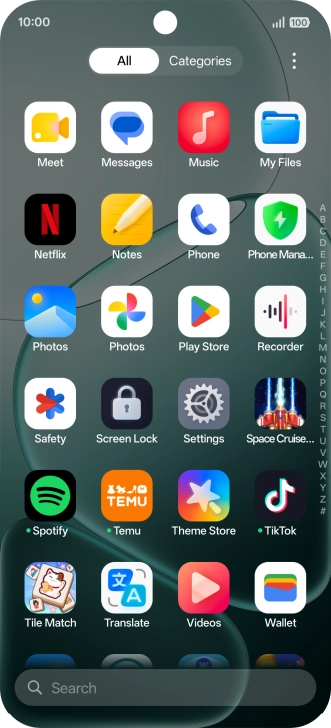
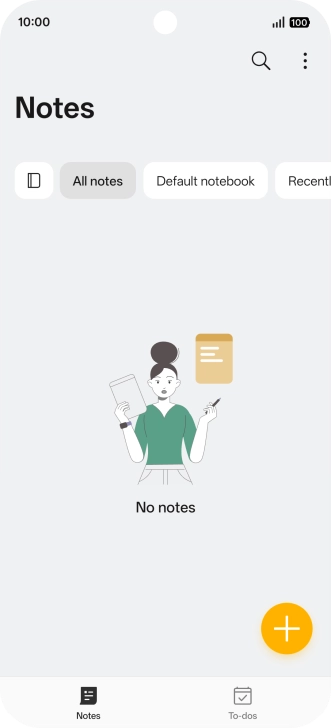
Open a supported app, e.g. Notes.

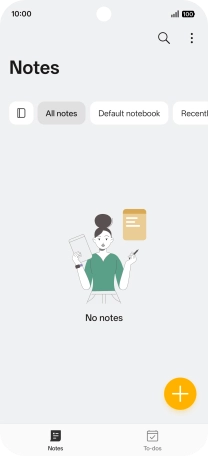
Press the new note icon.
Step 6 of 13

2. Use OPPO AI for text editing

Press the new note icon.

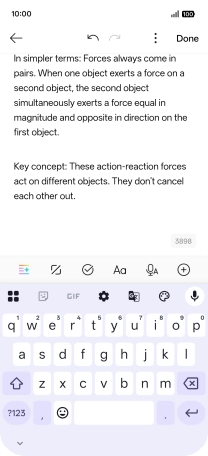
Press the text input field and key in the required text, topic or some keywords.
Step 7 of 13

2. Use OPPO AI for text editing

Press the text input field and key in the required text, topic or some keywords.

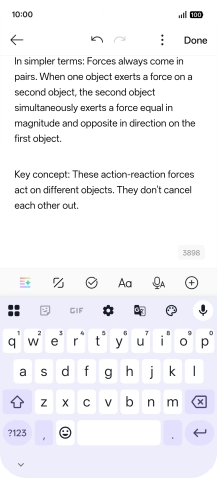
Press the AI icon.
Step 8 of 13

2. Use OPPO AI for text editing

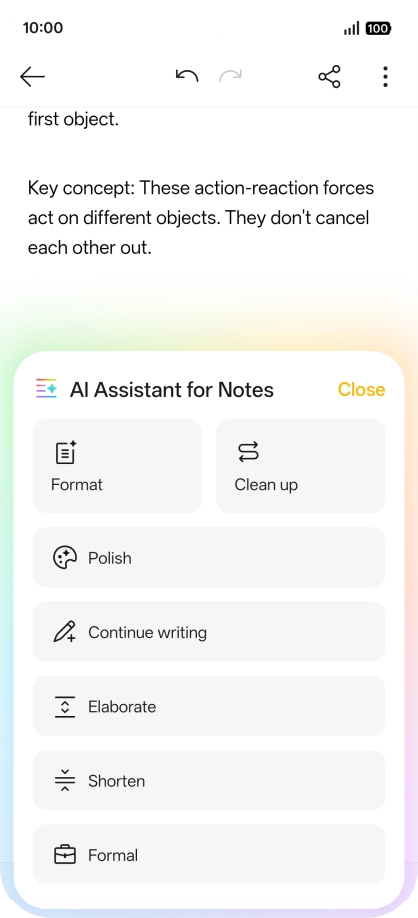
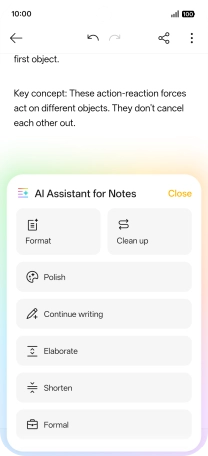
Press the AI icon.

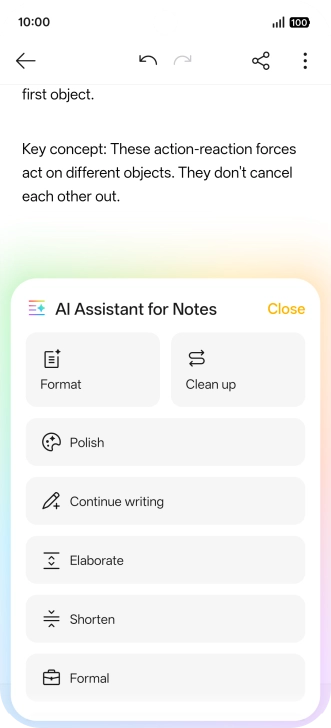
Press the required setting and follow the instructions on the screen to use the selected function.
Step 9 of 13

2. Use OPPO AI for text editing

Press the required setting and follow the instructions on the screen to use the selected function.

Open Photos and go to the required picture.
Step 10 of 13

3. Use OPPO AI for picture editing

Open Photos and go to the required picture.

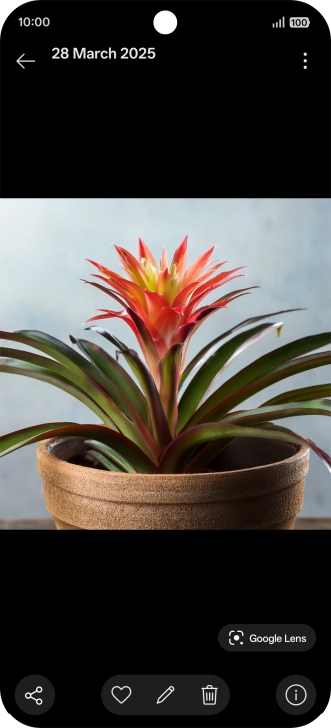
Press the edit icon.
Step 11 of 13

3. Use OPPO AI for picture editing

Press the edit icon.

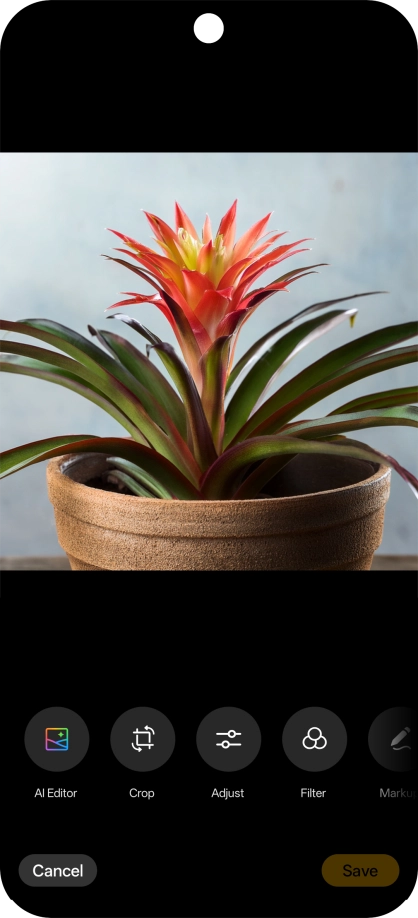
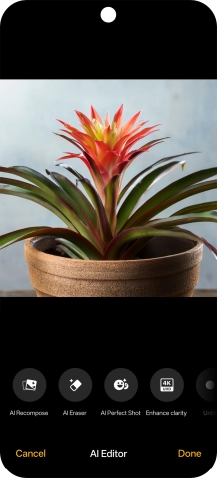
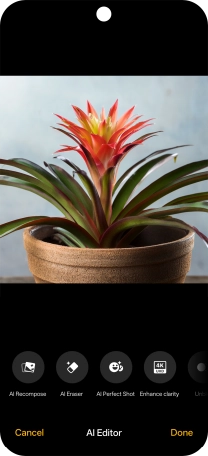
Press AI Editor.
Step 12 of 13

3. Use OPPO AI for picture editing

Press AI Editor.

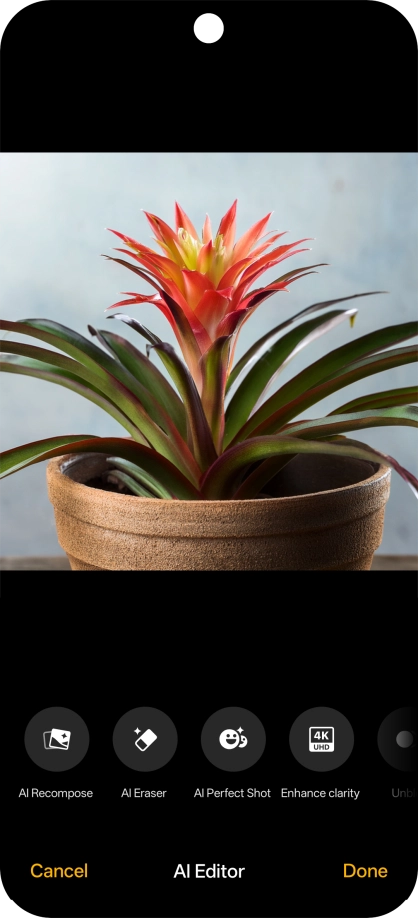
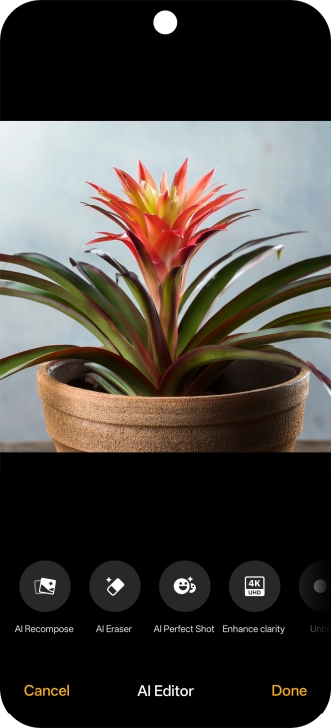
Press the required setting and follow the instructions on the screen to use the selected function.
Step 13 of 13

3. Use OPPO AI for picture editing

Press the required setting and follow the instructions on the screen to use the selected function.

1. Use Google AI for picture search

Go to the required picture.
You can search for an object in a picture on the internet. You can use the function in all apps that allow you to take screenshots. You may need to turn on the function in Settings on your phone before you can use it.
Press Google Lens and wait for the search results.
Follow the instructions on the screen to use the search results.
Press arrow left to return to the picture.
2. Use OPPO AI for text editing

Open a supported app, e.g. Notes.
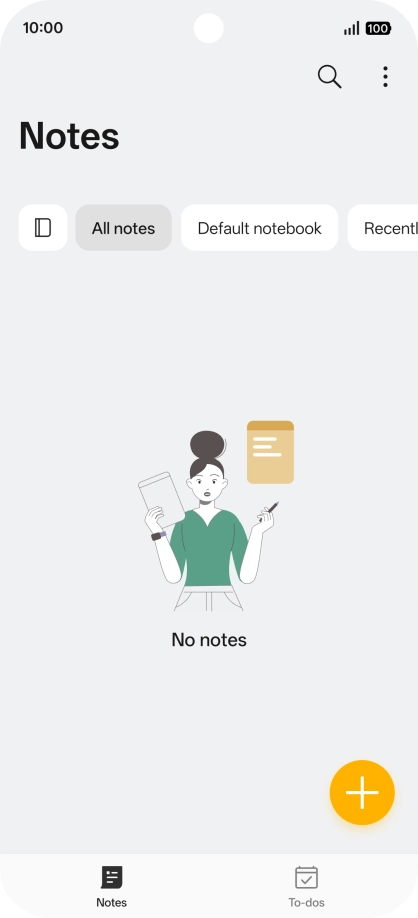
Press the new note icon.
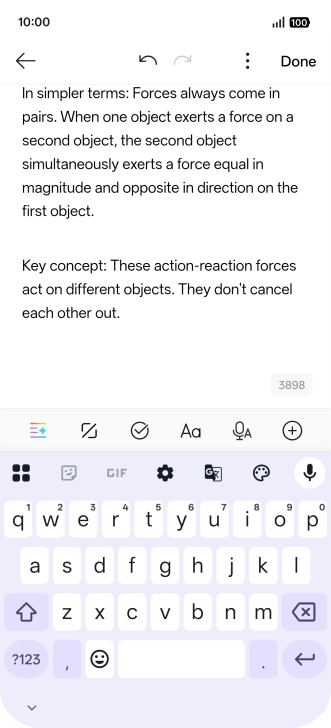
Press the text input field and key in the required text, topic or some keywords.
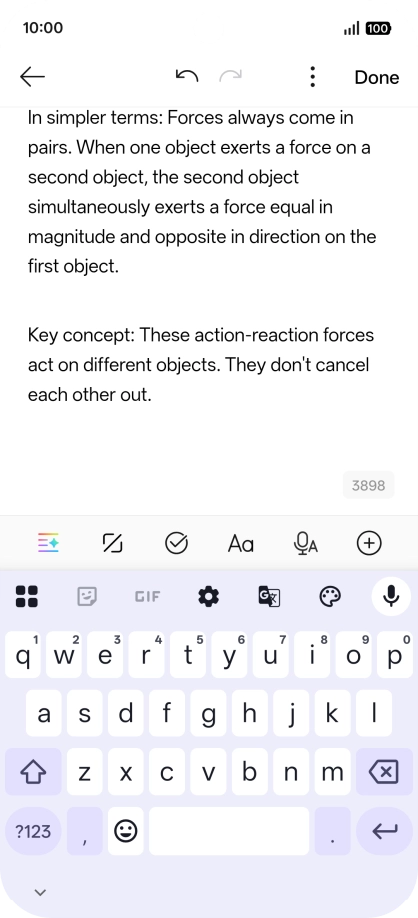
Press the AI icon.
Press the required setting and follow the instructions on the screen to use the selected function.

3. Use OPPO AI for picture editing
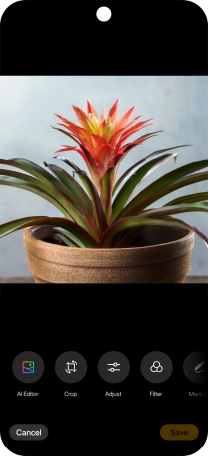
Open Photos and go to the required picture.
Press the edit icon.
Press AI Editor.
Press the required setting and follow the instructions on the screen to use the selected function.

Get information on...

Or choose...

Another device