Apple iPhone 16

Apple iPhone 16

iOS 26

Set up Visual Voicemail on your Apple iPhone 16 iOS 26

Read help info

Using Visual Voicemail, you can see a list of the messages you've received on your voicemail, play them back or delete them. You can also record a personal greeting or select a default greeting.

To turn on Visual Voicemail, update your phone with the latest software, turn off Wi-Fi on your phone and send a text message with the text
Step 1 of 4

1. Set up Visual Voicemail

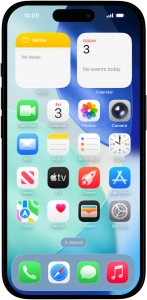
To turn on Visual Voicemail, update your phone with the latest software, turn off Wi-Fi on your phone and send a text message with the text "STATE" to 100121.
Press the phone icon.

See how to update your phone's software and turn off Wi-Fi.
Press the menu icon.
Step 2 of 4

1. Set up Visual Voicemail

Press the menu icon.

Press Voicemail and follow the instructions on the screen to set the voicemail PIN and greeting.
Step 3 of 4

1. Set up Visual Voicemail

Press Voicemail and follow the instructions on the screen to set the voicemail PIN and greeting.

Slide your finger upwards starting from the bottom of the screen to return to the home screen.
Step 4 of 4

2. Return to the home screen

Slide your finger upwards starting from the bottom of the screen to return to the home screen.

1. Set up Visual Voicemail

To turn on Visual Voicemail, update your phone with the latest software, turn off Wi-Fi on your phone and send a text message with the text "STATE" to 100121.
Press the phone icon.
See how to update your phone's software and turn off Wi-Fi.
Press the menu icon.
Press Voicemail and follow the instructions on the screen to set the voicemail PIN and greeting.

2. Return to the home screen

Slide your finger upwards starting from the bottom of the screen to return to the home screen.

Get information on...

Or choose...

Another device