Doro Leva L30

Doro Leva L30

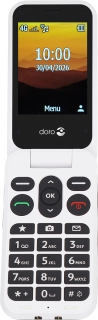
Guide to keys and sockets on your Doro Leva L30 Proprietary OS

Read help info

The list below shows you what the different keys and sockets on your phone are used for.

Press Connect to answer a call.
Step 1 of 11

1. Connect

Press Connect to answer a call.

Press Disconnect to turn your phone on or off.
Step 2 of 11

2. Disconnect

Press Disconnect to turn your phone on or off.

Press Disconnect to end a call.
Step 3 of 11

2. Disconnect

Press Disconnect to end a call.

Press Disconnect to return to the home screen.
Step 4 of 11

2. Disconnect

Press Disconnect to return to the home screen.

Press the OK key to open a menu item or select a setting.
Step 5 of 11

3. The OK key

Press the OK key to open a menu item or select a setting.

Press the Left selection key to open a menu item or select a setting.
Step 6 of 11

4. The Left selection key

Press the Left selection key to open a menu item or select a setting.

Press the Right selection key to open a menu item or return to the previous screen.
Step 7 of 11

5. The Right selection key

Press the Right selection key to open a menu item or return to the previous screen.
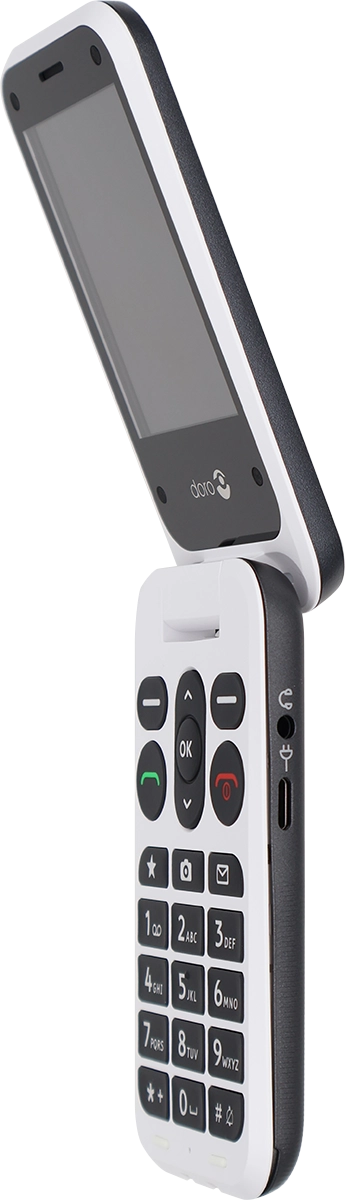
Connect the charger to the socket and to a wall socket.
Step 8 of 11

6. Socket

Connect the charger to the socket and to a wall socket.

Connect the data cable to the socket and to your computer's USB port.
Step 9 of 11

6. Socket

Connect the data cable to the socket and to your computer's USB port.

Connect the headset to the headset socket to listen to music or make a handsfree call.
Step 10 of 11

7. Headset socket

Connect the headset to the headset socket to listen to music or make a handsfree call.
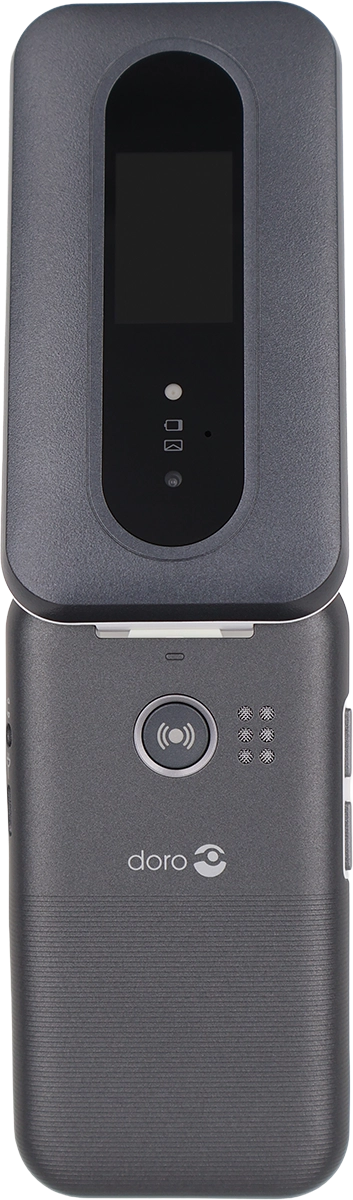
Point the camera lens at the required object to take a picture or record a video.
Step 11 of 11

8. The camera lens

Point the camera lens at the required object to take a picture or record a video.

1. Connect
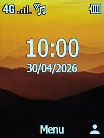
Press Connect to answer a call.

2. Disconnect

Press Disconnect to turn your phone on or off.
Press Disconnect to end a call.
Press Disconnect to return to the home screen.

3. The OK key

Press the OK key to open a menu item or select a setting.

4. The Left selection key

Press the Left selection key to open a menu item or select a setting.

5. The Right selection key

Press the Right selection key to open a menu item or return to the previous screen.

6. Socket

Connect the charger to the socket and to a wall socket.
Connect the data cable to the socket and to your computer's USB port.

7. Headset socket

Connect the headset to the headset socket to listen to music or make a handsfree call.

8. The camera lens

Point the camera lens at the required object to take a picture or record a video.

Get information on...

Or choose...

Another device