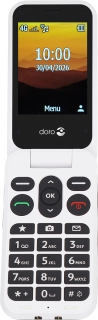
Doro Leva L30
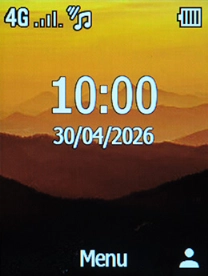
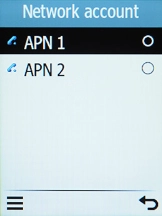
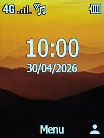
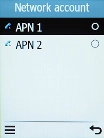
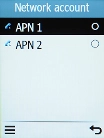
Find "Network account"
Press the OK key.
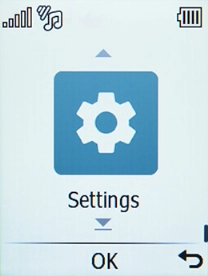
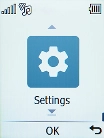
Find "Network account"
Select Settings.
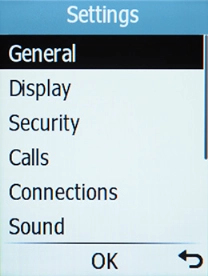
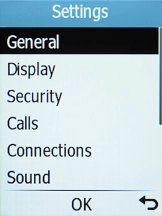
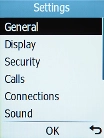
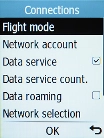
Find "Network account"
Select Connections.
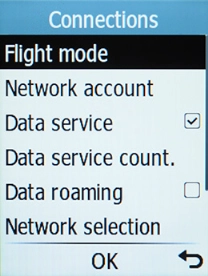
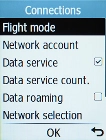
Find "Network account"
Select Network account.
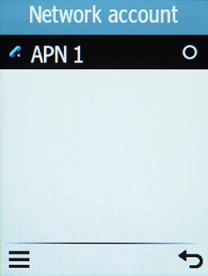
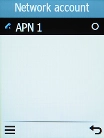
Create new data connection
Press the Left selection key.
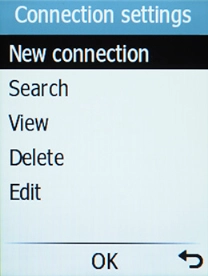
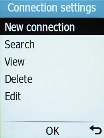
Create new data connection
Select New connection.
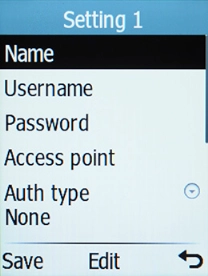
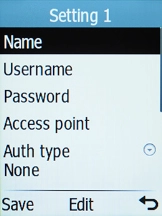
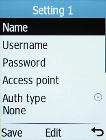
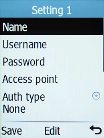
Enter a name for the connection
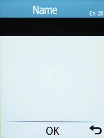
Select Name.
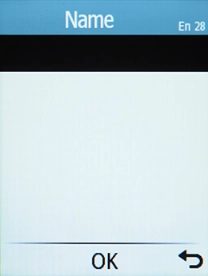
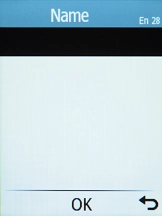
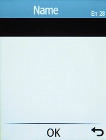
Enter a name for the connection
Key in Vodafone MMS and press the OK key.
Enter username
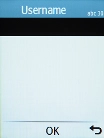
Select Username.
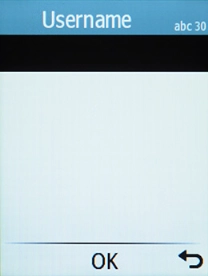
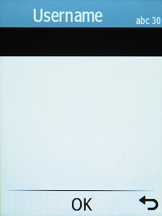
Enter username
Key in wap and press the OK key.
Enter password
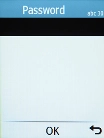
Select Password.
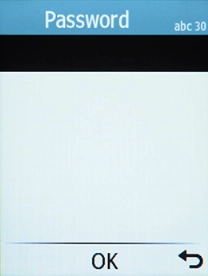
Enter password
Key in wap and press the OK key.
Enter APN
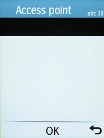
Select Access point.
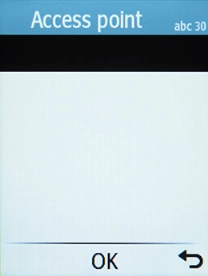
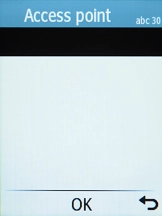
Enter APN
Key in wap.vodafone.co.uk and press the OK key.
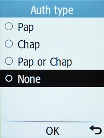
Select authentication type
Select Auth type.
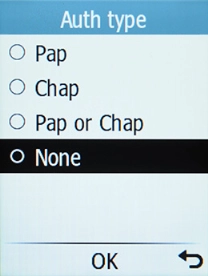
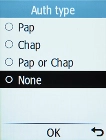
Select authentication type
Select None.
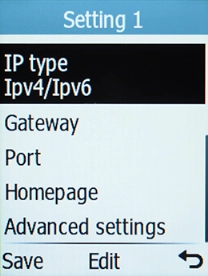
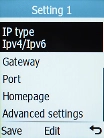
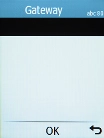
Enter IP address
Select Gateway.
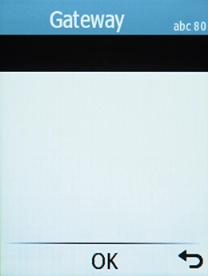
Enter IP address
Key in 212.183.137.012 and press the OK key.
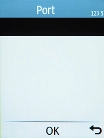
Enter port number
Select Port.
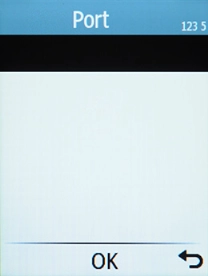
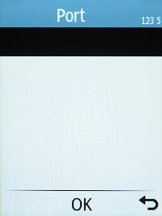
Enter port number
Key in 8799 and press the OK key.
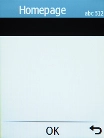
Enter picture messaging server
Select Homepage.
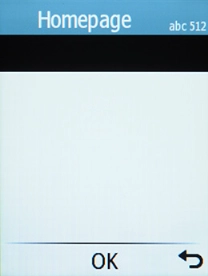
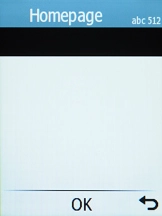
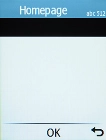
Enter picture messaging server
Key in http://mms.vodafone.co.uk/servlets/mms and press the OK key.
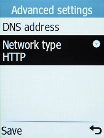
Select connection type
Select Advanced settings.
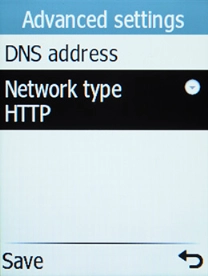
Select connection type
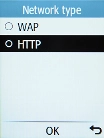
Select Network type.
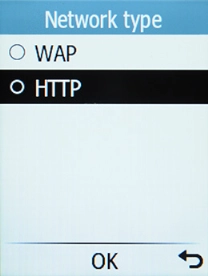
Select connection type
Select HTTP.
Save data connection
Press the Left selection key.
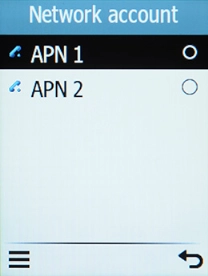
Return to the home screen
Press Disconnect to return to the home screen.
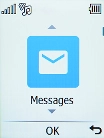
Find "MMS account"
Press the OK key.
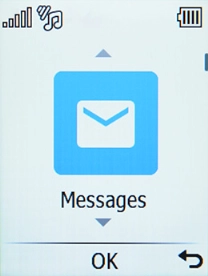
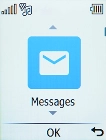
Find "MMS account"
Select Messages.
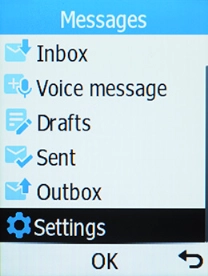
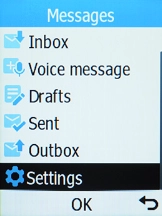
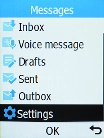
Find "MMS account"
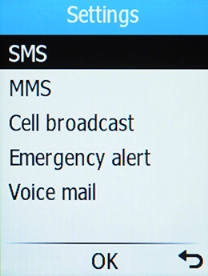
Select Settings.
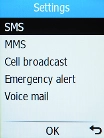
Find "MMS account"
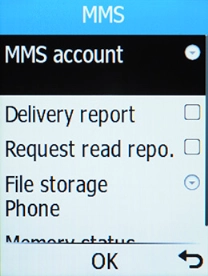
Select MMS.
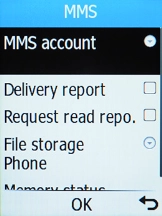
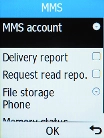
Find "MMS account"
Select MMS account.
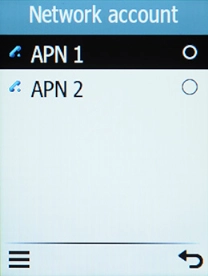
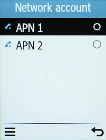
Active data connection
Select the required data connection.
Return to the home screen
Press Disconnect to return to the home screen.
1 Find "Network account"
2 Create new data connection
3 Enter a name for the connection
4 Enter username
5 Enter password
6 Enter APN
7 Select authentication type
8 Enter IP address
9 Enter port number
10 Enter picture messaging server
11 Select connection type
12 Save data connection
13 Return to the home screen
14 Find "MMS account"
15 Active data connection
16 Return to the home screen