OPPO A6 Pro 5G

1. Find "Set up an eSIM"
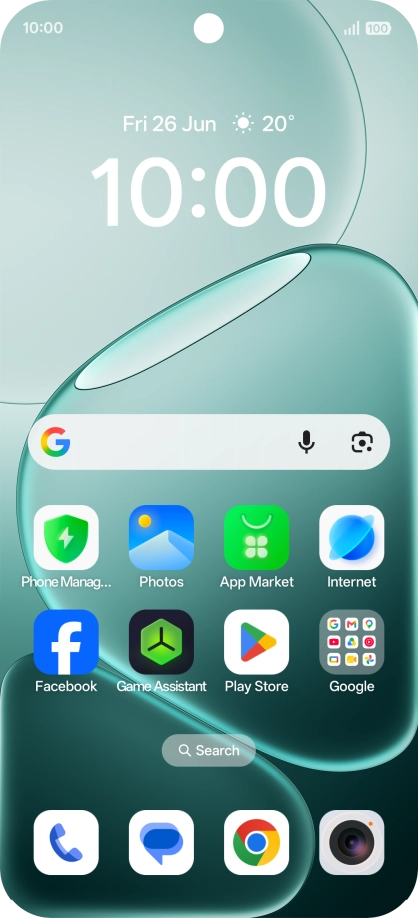
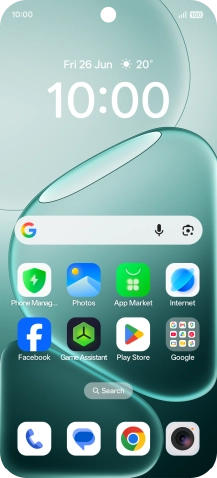
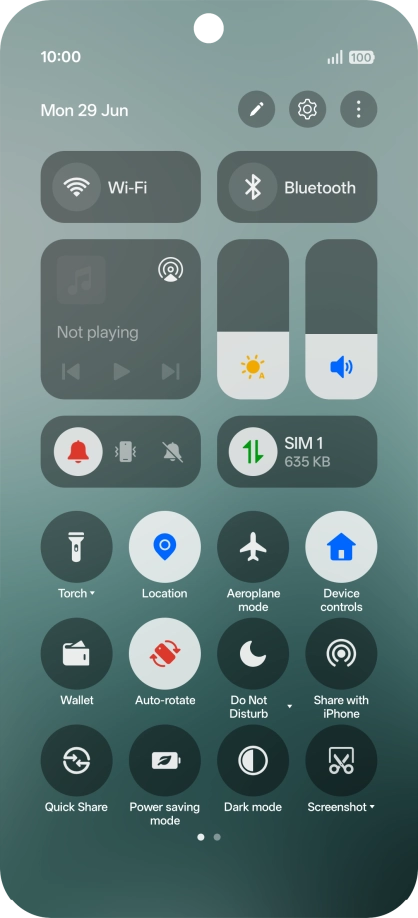
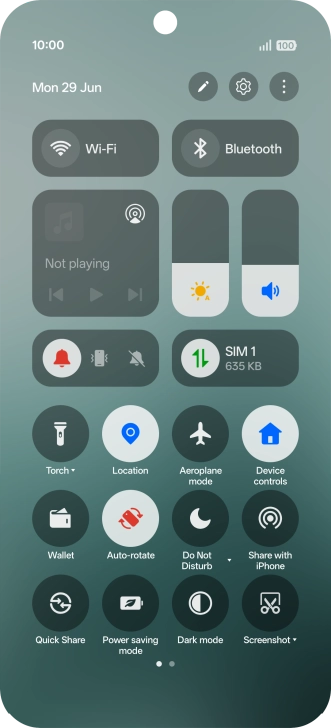
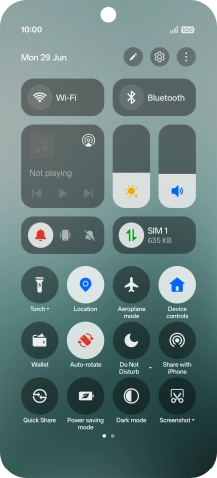
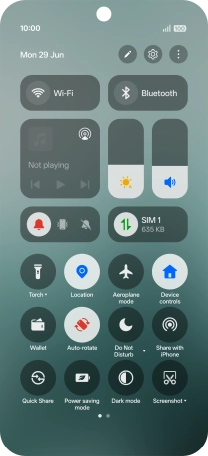
Slide your finger downwards starting from the top right side of the screen.
1. Find "Set up an eSIM"
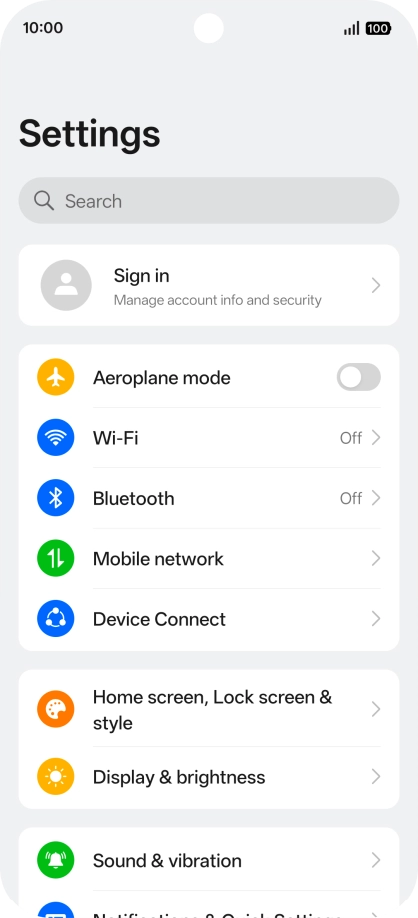
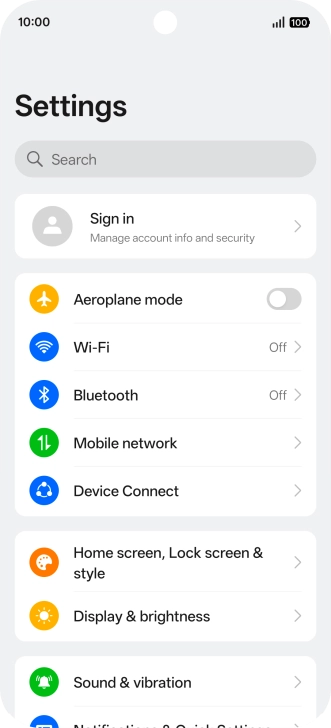
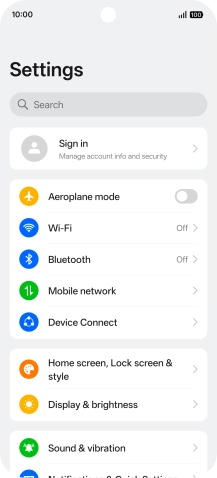
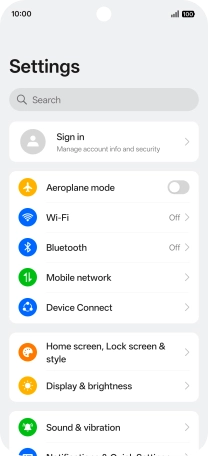
Press the settings icon.
1. Find "Set up an eSIM"
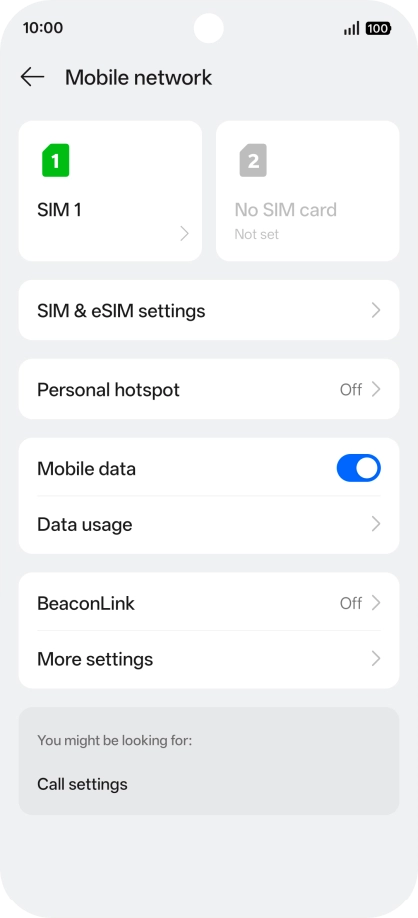
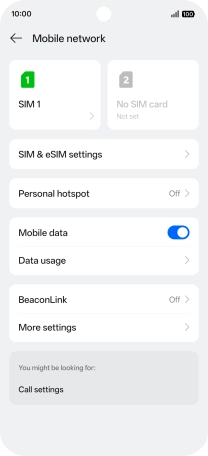
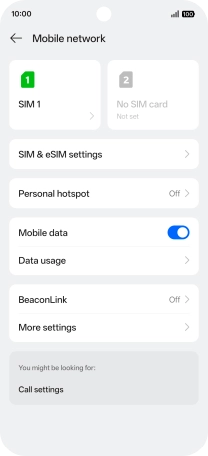
Press Mobile network.
1. Find "Set up an eSIM"
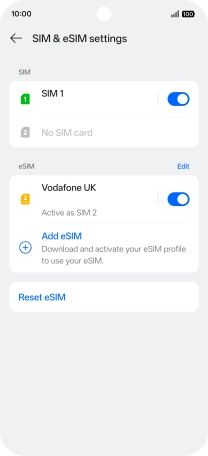
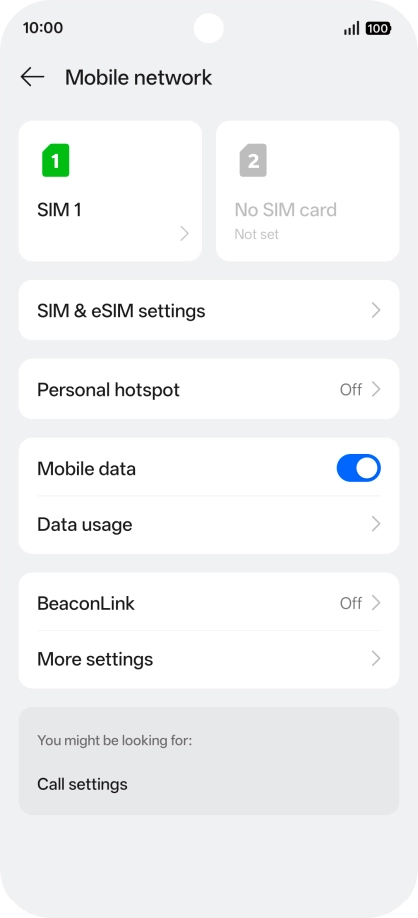
Press SIM & eSIM settings.
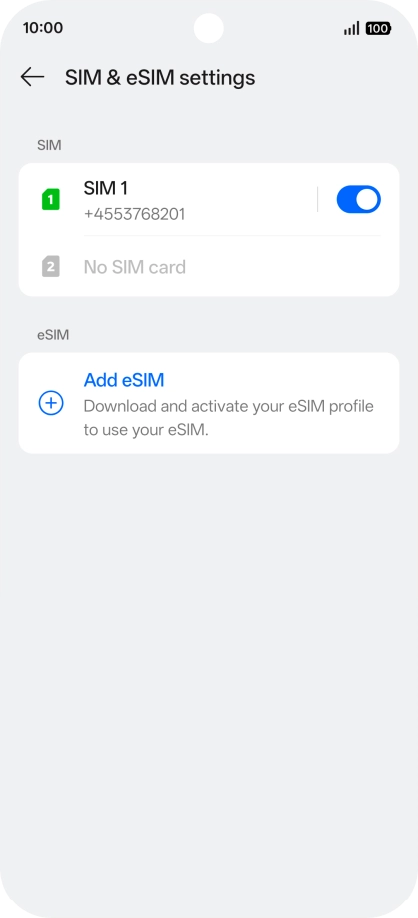
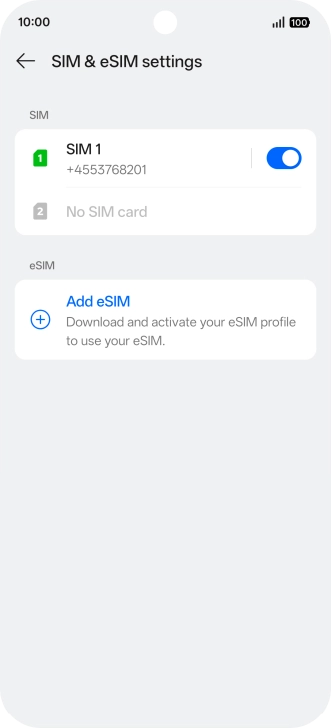
1. Find "Set up an eSIM"
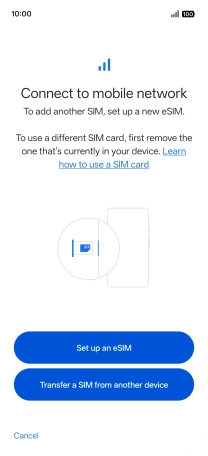
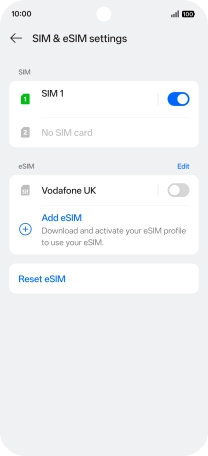
Press Add eSIM.
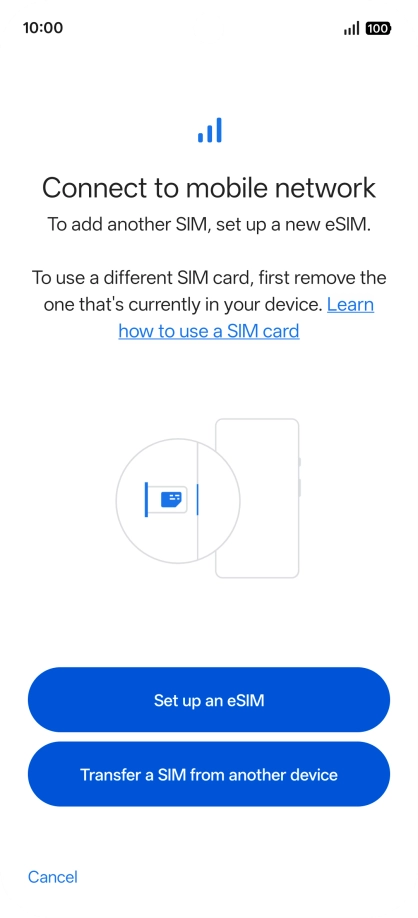
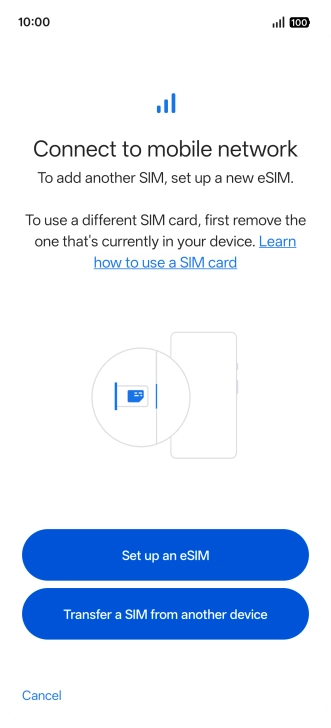
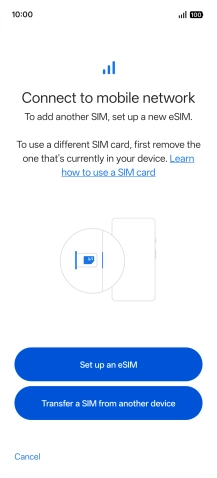
1. Find "Set up an eSIM"
Press Set up an eSIM.
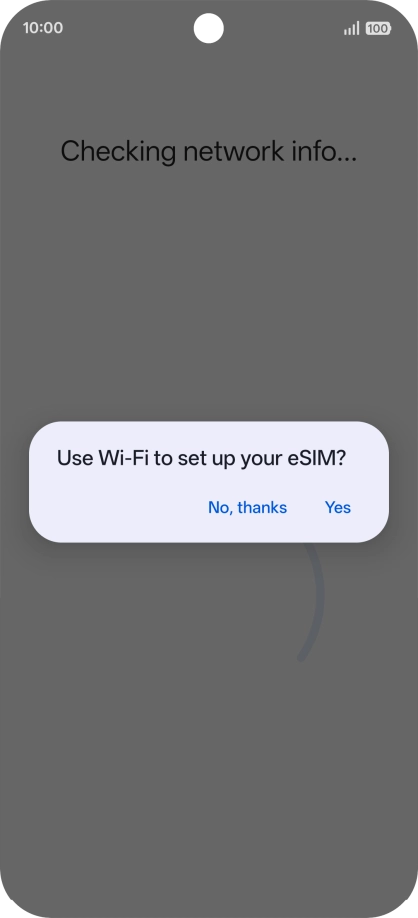


2. Scan QR code
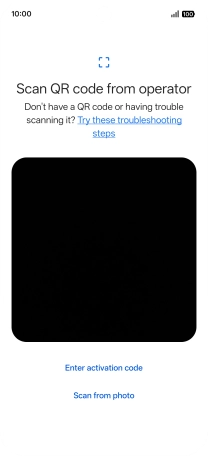
Press the required setting.
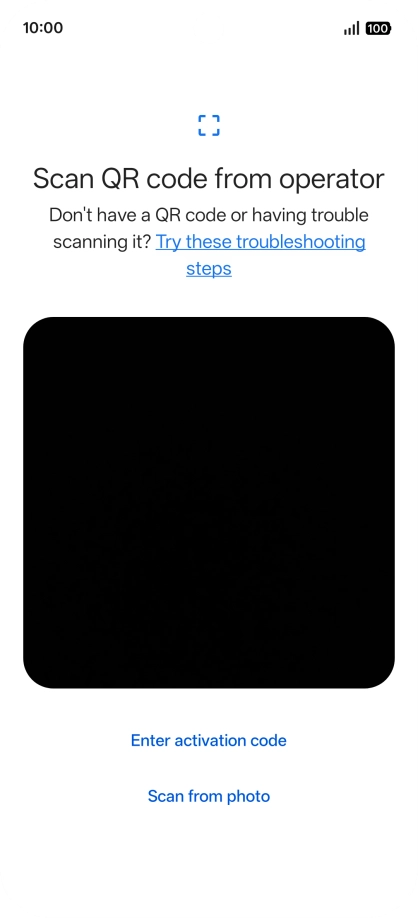
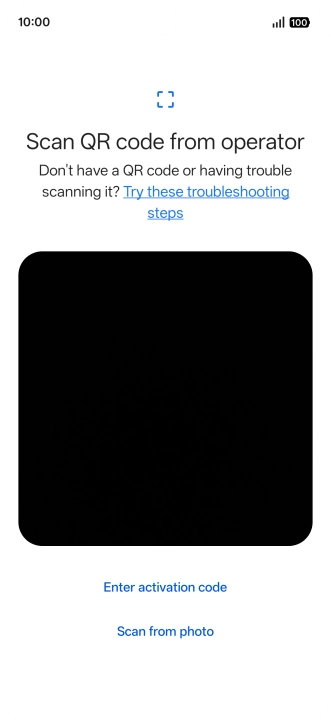
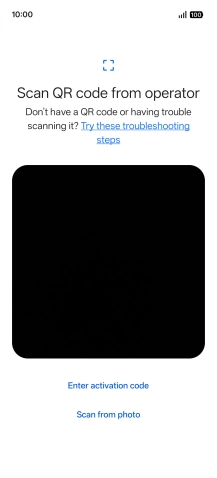
2. Scan QR code
Place the QR code you've received inside the phone camera frame to scan the code. If you’ve deleted your eSIM, you can re-add it using your existing QR code. If you’re having problems, see our FAQ.
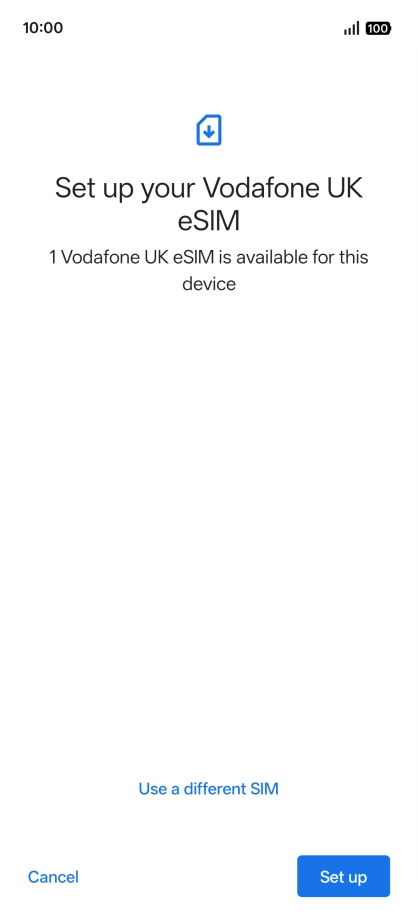
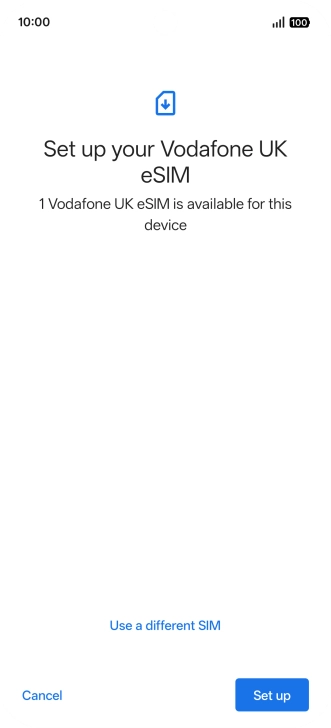
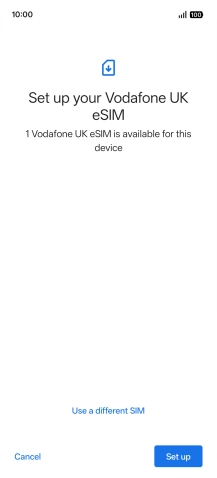
3. Activate eSIM
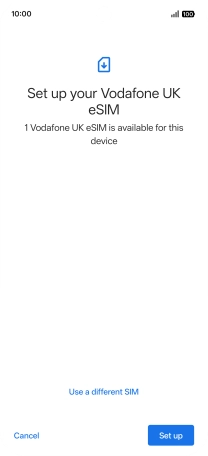
Press Set up.
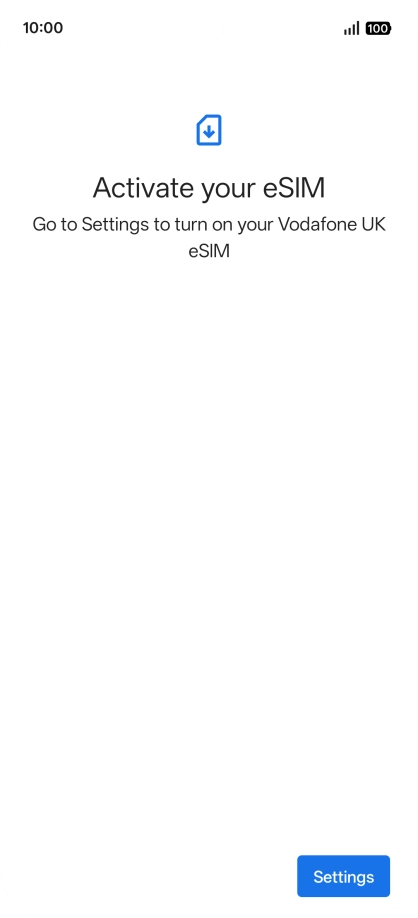
3. Activate eSIM
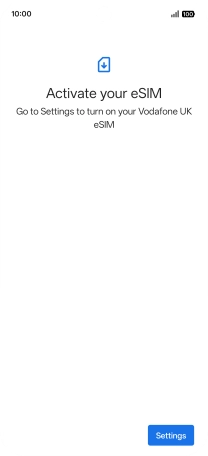
Press Settings.
3. Activate eSIM
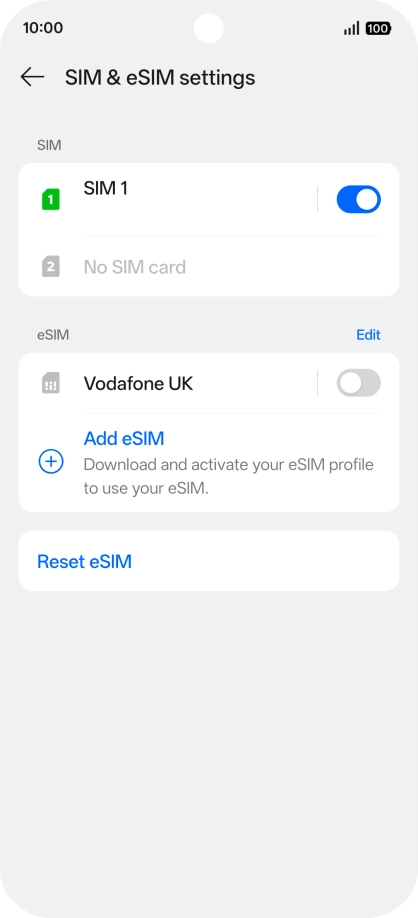
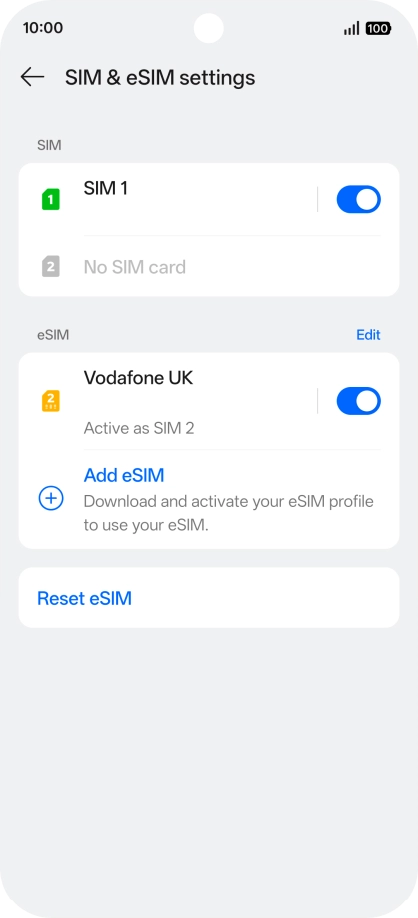
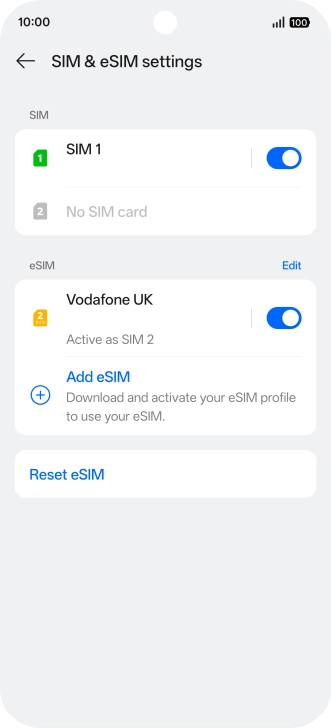
Press SIM & eSIM settings.
3. Activate eSIM
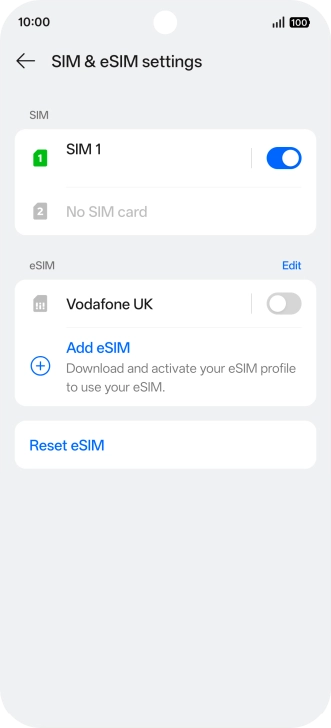
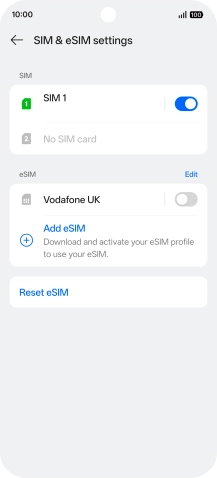
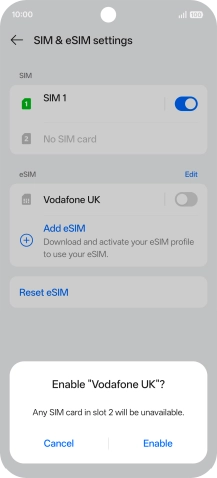
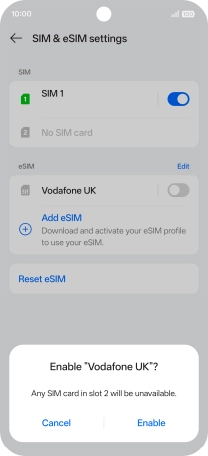
Press the indicator next to your eSIM.
3. Activate eSIM
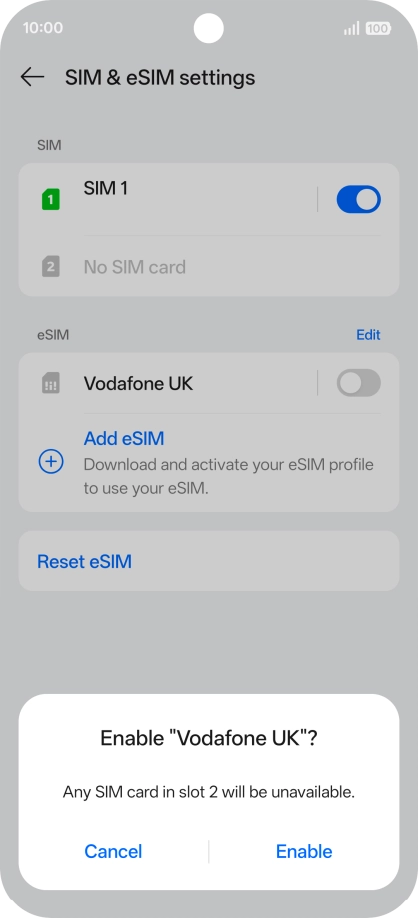
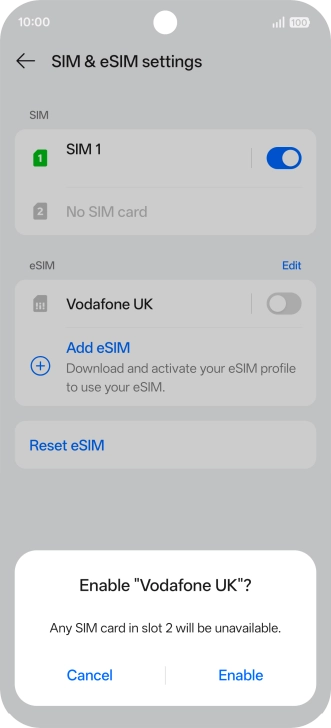
Press Enable.
3. Activate eSIM
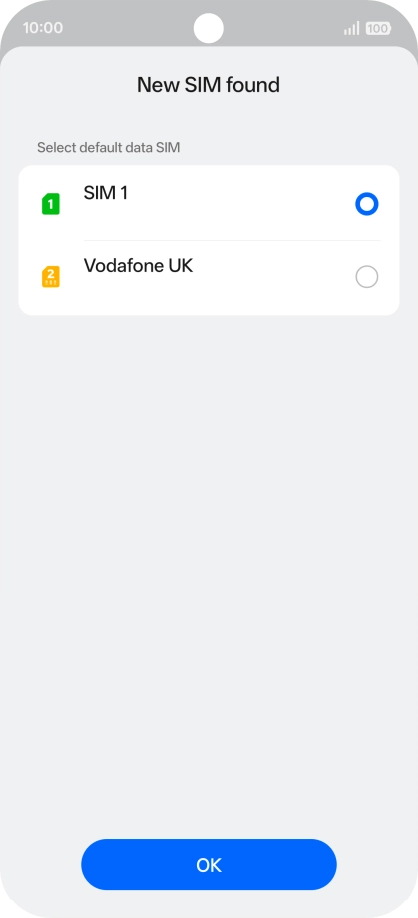
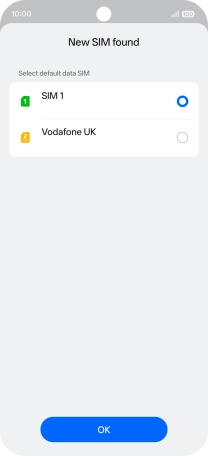
Press OK.
4. Return to the home screen
Slide your finger upwards starting from the bottom of the screen to return to the home screen.
1. Find "Set up an eSIM"


2. Scan QR code

3. Activate eSIM
4. Return to the home screen