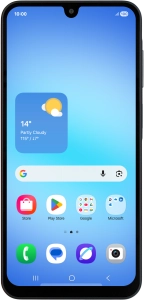
Samsung Galaxy A17 5G

Samsung Galaxy A17 5G

Android 15

Select voice control settings on your Samsung Galaxy A17 5G Android 15

Read help info

You can control many of the phone functions with your voice. You can call contacts from the address book, dictate messages and search the internet. To select voice control settings, you need to activate your Google account on your phone.

Slide your finger downwards starting from the top right side of the screen.
Step 1 of 20

1. Find "Search, Assistant and Voice"

Slide your finger downwards starting from the top right side of the screen.

Press the settings icon.
Step 2 of 20

1. Find "Search, Assistant and Voice"

Press the settings icon.

Press Google.
Step 3 of 20

1. Find "Search, Assistant and Voice"

Press Google.

To select voice control settings, you need to activate your Google account on your phone.
Press All services.
Step 4 of 20

1. Find "Search, Assistant and Voice"

Press All services.

Press Search, Assistant and Voice.
Step 5 of 20

1. Find "Search, Assistant and Voice"

Press Search, Assistant and Voice.

Press Gemini.
Step 6 of 20

2. Select voice control assistant

Press Gemini.

Press Digital assistants from Google.
Step 7 of 20

2. Select voice control assistant

Press Digital assistants from Google.

Press the required voice control assistant.
Step 8 of 20

2. Select voice control assistant

Press the required voice control assistant.

Press Switch.
Step 9 of 20

2. Select voice control assistant

Press Switch.

Press Search, Assistant and Voice.
Step 10 of 20

3. Select Google Assistant settings

Press Search, Assistant and Voice.

Press Google Assistant.
Step 11 of 20

3. Select Google Assistant settings

Press Google Assistant.

Press Voice Match and follow the instructions on the screen to turn automatic activation of Google Assistant on or off.
Step 12 of 20

3. Select Google Assistant settings

Press Voice Match and follow the instructions on the screen to turn automatic activation of Google Assistant on or off.

You can use the command for automatic activation to unlock your phone and go directly to the Google Assistant menu.
Press Languages and follow the instructions on the screen to select the required language.
Step 13 of 20

3. Select Google Assistant settings

Press Languages and follow the instructions on the screen to select the required language.

You can add several different languages for use with Google Assistant.
Press You and follow the instructions on the screen to add phone owner information.
Step 14 of 20

3. Select Google Assistant settings

Press You and follow the instructions on the screen to add phone owner information.

You can add phone owner information for different voice control functions such as navigation to your home address.
Follow the instructions on the screen to select more settings for Google Assistant.
Step 15 of 20

3. Select Google Assistant settings

Follow the instructions on the screen to select more settings for Google Assistant.

Press the Return key.
Step 16 of 20

3. Select Google Assistant settings

Press the Return key.

Press Gemini.
Step 17 of 20

4. Select Gemini settings

Press Gemini.

Press Screen context and follow the instructions on the screen to turn use of screen context on your phone on or off.
Step 18 of 20

4. Select Gemini settings

Press Screen context and follow the instructions on the screen to turn use of screen context on your phone on or off.

You need to authorise your voice control assistant to use and edit text and pictures on the phone screen.
Follow the instructions on the screen to select more settings for Gemini.
Step 19 of 20

4. Select Gemini settings

Follow the instructions on the screen to select more settings for Gemini.

Press the Home key to return to the home screen.
Step 20 of 20

5. Return to the home screen

Press the Home key to return to the home screen.

1. Find "Search, Assistant and Voice"

Slide your finger downwards starting from the top right side of the screen.
Press the settings icon.
Press Google.
To select voice control settings, you need to activate your Google account on your phone.
Press All services.
Press Search, Assistant and Voice.

2. Select voice control assistant

Press Gemini.
Press Digital assistants from Google.
Press the required voice control assistant.
Press Switch.

3. Select Google Assistant settings

Press Search, Assistant and Voice.
Press Google Assistant.
Press Voice Match and follow the instructions on the screen to turn automatic activation of Google Assistant on or off.
You can use the command for automatic activation to unlock your phone and go directly to the Google Assistant menu.
Press Languages and follow the instructions on the screen to select the required language.
You can add several different languages for use with Google Assistant.
Press You and follow the instructions on the screen to add phone owner information.
You can add phone owner information for different voice control functions such as navigation to your home address.
Follow the instructions on the screen to select more settings for Google Assistant.
Press the Return key.

4. Select Gemini settings

Press Gemini.
Press Screen context and follow the instructions on the screen to turn use of screen context on your phone on or off.
You need to authorise your voice control assistant to use and edit text and pictures on the phone screen.
Follow the instructions on the screen to select more settings for Gemini.

5. Return to the home screen

Press the Home key to return to the home screen.

Get information on...

Or choose...

Another device