Samsung Galaxy S26 Ultra

Samsung Galaxy S26 Ultra

Android 16

Back up the memory on your Samsung Galaxy S26 Ultra Android 16 to Google One

Read help info

You can back up the phone memory to Google One to ensure that no data is lost when you update your phone's software or if you lose your phone. To back up the phone memory to Google One, you need to activate your Google account on your phone and establish a connection to a Wi-Fi network.

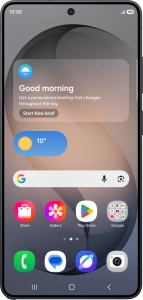
Slide your finger downwards starting from the top right side of the screen.
Step 1 of 14

1. Find "Backup"

Slide your finger downwards starting from the top right side of the screen.

Press the settings icon.
Step 2 of 14

1. Find "Backup"

Press the settings icon.

Press Google services.
Step 3 of 14

1. Find "Backup"

Press Google services.

Press All services.
Step 4 of 14

1. Find "Backup"

Press All services.

Press Backup.
Step 5 of 14

1. Find "Backup"

Press Backup.

Press the fields next to the required data types to select them.
Step 6 of 14

2. Select data types for backup

Press the fields next to the required data types to select them.

Press Confirm.
Step 7 of 14

2. Select data types for backup

Press Confirm.

Press Back up now and wait while the phone memory is backed up.
Step 8 of 14

3. Back up phone memory to Google One

Press Back up now and wait while the phone memory is backed up.

Press Photos and videos.
Step 9 of 14

4. Turn on automatic Google One backup

Press Photos and videos.

Press the indicator next to
Step 10 of 14

4. Turn on automatic Google One backup

Press the indicator next to "Backup" to turn on the function.

The phone memory will be backed up automatically when your phone is charging, the screen lock is turned on and a Wi-Fi connection is established.
Press the Return key.
Step 11 of 14

4. Turn on automatic Google One backup

Press the Return key.

Press Other device data.
Step 12 of 14

5. Turn automatic back up using mobile network on or off

Press Other device data.

Press the indicator next to
Step 13 of 14

5. Turn automatic back up using mobile network on or off

Press the indicator next to "Use mobile or metered Wi-Fi data" to turn the function on or off.

The phone memory will be backed up automatically using the mobile network when no Wi-Fi networks are within range.
Press the Home key to return to the home screen.
Step 14 of 14

6. Return to the home screen

Press the Home key to return to the home screen.

1. Find "Backup"

Slide your finger downwards starting from the top right side of the screen.
Press the settings icon.
Press Google services.
Press All services.
Press Backup.

2. Select data types for backup

Press the fields next to the required data types to select them.
Press Confirm.

3. Back up phone memory to Google One

Press Back up now and wait while the phone memory is backed up.

4. Turn on automatic Google One backup

Press Photos and videos.
Press the indicator next to "Backup" to turn on the function.
The phone memory will be backed up automatically when your phone is charging, the screen lock is turned on and a Wi-Fi connection is established.
Press the Return key.

5. Turn automatic back up using mobile network on or off

Press Other device data.
Press the indicator next to "Use mobile or metered Wi-Fi data" to turn the function on or off.
The phone memory will be backed up automatically using the mobile network when no Wi-Fi networks are within range.

6. Return to the home screen

Press the Home key to return to the home screen.

Get information on...

Or choose...

Another device