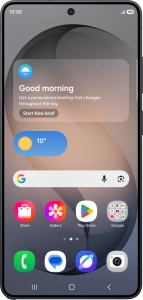
Samsung Galaxy S26 Ultra

Samsung Galaxy S26 Ultra

Android 16

Select help function settings on your Samsung Galaxy S26 Ultra Android 16

Read help info

You can select various accessibility settings for screen, sound and interaction making it easier to use the phone functions.

Slide your finger downwards starting from the top right side of the screen.
Step 1 of 8

1. Find "Accessibility"

Slide your finger downwards starting from the top right side of the screen.

Press the settings icon.
Step 2 of 8

1. Find "Accessibility"

Press the settings icon.

Press Accessibility.
Step 3 of 8

1. Find "Accessibility"

Press Accessibility.

Press Vision enhancements and follow the instructions on the screen to select the required settings.
Step 4 of 8

2. Select screen visibility settings

Press Vision enhancements and follow the instructions on the screen to select the required settings.

You can set your phone to change contrast, colour, font size and select settings for text reading.
Press TalkBack and follow the instructions on the screen to select the required settings.
Step 5 of 8

3. Select TalkBack settings

Press TalkBack and follow the instructions on the screen to select the required settings.

You can set your phone to give you spoken feedback when touching the phone screen so you don't have to look at screen.
Press Hearing enhancements and follow the instructions on the screen to select the required settings.
Step 6 of 8

4. Select sound adjustment settings

Press Hearing enhancements and follow the instructions on the screen to select the required settings.

You can select different sound enhancement settings on your phone and turn on word transcription and subtitle generation during media playback.
Press Interaction and dexterity and follow the instructions on the screen to select the required settings.
Step 7 of 8

5. Select interaction control settings

Press Interaction and dexterity and follow the instructions on the screen to select the required settings.

You can select different interaction control settings on your phone, e.g. voice control and dexterity.
Press the Home key to return to the home screen.
Step 8 of 8

6. Return to the home screen

Press the Home key to return to the home screen.

1. Find "Accessibility"

Slide your finger downwards starting from the top right side of the screen.
Press the settings icon.
Press Accessibility.

2. Select screen visibility settings

Press Vision enhancements and follow the instructions on the screen to select the required settings.
You can set your phone to change contrast, colour, font size and select settings for text reading.

3. Select TalkBack settings

Press TalkBack and follow the instructions on the screen to select the required settings.
You can set your phone to give you spoken feedback when touching the phone screen so you don't have to look at screen.

4. Select sound adjustment settings

Press Hearing enhancements and follow the instructions on the screen to select the required settings.
You can select different sound enhancement settings on your phone and turn on word transcription and subtitle generation during media playback.

5. Select interaction control settings

Press Interaction and dexterity and follow the instructions on the screen to select the required settings.
You can select different interaction control settings on your phone, e.g. voice control and dexterity.

6. Return to the home screen

Press the Home key to return to the home screen.

Get information on...

Or choose...

Another device