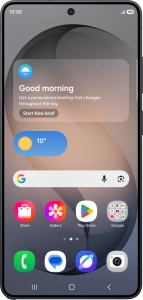
Samsung Galaxy S26 Ultra

Samsung Galaxy S26 Ultra

Android 16

Use Privacy display on your Samsung Galaxy S26 Ultra Android 16

Read help info

You can set your phone to make it harder for others to see the content on your screen by reducing the viewing angle.

Slide your finger downwards starting from the top right side of the screen.
Step 1 of 12

1. Find "Privacy display"

Slide your finger downwards starting from the top right side of the screen.

Press the settings icon.
Step 2 of 12

1. Find "Privacy display"

Press the settings icon.

Press Display.
Step 3 of 12

1. Find "Privacy display"

Press Display.

Press Privacy display.
Step 4 of 12

1. Find "Privacy display"

Press Privacy display.

Press the indicator next to
Step 5 of 12

2. Turn on Privacy display

Press the indicator next to "Turn on Privacy display" to turn on the function.

Press Conditions for turning on.
Step 6 of 12

3. Select settings for automatic activation

Press Conditions for turning on.

Press Apps and follow the instructions on the screen to select the required apps.
Step 7 of 12

3. Select settings for automatic activation

Press Apps and follow the instructions on the screen to select the required apps.

You can set your phone to activate the function automatically when you open selected apps.
Press the indicator next to
Step 8 of 12

3. Select settings for automatic activation

Press the indicator next to "PIN, pattern, password" to turn the function on or off.

You can set your phone to activate the function automatically when you use your security codes in selected areas of your phone.
Press the indicator next to
Step 9 of 12

3. Select settings for automatic activation

Press the indicator next to "Notification pop-ups" to turn the function on or off.

You can set your phone to activate the function automatically when you receive notifications.
Press the Return key.
Step 10 of 12

3. Select settings for automatic activation

Press the Return key.

Press the indicator next to
Step 11 of 12

4. Turn maximum privacy protection on or off

Press the indicator next to "Maximum privacy protection" to turn the function on or off.

You can set your phone to maximise the effect of Privacy display when it is turned on.
Press the Home key to return to the home screen.
Step 12 of 12

5. Return to the home screen

Press the Home key to return to the home screen.

1. Find "Privacy display"

Slide your finger downwards starting from the top right side of the screen.
Press the settings icon.
Press Display.
Press Privacy display.

2. Turn on Privacy display

Press the indicator next to "Turn on Privacy display" to turn on the function.

3. Select settings for automatic activation

Press Conditions for turning on.
Press Apps and follow the instructions on the screen to select the required apps.
You can set your phone to activate the function automatically when you open selected apps.
Press the indicator next to "PIN, pattern, password" to turn the function on or off.
You can set your phone to activate the function automatically when you use your security codes in selected areas of your phone.
Press the indicator next to "Notification pop-ups" to turn the function on or off.
You can set your phone to activate the function automatically when you receive notifications.
Press the Return key.

4. Turn maximum privacy protection on or off

Press the indicator next to "Maximum privacy protection" to turn the function on or off.
You can set your phone to maximise the effect of Privacy display when it is turned on.

5. Return to the home screen

Press the Home key to return to the home screen.

Get information on...

Or choose...

Another device