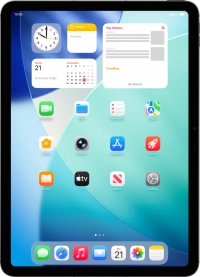
1. Switch between running applications
Slide right or left on the screen using four or five fingers to switch between running applications.

2. Select multitasking
Open the required application.

Slide your finger downwards starting from the top right side of the screen.

Press and hold the multitasking icon.

Press the required type of multitasking.

Press anywhere on the screen.
If you turn on Windowed Apps, new applications you open will automatically open in windows and be displayed on the screen alongside applications that are already open. If you turn on Stage Manager, new applications you open will automatically open in full screen mode, while applications that are already running will be displayed as shortcuts on the left side of the screen.

3. Add application to application group
If you've selected Stage Manager for multitasking, you can press and drag the required running application to the centre of the screen.
When you create an application group, several application windows are active simultaneously.

To add an application from Dock, open Dock and drag the required application to the centre of the screen.

To add an application that is not visible on the screen, press and hold the menu icon on an application window. If the application is displayed in full screen mode, first slide you finger downwards starting from the top of the screen to view the application menu.

Press Add Another Window.

Press the required application.

4. Organise open application windows
To adjust the size of the application window, press and drag the adjust size icon.

To move a window, press and drag the top of the application window to the required position on the screen.

5. Select layout for open application windows
Press one of the open application windows to bring it to the front.

Press and hold the menu icon.

Press the required layout.
If you select one of the layout options under "Fill & Arrange", all open application windows will be adjusted to the selected layout.

6. Open new application using Split View
When you have two application windows open on the screen, press and hold the menu icon in the first application window.
Using Split View, you have access to functions in both of the open applications on the screen.

Press the required setting to place the application window on the right or left side of the screen.

Press the second application.

Press and hold the menu icon in the second application window.

Press the required setting to place the application window on the opposite side of the screen from the first application window.

The applications are now displayed on a split screen.
You can create Split View with up to four applications at the same time.

Press and drag the grey bar between the application windows right or left to adjust the size of the application windows.

7. Open application in full screen
Press the menu icon.

Press the maximise icon.

8. Minimise application
Slide your finger downwards starting from the top of the screen.

Press the menu icon.

Press the minimise icon.
When you minimise an application, it can be found on the list of running applications.

9. Minimise application group
Slide your finger upwards starting from the bottom of the screen.
You can minimise all active applications simultaneously, they can then be found on the list of running applications as a group.

10. Close application
Press the menu icon.

Press the close icon.


