Samsung Galaxy A57 5G

Samsung Galaxy A57 5G
Android 16

Use Galaxy AI on your Samsung Galaxy A57 5G Android 16
Read help info

Galaxy AI allows you to use many of your phone's functions in a smarter and more efficient way. Here you can see some examples of Galaxy AI usage. To use most of the Galaxy AI functions, you need to activate your Samsung account on your phone and set up your phone for internet.

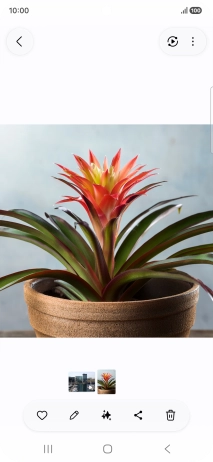
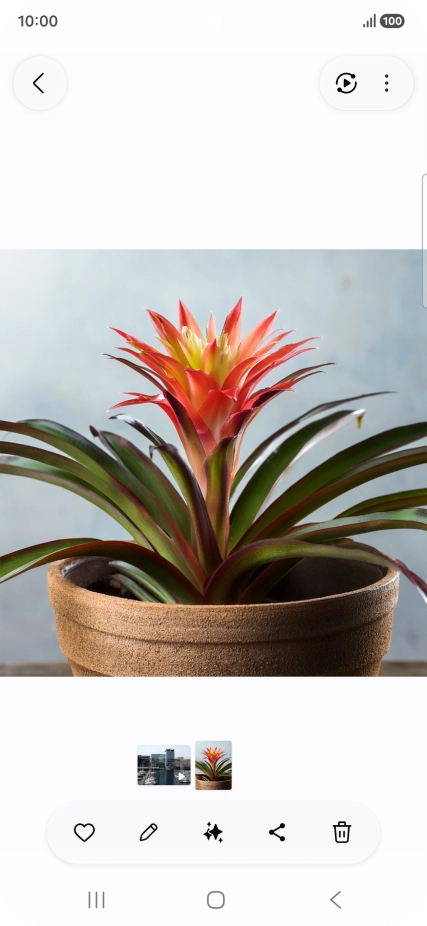
Go to the required picture.
Step 1 of 13

1. Use Circle to Search (Circle to Search by Google)

Go to the required picture.

You can draw a circle around an object on a picture and search for the object on the internet. You can use the function in all apps that allow you to take screenshots. You may need to turn on the function in Settings on your phone before you can use it.
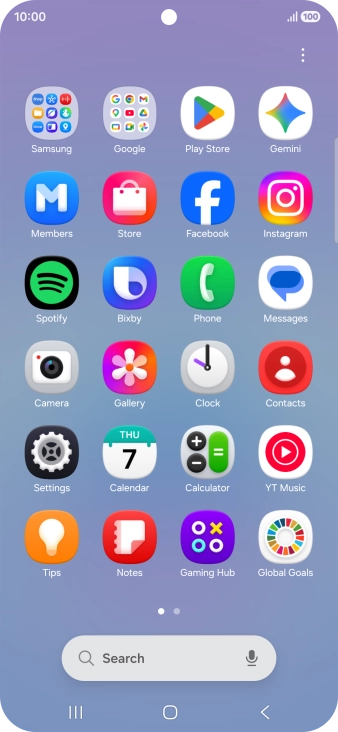
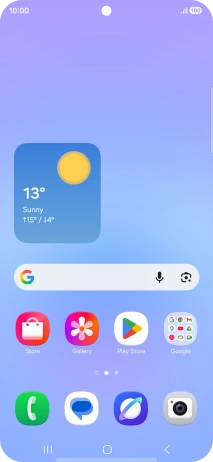
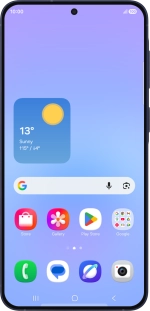
Press and hold the Home key.
Step 2 of 13

1. Use Circle to Search (Circle to Search by Google)

Press and hold the Home key.
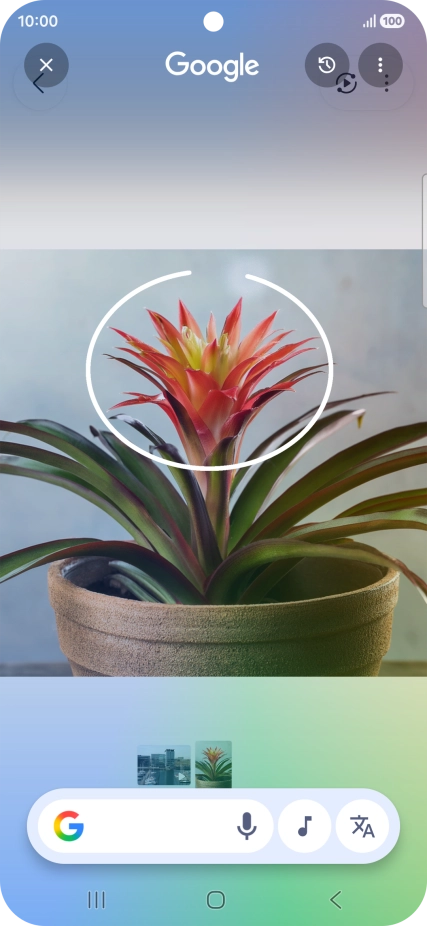
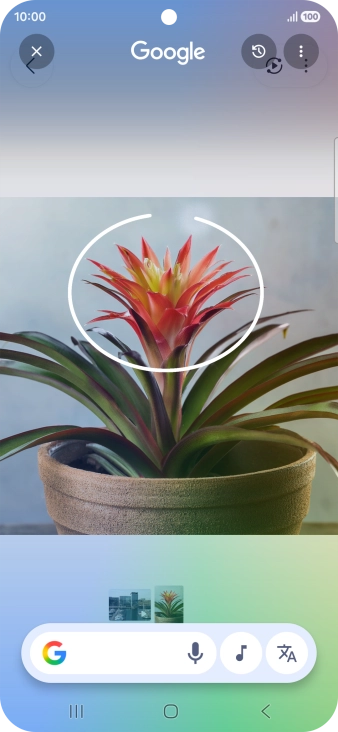
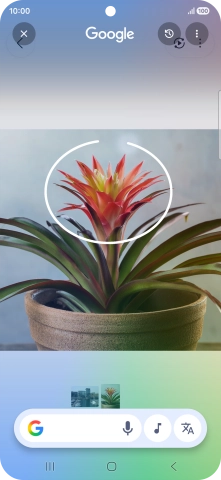
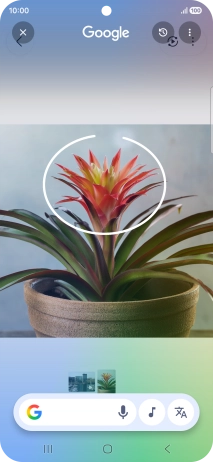
Draw a circle around the required object on the picture and wait for the search results.
Step 3 of 13

1. Use Circle to Search (Circle to Search by Google)

Draw a circle around the required object on the picture and wait for the search results.
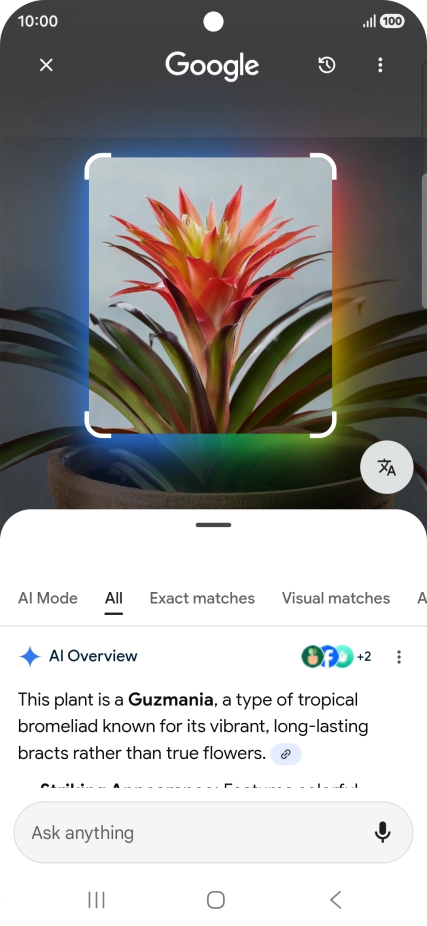
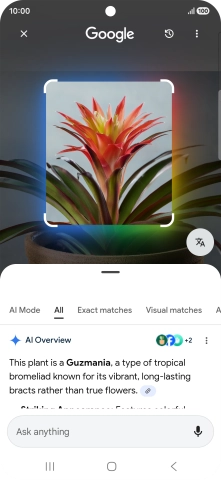
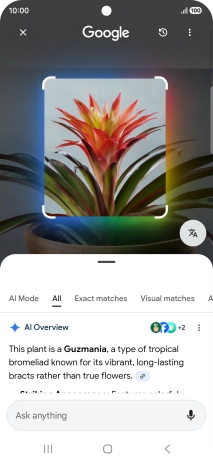
Follow the instructions on the screen to use the search results.
Step 4 of 13

1. Use Circle to Search (Circle to Search by Google)

Follow the instructions on the screen to use the search results.

Press the Return key to return to the picture.
Step 5 of 13

1. Use Circle to Search (Circle to Search by Google)

Press the Return key to return to the picture.

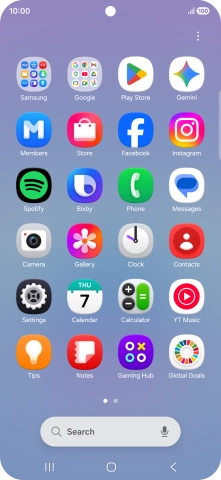
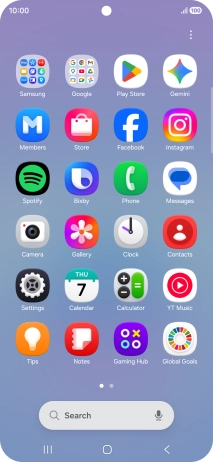
Open Gallery and go to the required picture.
Step 6 of 13

2. Use Galaxy AI for picture editing

Open Gallery and go to the required picture.

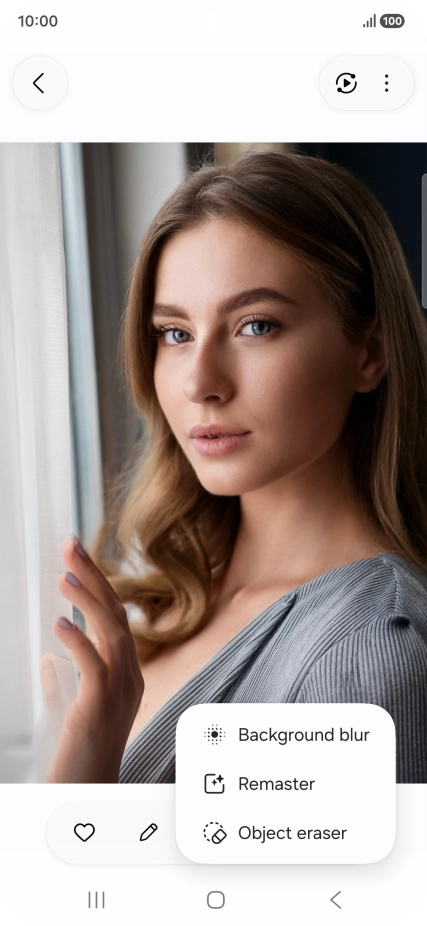
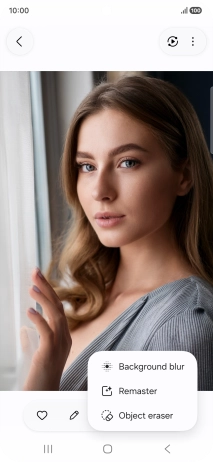
Press the AI icon.
Step 7 of 13

2. Use Galaxy AI for picture editing

Press the AI icon.

Press the required setting and follow the instructions on the screen to use the function.
Step 8 of 13

2. Use Galaxy AI for picture editing

Press the required setting and follow the instructions on the screen to use the function.

You can resize, remove, move and change objects and backgrounds in your pictures.
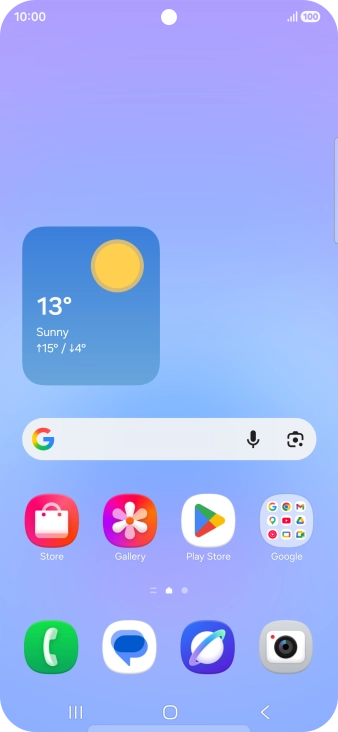
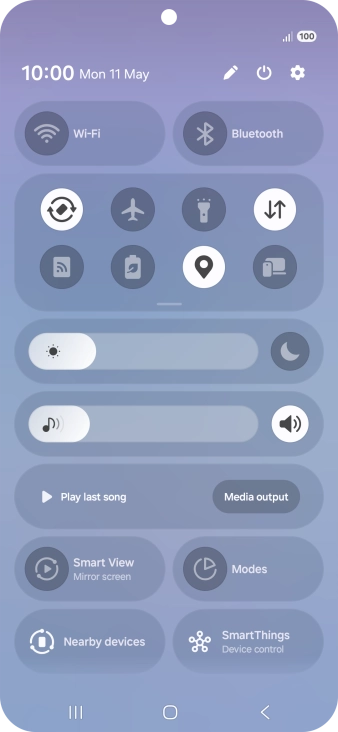
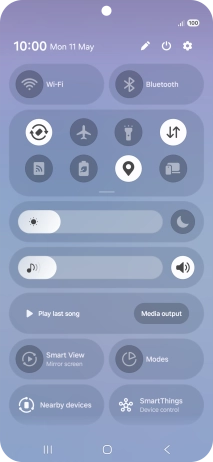
Slide your finger downwards starting from the top right side of the screen.
Step 9 of 13

3. See more examples of Galaxy AI usage

Slide your finger downwards starting from the top right side of the screen.

Press the settings icon.
Step 10 of 13

3. See more examples of Galaxy AI usage

Press the settings icon.

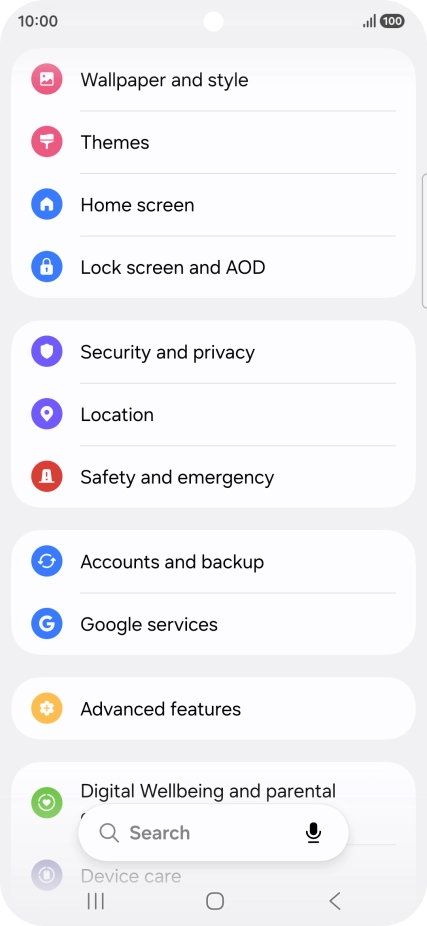
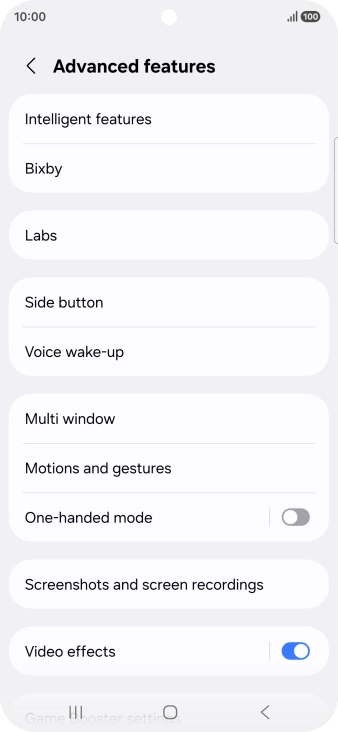
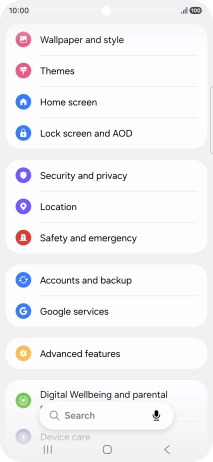
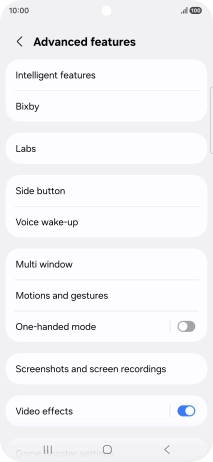
Press Advanced features.
Step 11 of 13

3. See more examples of Galaxy AI usage

Press Advanced features.

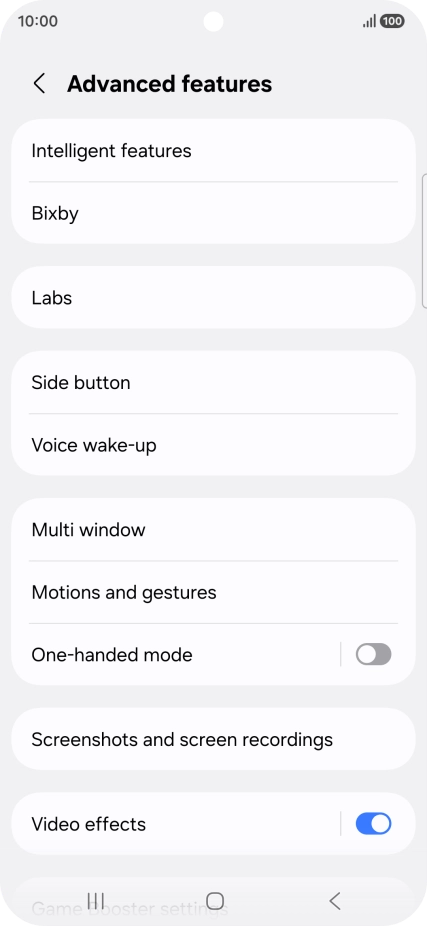
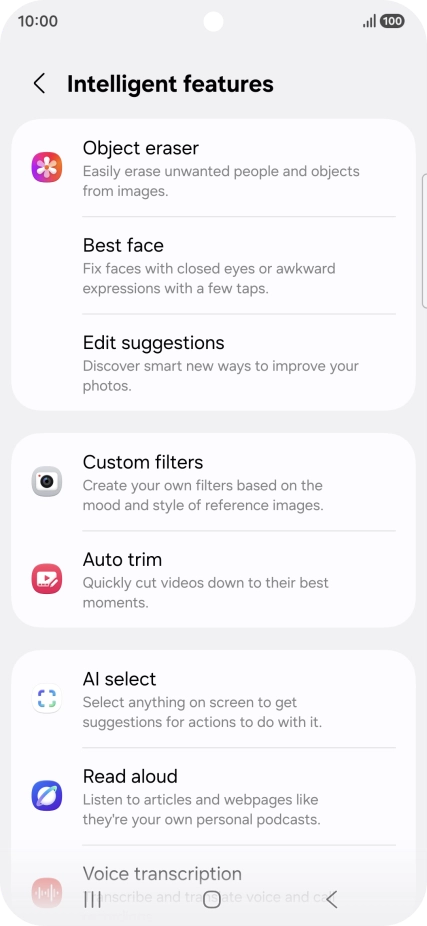
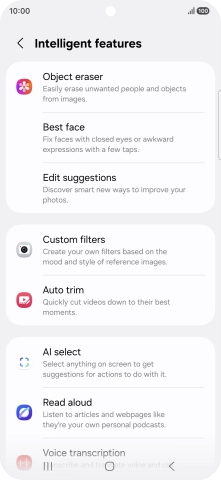
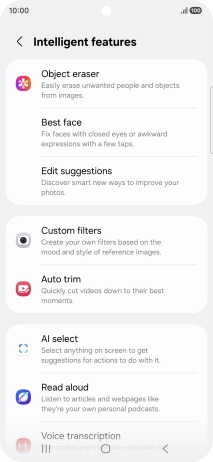
Press Intelligent features.
Step 12 of 13

3. See more examples of Galaxy AI usage

Press Intelligent features.

More examples of Galaxy AI usage are now displayed.
Step 13 of 13

3. See more examples of Galaxy AI usage

More examples of Galaxy AI usage are now displayed.

1. Use Circle to Search (Circle to Search by Google)

Go to the required picture.
You can draw a circle around an object on a picture and search for the object on the internet. You can use the function in all apps that allow you to take screenshots. You may need to turn on the function in Settings on your phone before you can use it.
Press and hold the Home key.
Draw a circle around the required object on the picture and wait for the search results.
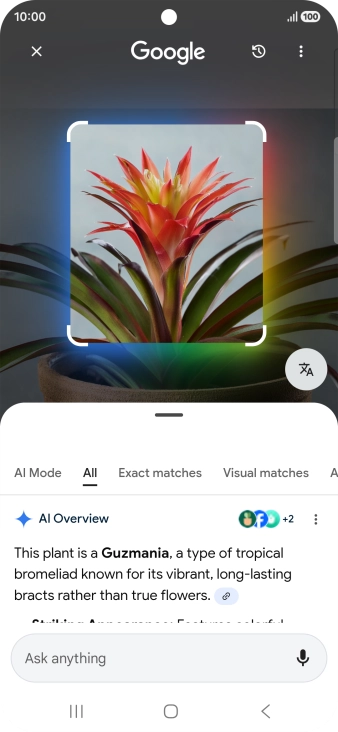
Follow the instructions on the screen to use the search results.
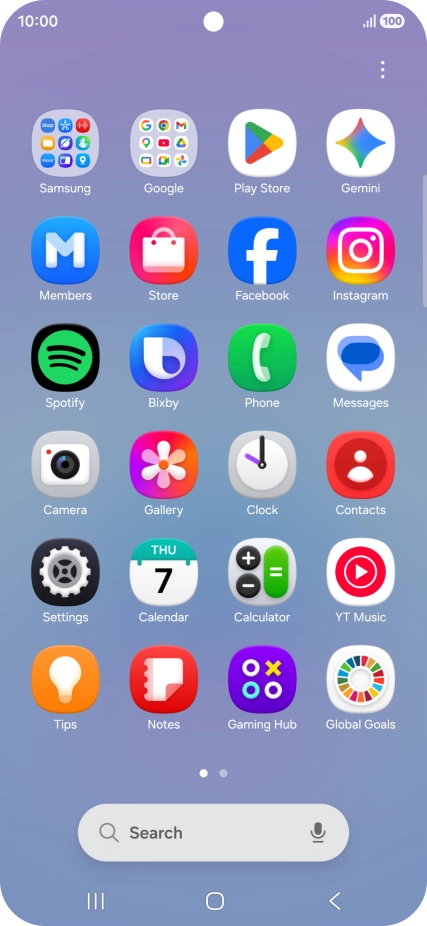
Press the Return key to return to the picture.
2. Use Galaxy AI for picture editing

Open Gallery and go to the required picture.

Press the AI icon.
Press the required setting and follow the instructions on the screen to use the function.
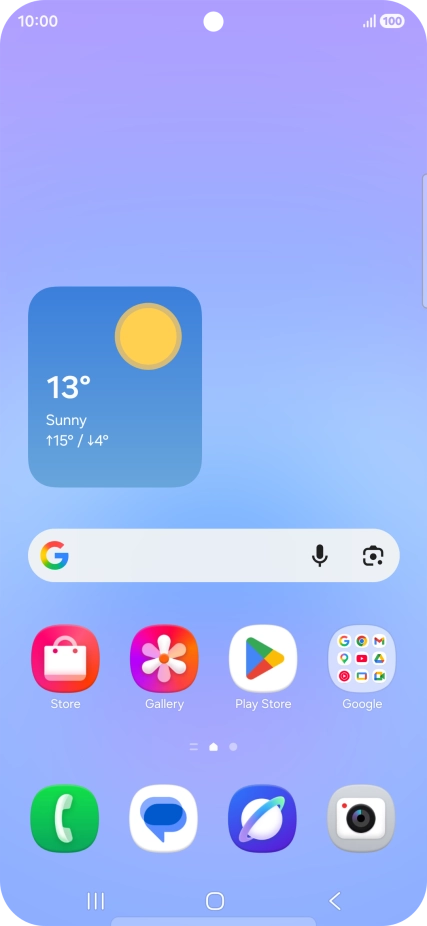
You can resize, remove, move and change objects and backgrounds in your pictures.

3. See more examples of Galaxy AI usage

Slide your finger downwards starting from the top right side of the screen.
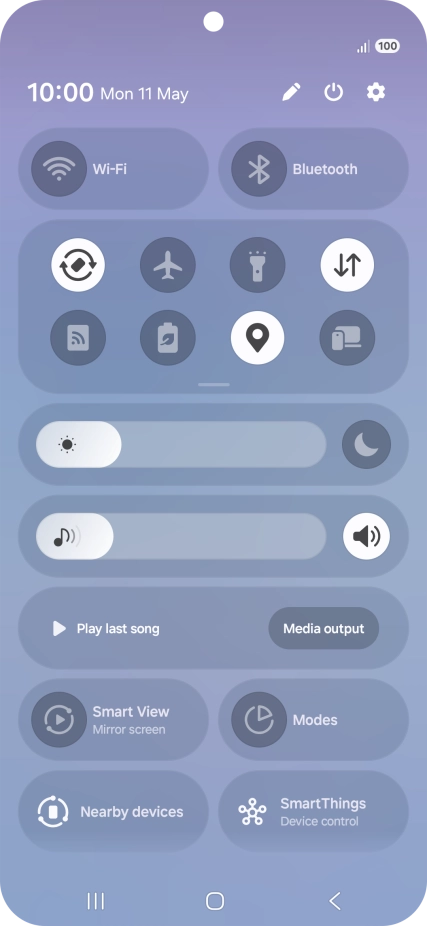
Press the settings icon.
Press Advanced features.
Press Intelligent features.
More examples of Galaxy AI usage are now displayed.

Get information on...

Or choose...

Another device