Xiaomi Mi Mix 3 5G

Xiaomi Mi Mix 3 5G

Android 9.0

Write and send email message on your Xiaomi Mi Mix 3 5G Android 9.0

Read help info

You can send and receive email messages from your email accounts. To send and receive email messages, you need to set up your phone for email.

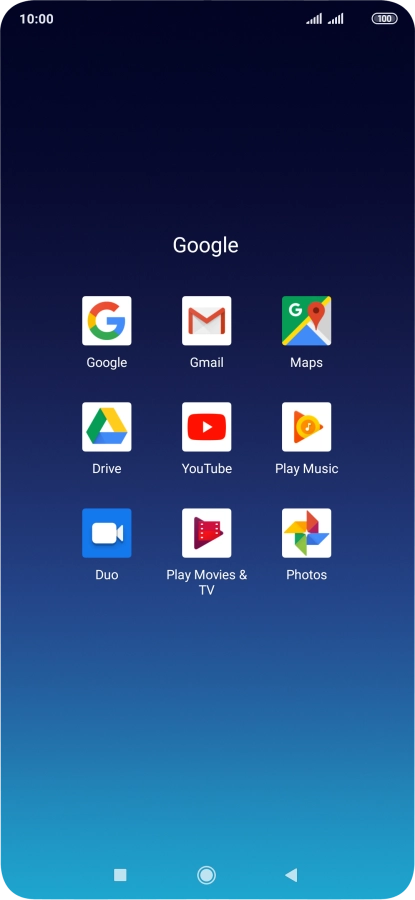
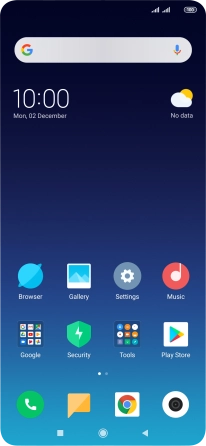
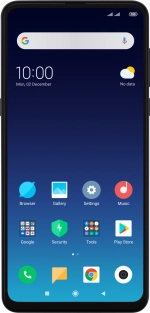
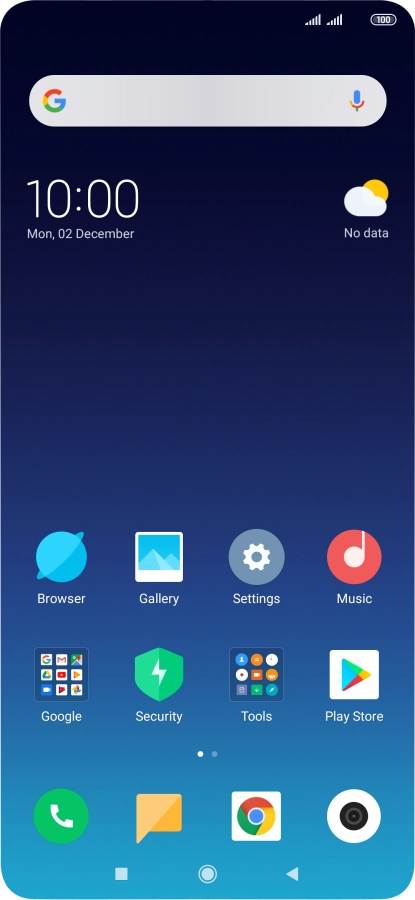
Press Google.
Step 1 of 17

1. Find "Gmail"

Press Google.

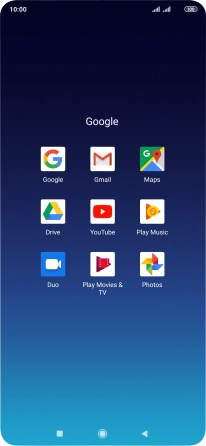
Press Gmail.
Step 2 of 17

1. Find "Gmail"

Press Gmail.

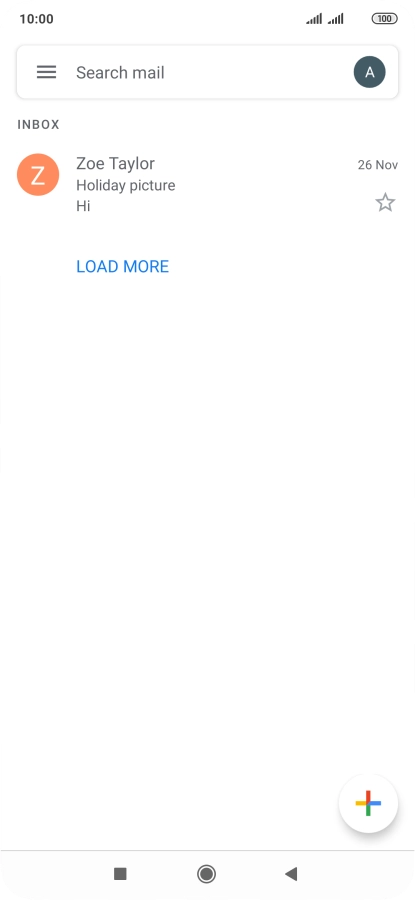
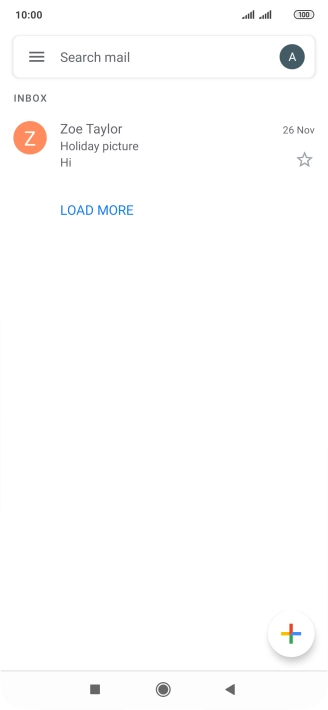
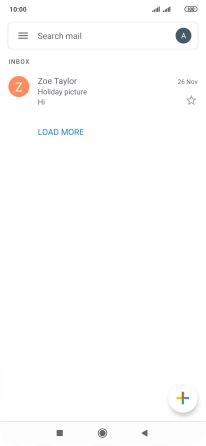
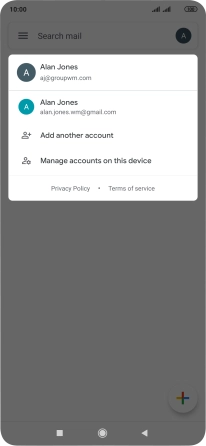
Press the profile icon.
Step 3 of 17

2. Select email account

Press the profile icon.
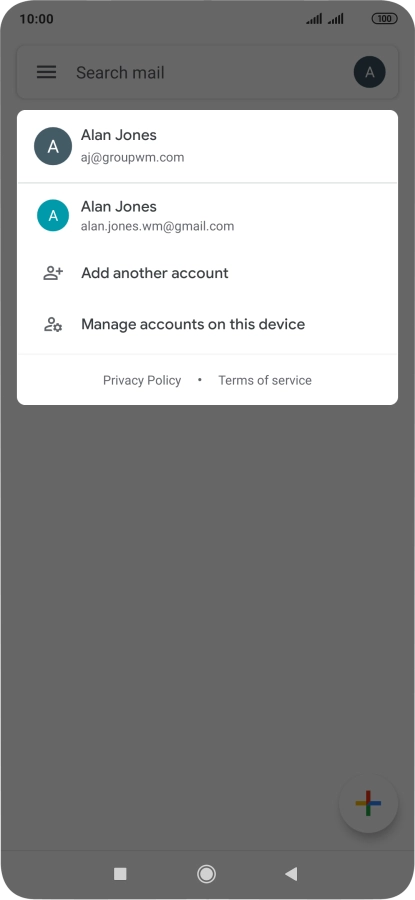
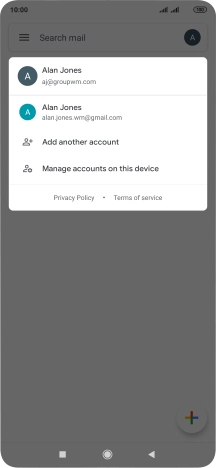
Press the required email account.
Step 4 of 17

2. Select email account

Press the required email account.

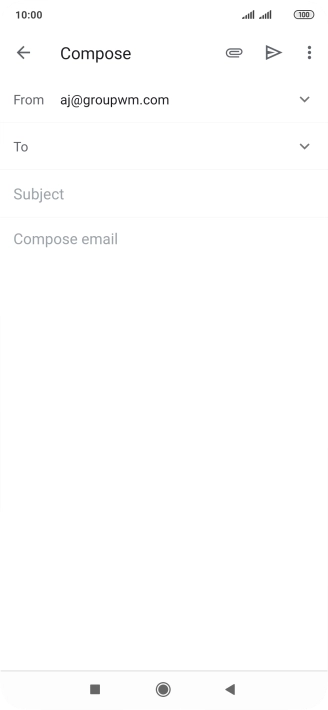
Press the new email message icon.
Step 5 of 17

3. Create new email message

Press the new email message icon.

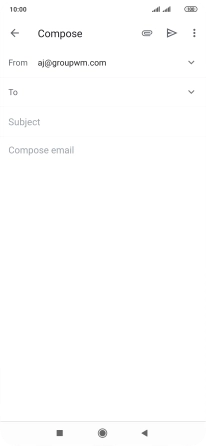
Press the field next to
Step 6 of 17

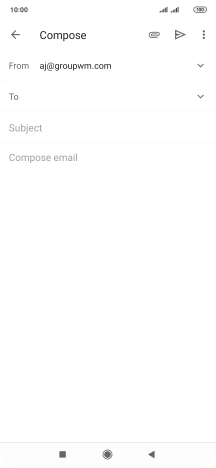
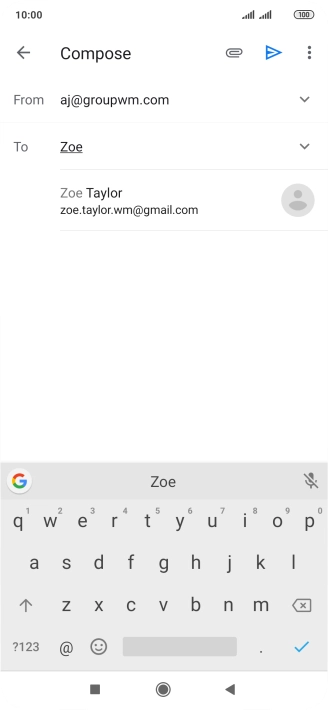
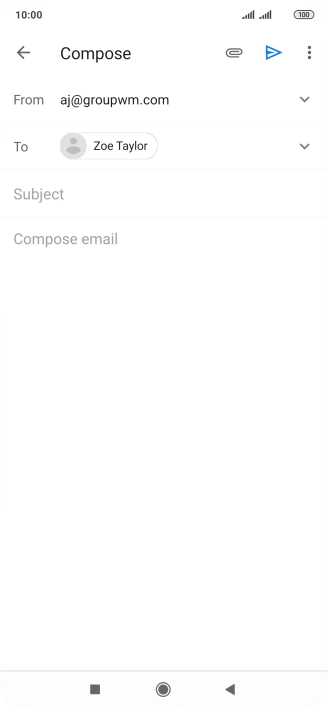
4. Select recipient

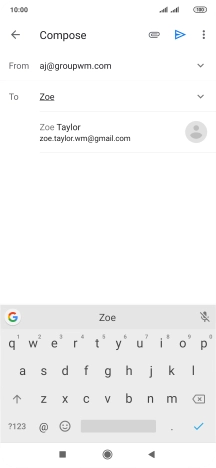
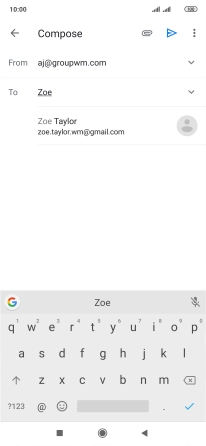
Press the field next to "To" and key in the first letters of the recipient's name.

Press the required contact.
Step 7 of 17

4. Select recipient

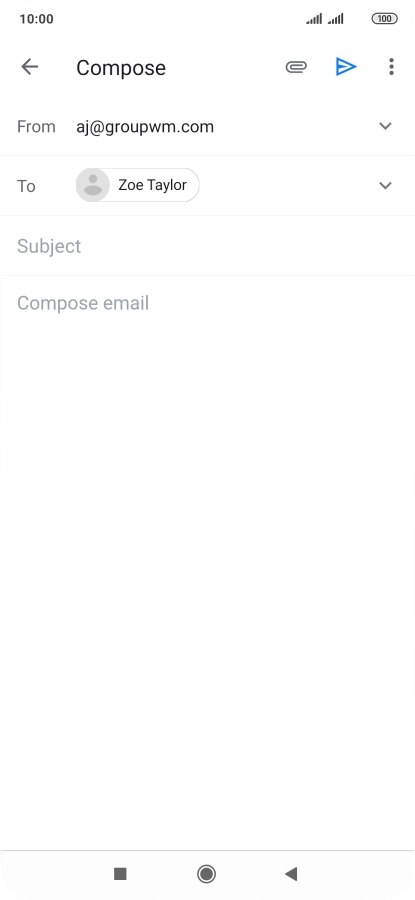
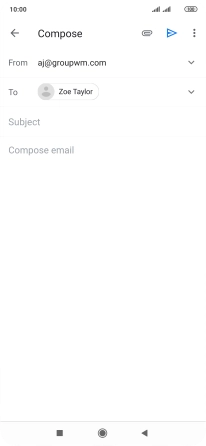
Press the required contact.

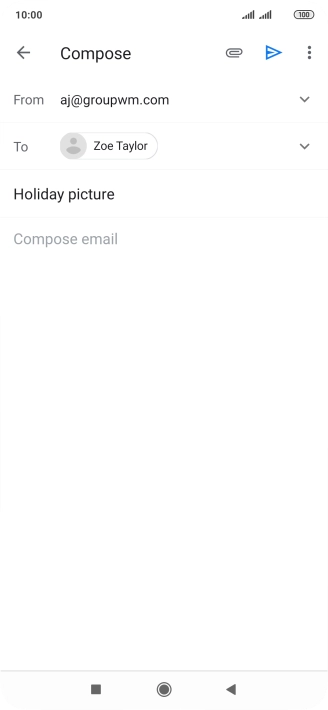
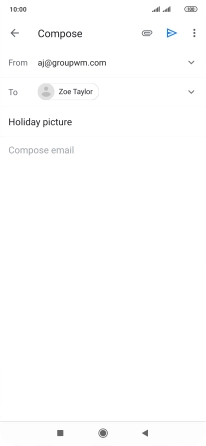
Press Subject and key in the required subject.
Step 8 of 17

5. Enter subject

Press Subject and key in the required subject.

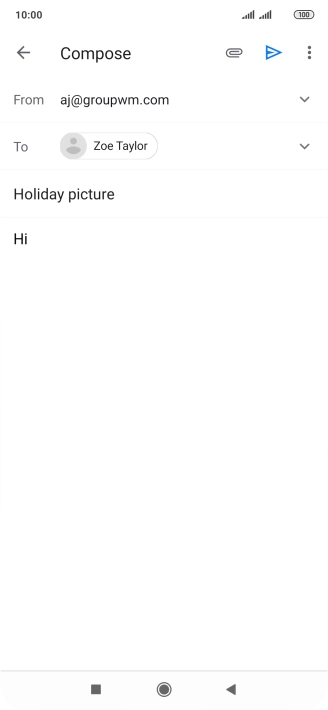
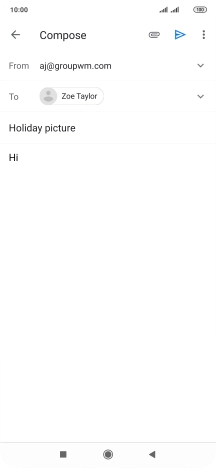
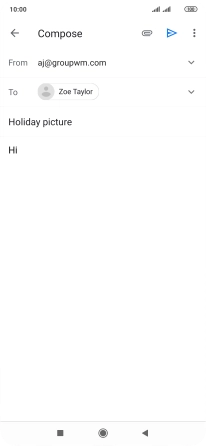
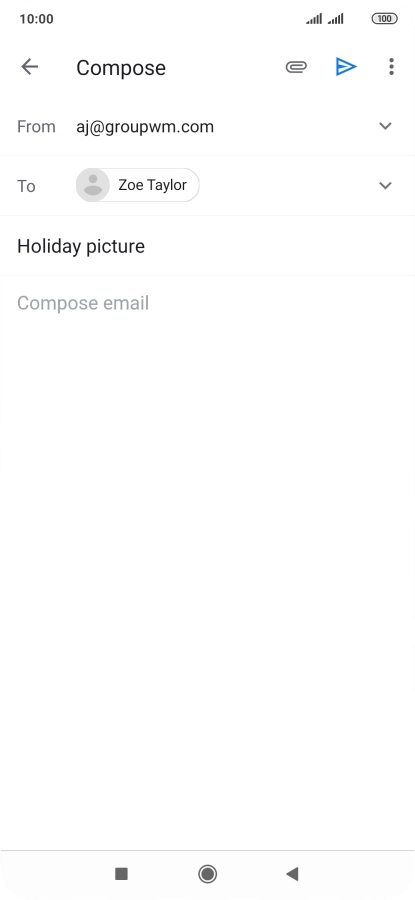
Press the text input field and write the text for your email message.
Step 9 of 17

6. Write text

Press the text input field and write the text for your email message.

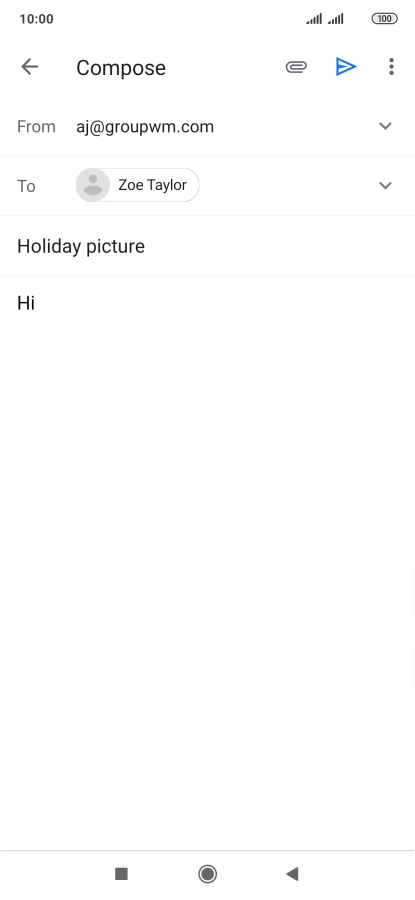
Press the attachment icon.
Step 10 of 17

7. Attach file

Press the attachment icon.

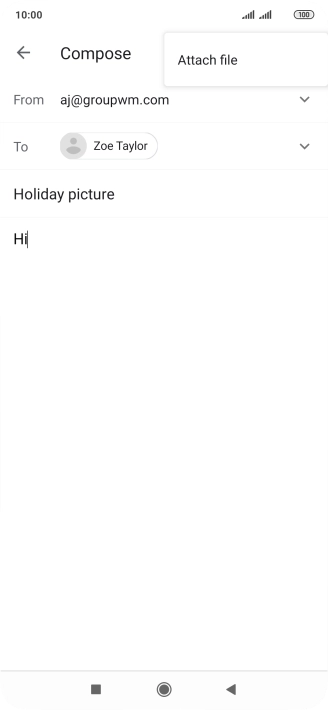
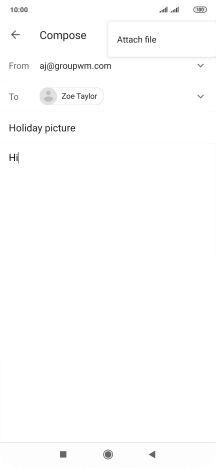
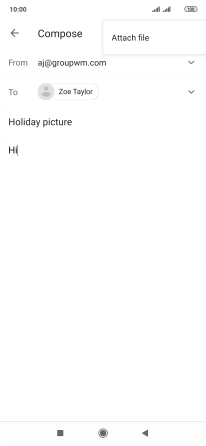
Press Attach file.
Step 11 of 17

7. Attach file

Press Attach file.

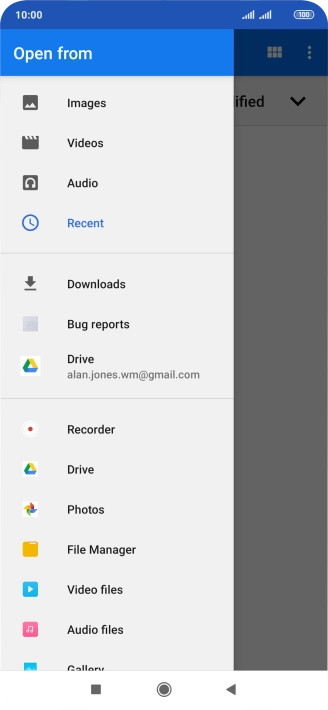
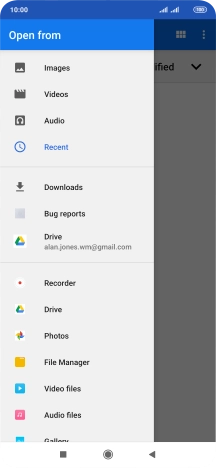
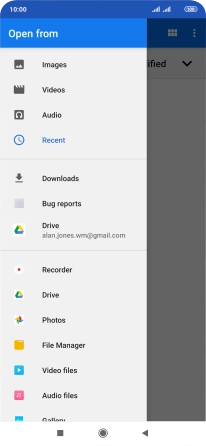
Slide your finger right starting from the left side of the screen.
Step 12 of 17

7. Attach file

Slide your finger right starting from the left side of the screen.

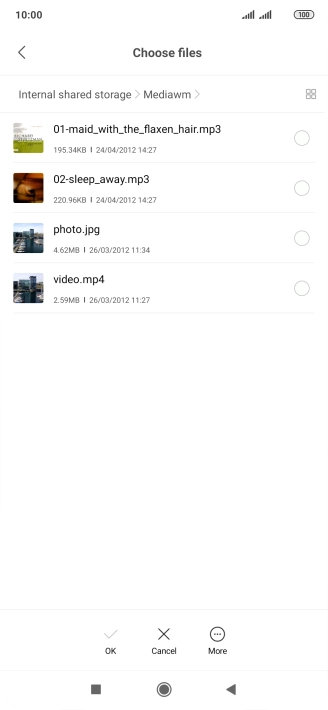
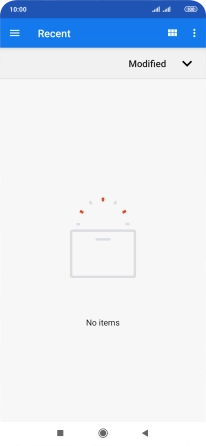
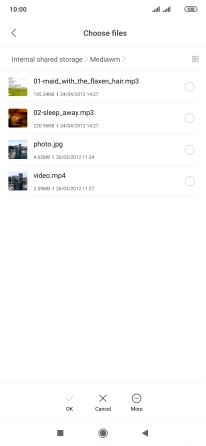
Press File Manager and go to the required folder.
Step 13 of 17

7. Attach file

Press File Manager and go to the required folder.

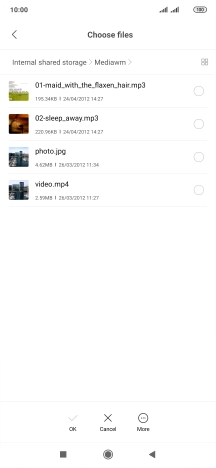
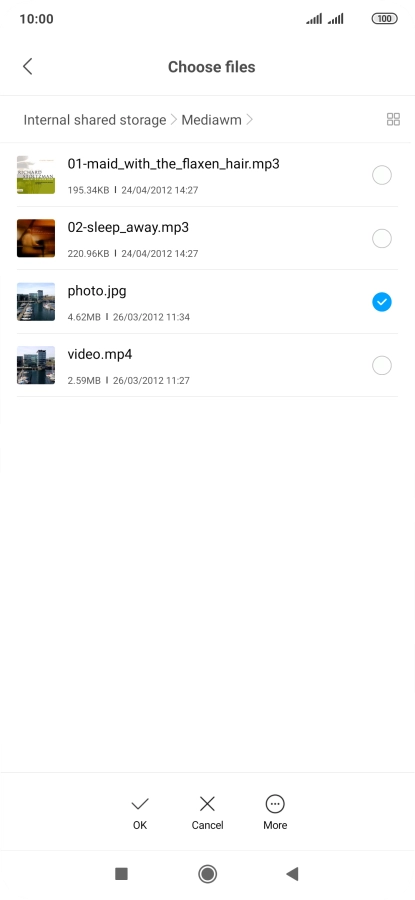
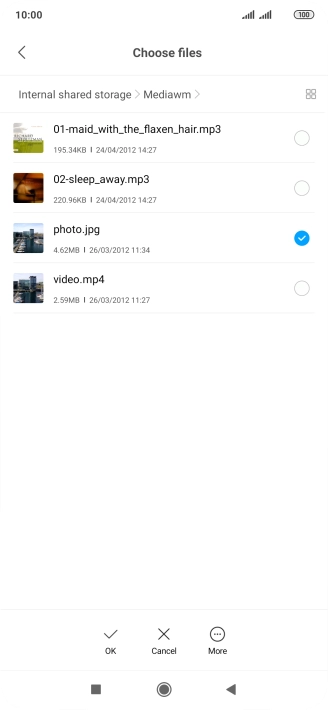
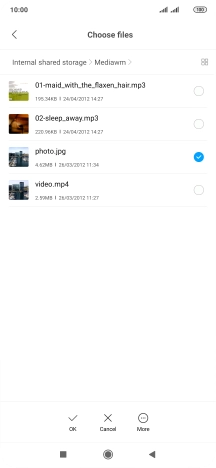
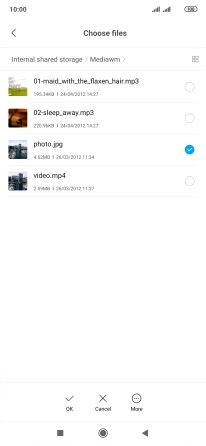
Press the required file.
Step 14 of 17

7. Attach file

Press the required file.

Press OK.
Step 15 of 17

7. Attach file

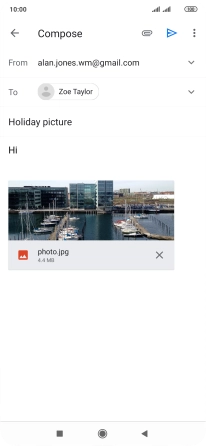
Press OK.

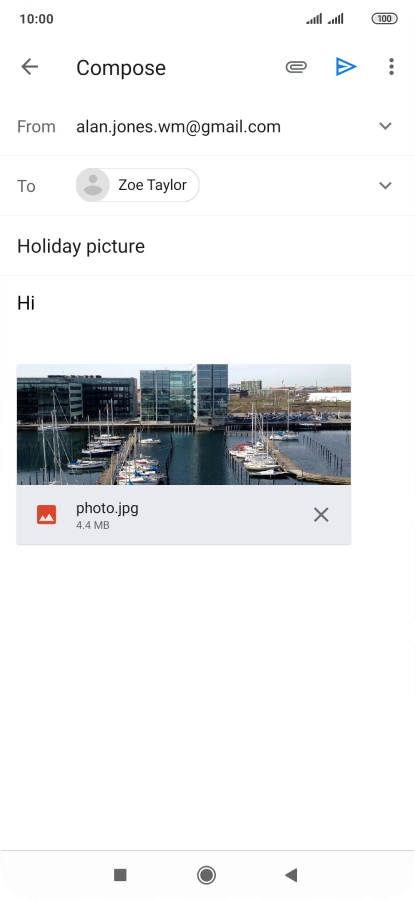
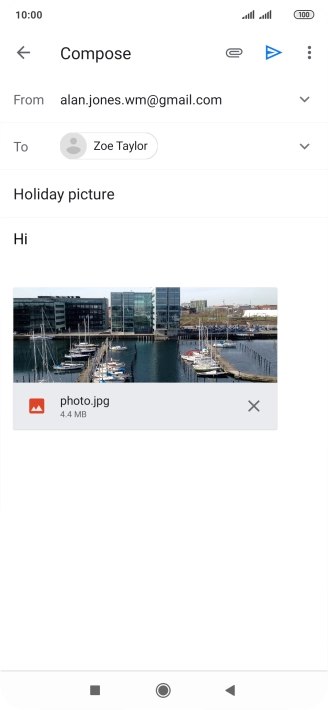
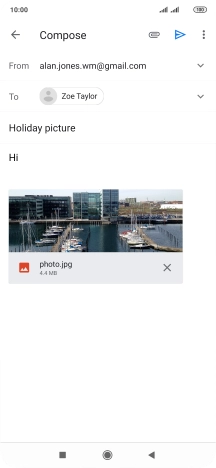
Press the send icon when you've finished your email message.
Step 16 of 17

8. Send the email message

Press the send icon when you've finished your email message.

Press the Home key to return to the home screen.
Step 17 of 17

9. Return to the home screen

Press the Home key to return to the home screen.

1. Find "Gmail"

Press Google.
Press Gmail.

2. Select email account

Press the profile icon.
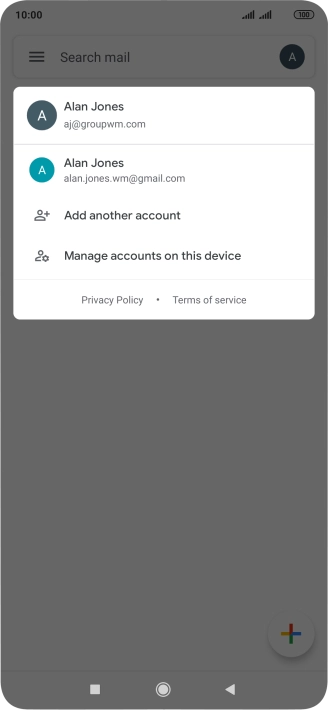
Press the required email account.

3. Create new email message

Press the new email message icon.
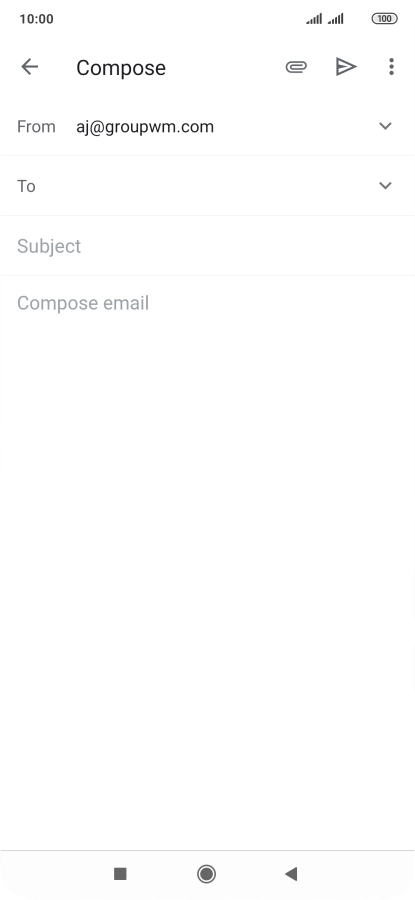
4. Select recipient

Press the field next to "To" and key in the first letters of the recipient's name.
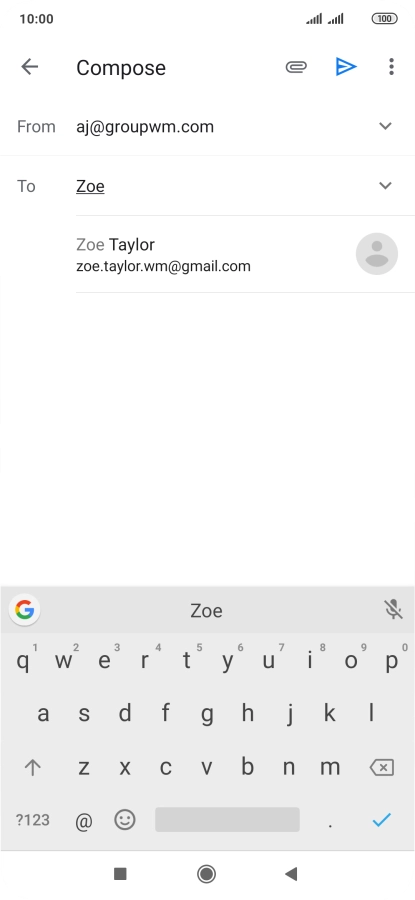
Press the required contact.

5. Enter subject

Press Subject and key in the required subject.
6. Write text

Press the text input field and write the text for your email message.
7. Attach file

Press the attachment icon.
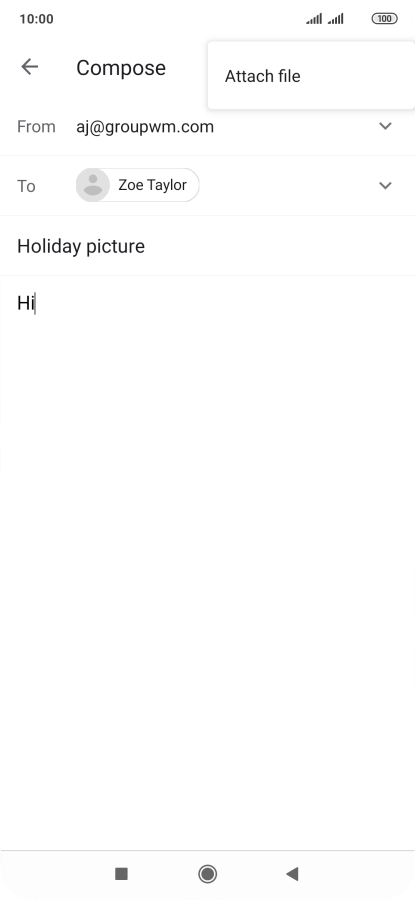
Press Attach file.
Slide your finger right starting from the left side of the screen.
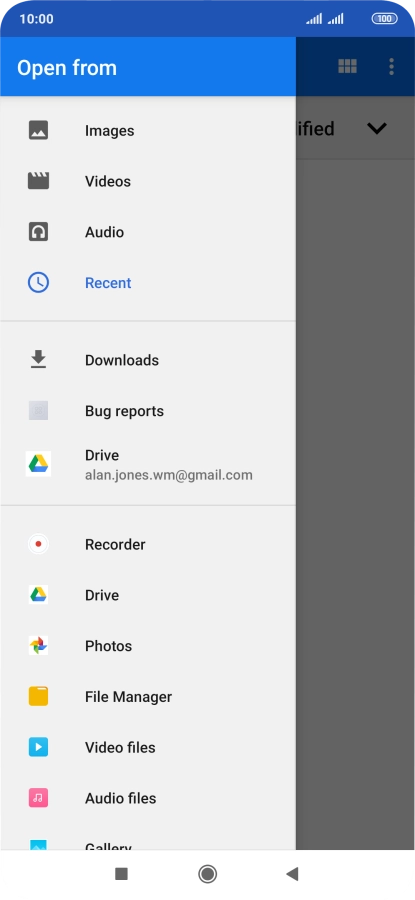
Press File Manager and go to the required folder.
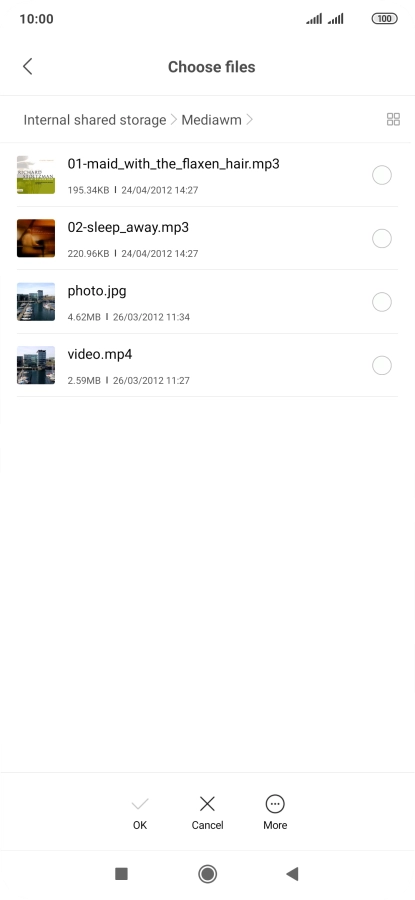
Press the required file.
Press OK.

8. Send the email message

Press the send icon when you've finished your email message.

9. Return to the home screen

Press the Home key to return to the home screen.

Get information on...

Or choose...

Another device