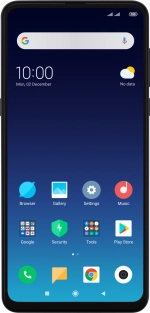
Xiaomi Mi Mix 3 5G
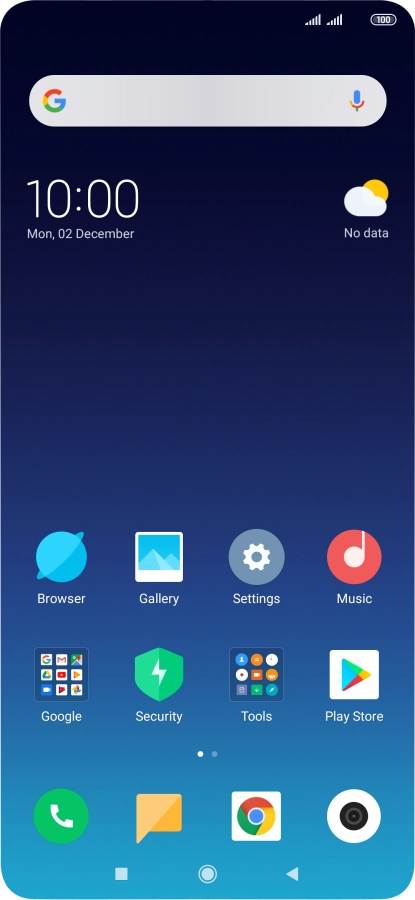
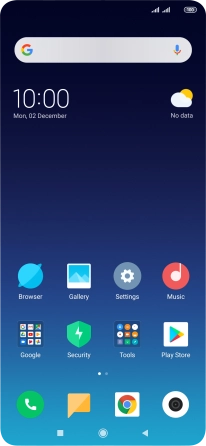
Find "Sync"
Press Settings.
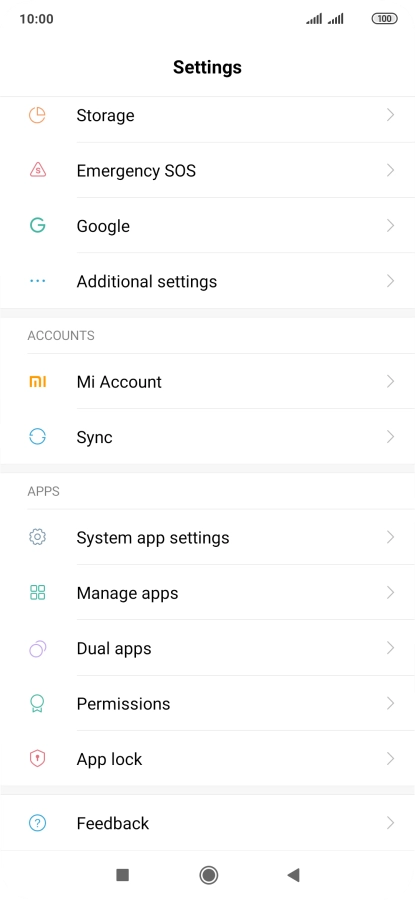
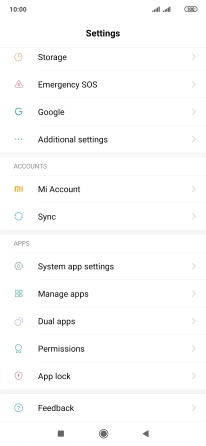
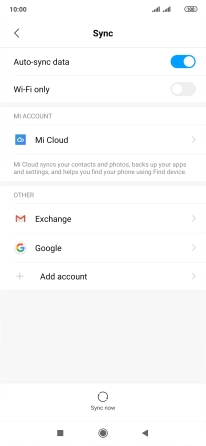
Find "Sync"
Press Sync.
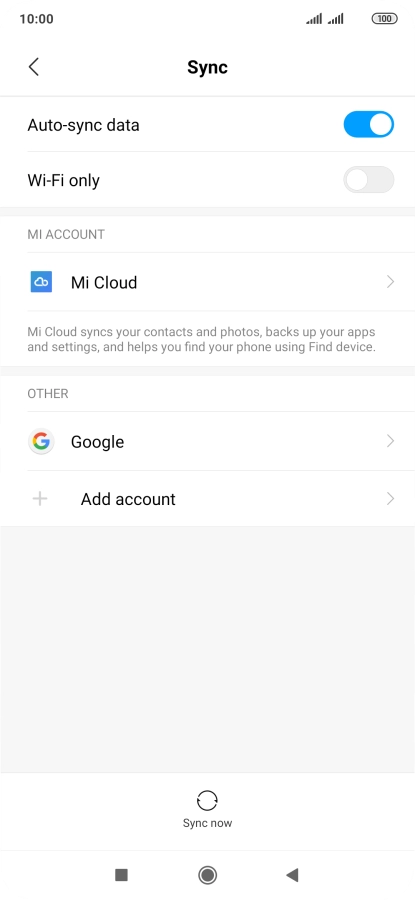
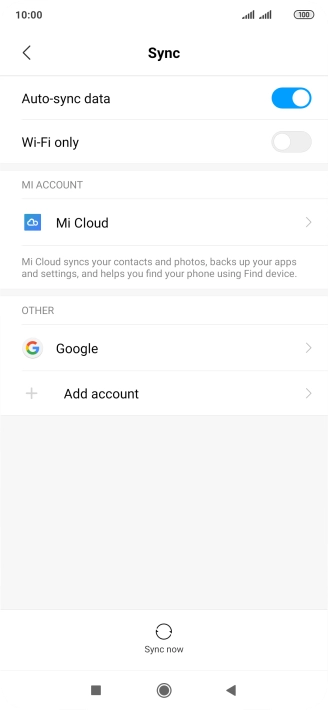
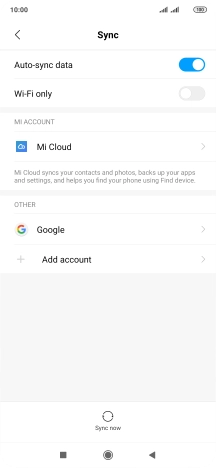
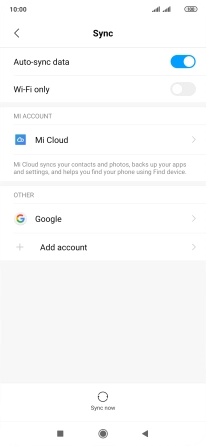
Create new email account
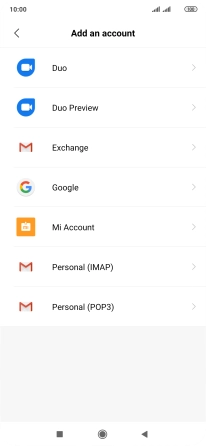
Press Add account.
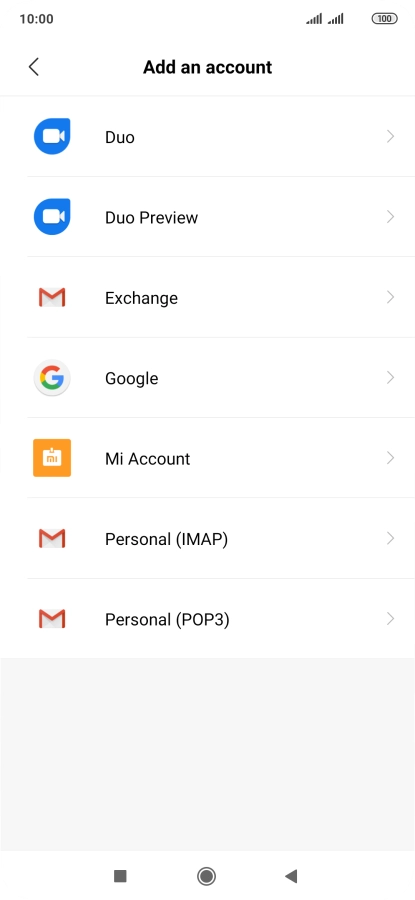
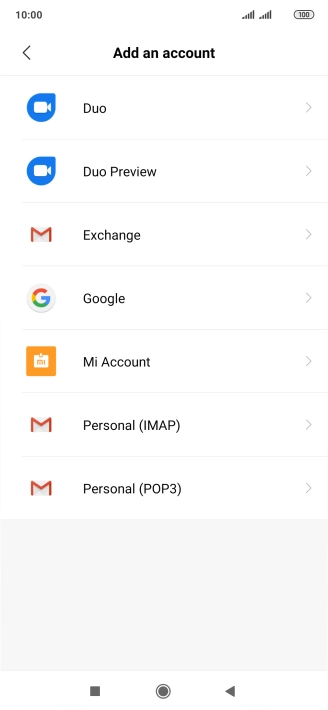
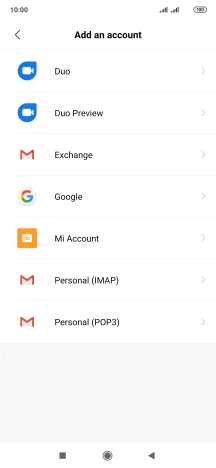
Create new email account
Press Exchange.
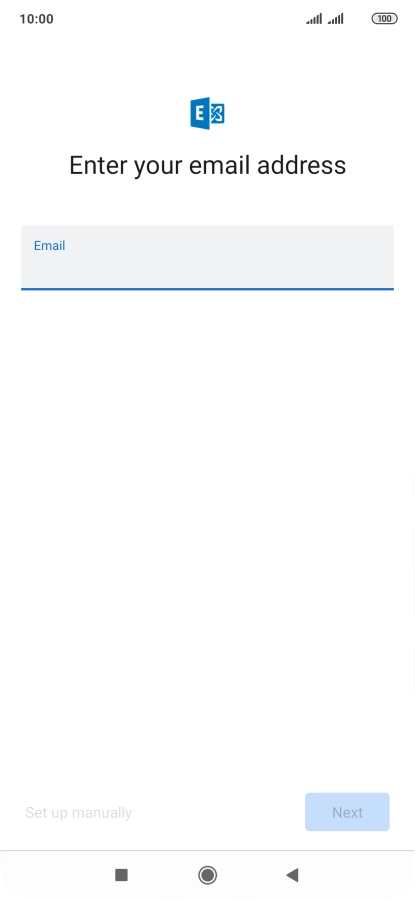
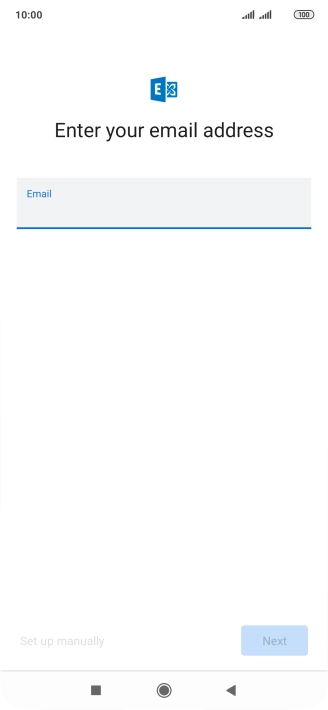
Enter email address
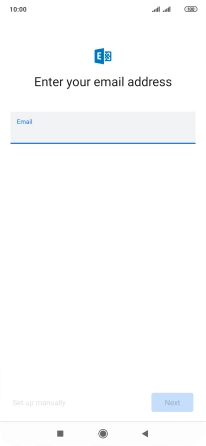
Press the field below "Email" and key in your email address.
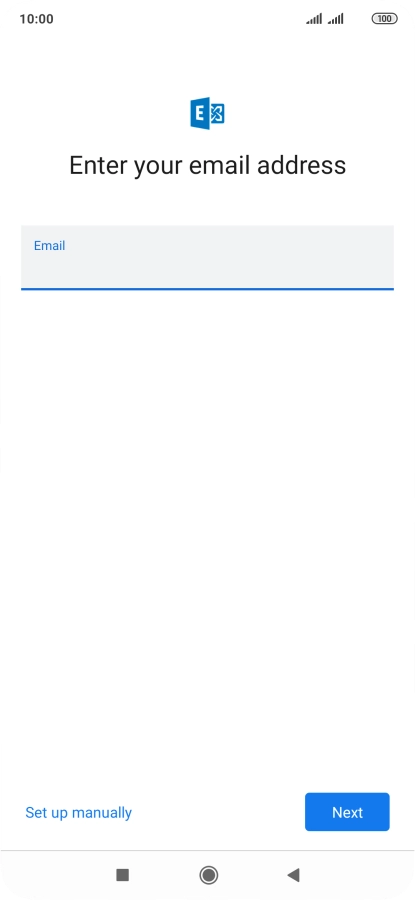
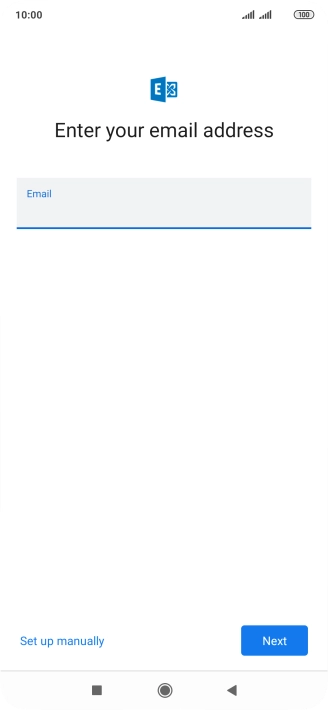
Enter email address
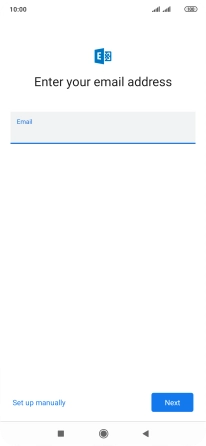
Press Set up manually.
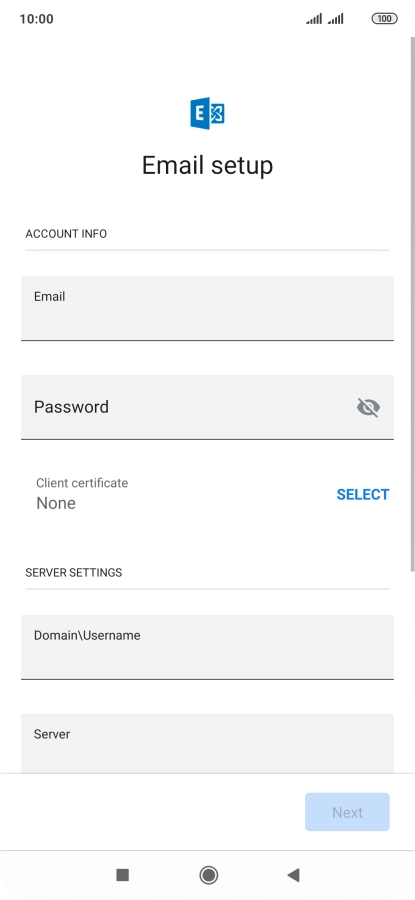
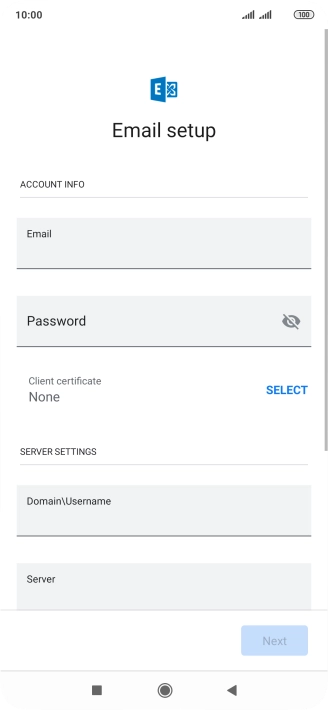
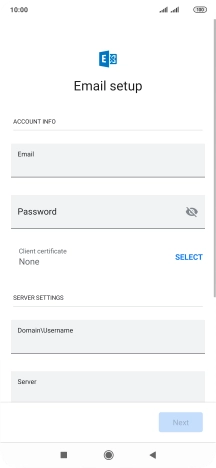
Enter password
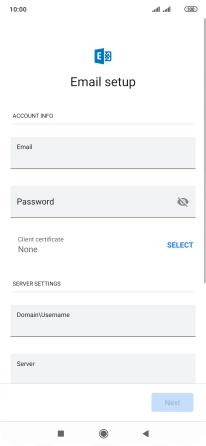
Press Password and key in the password for your email account.
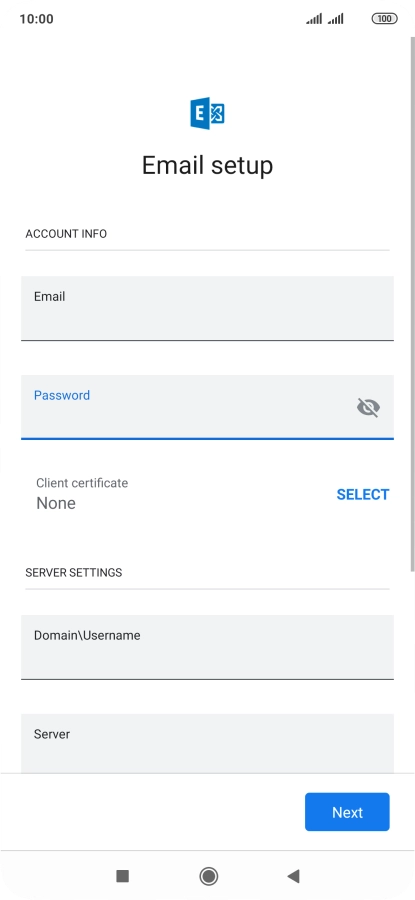
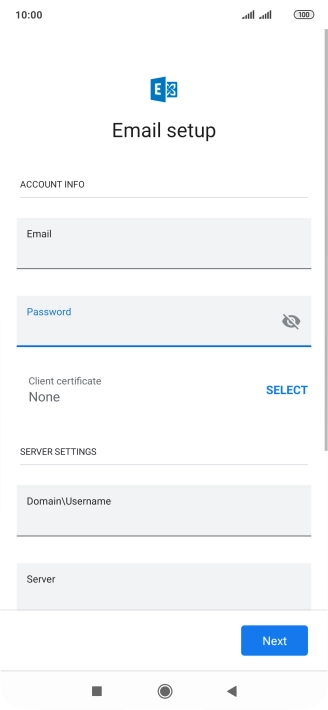
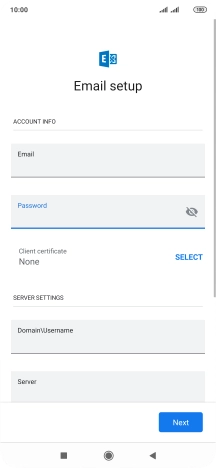
Select client certificate
Press SELECT and follow the instructions on the screen to install the required certificate.
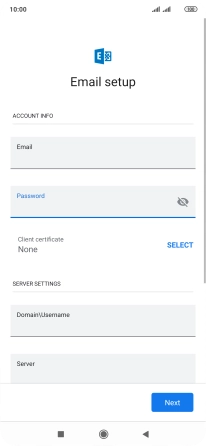
Enter domain name
Press the field below "Domain\Username" and key in the domain name.
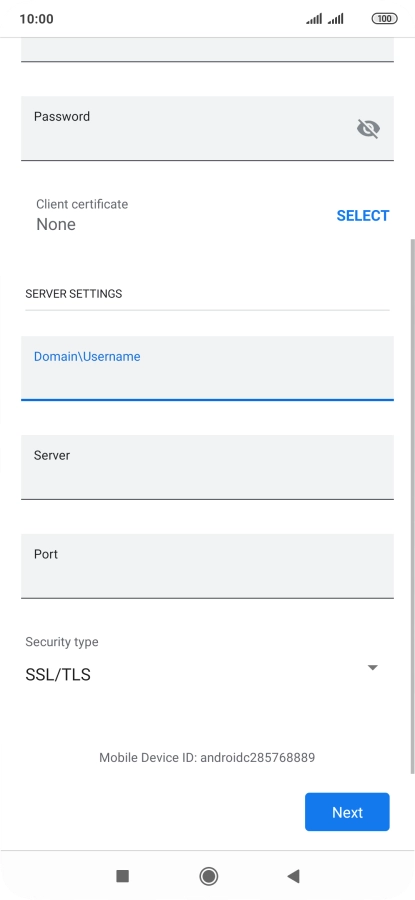
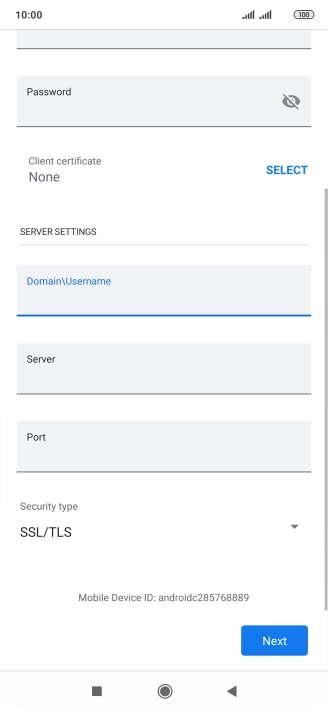
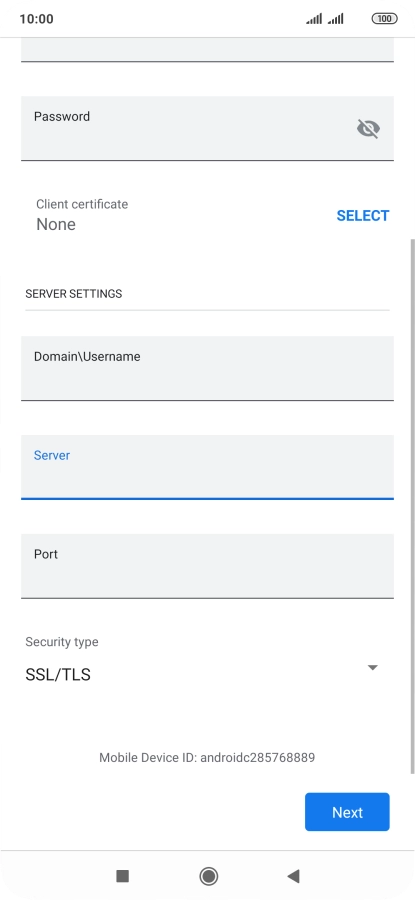
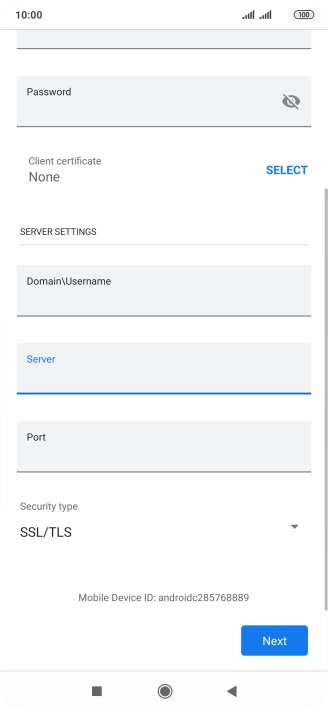
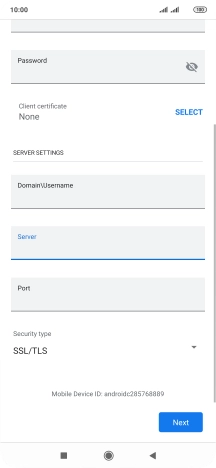
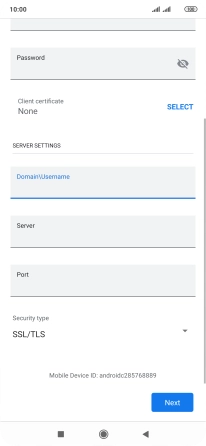
Enter server name
Press the field below "Server" and key in the server address.
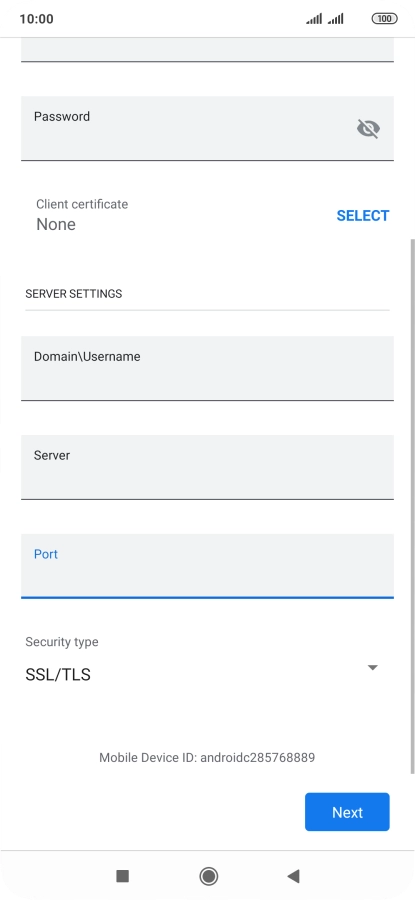
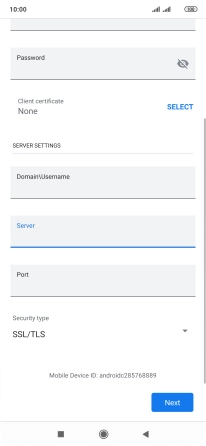
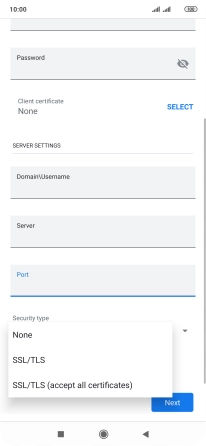
Enter incoming port
Press the field below "Port" and key in the required port number.
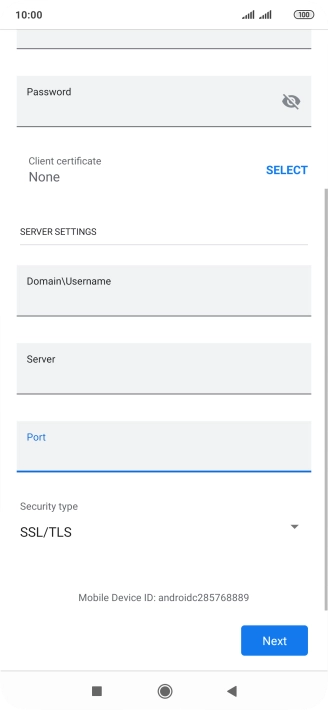
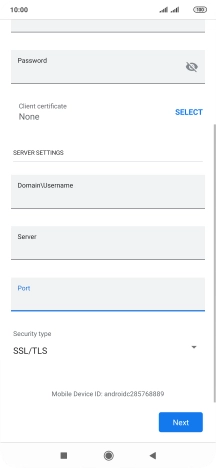
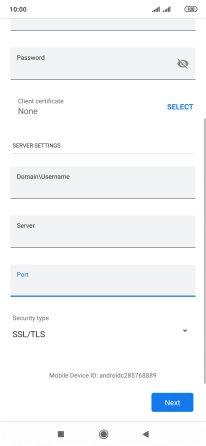
Turn SSL encryption on or off
Press the drop down list below "Security type".
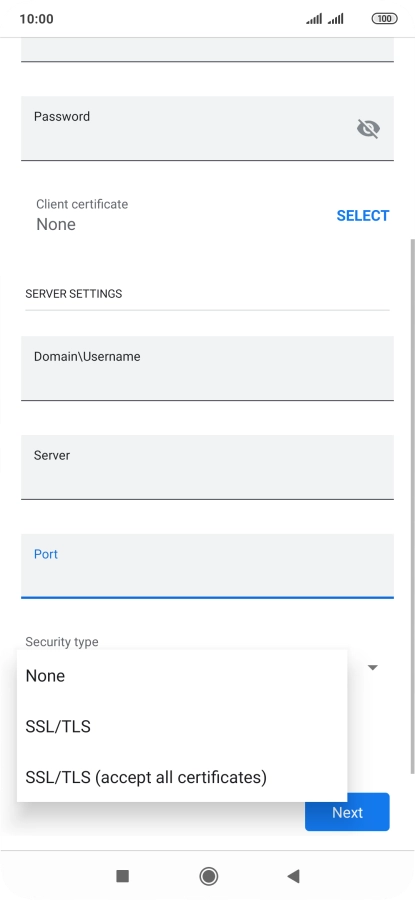
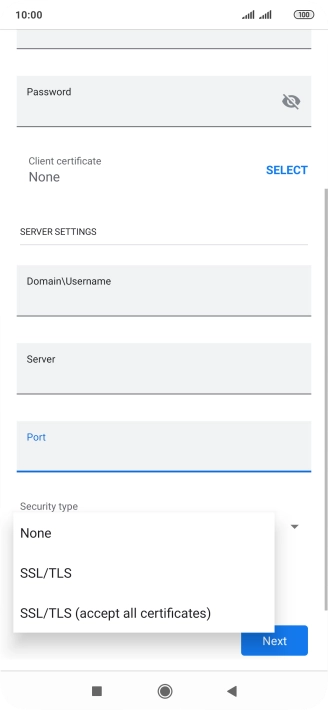
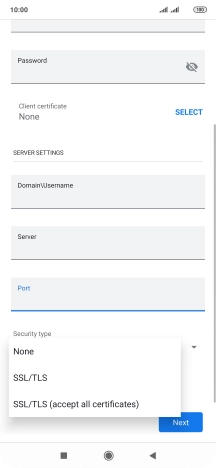
Turn SSL encryption on or off
Press the required setting to turn the function on or off.
Turn SSL encryption on or off
Press Next.
Enter email account name
Press the Return key.
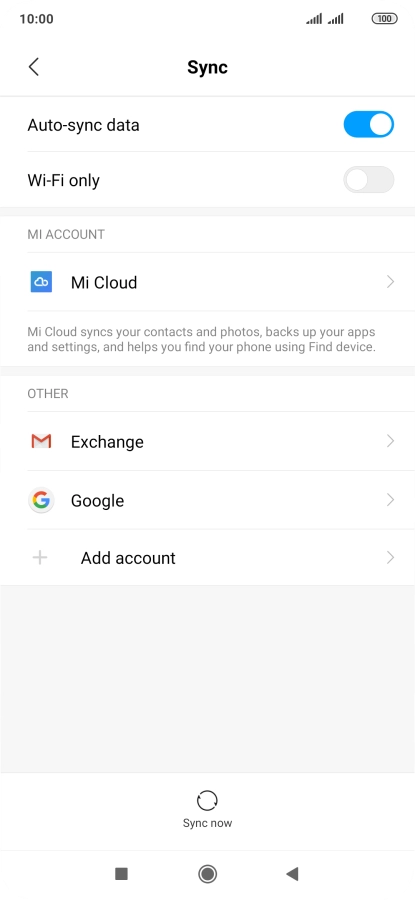
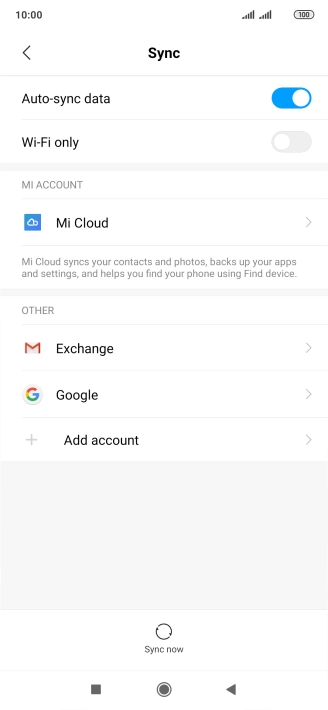
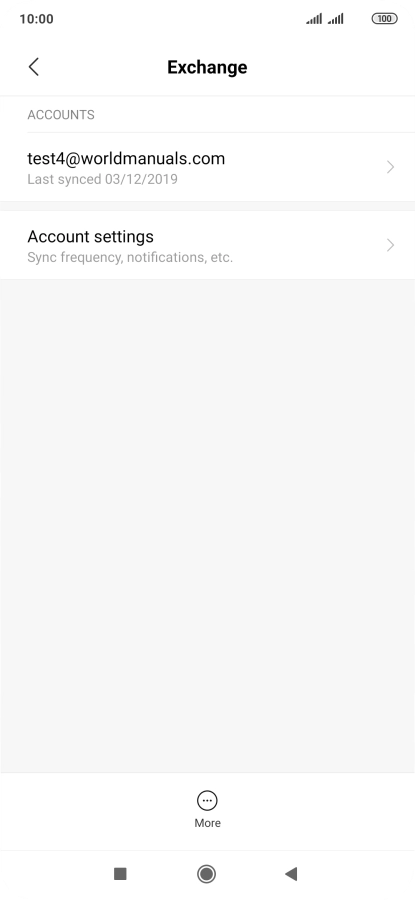
Enter email account name
Press the required account.
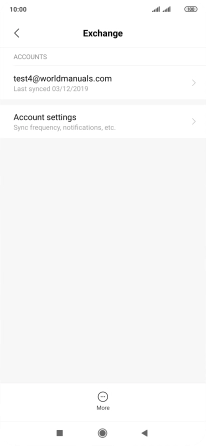
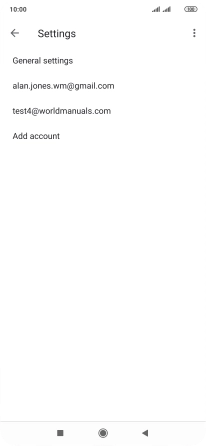
Enter email account name
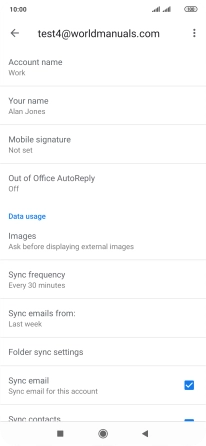
Press Account settings.
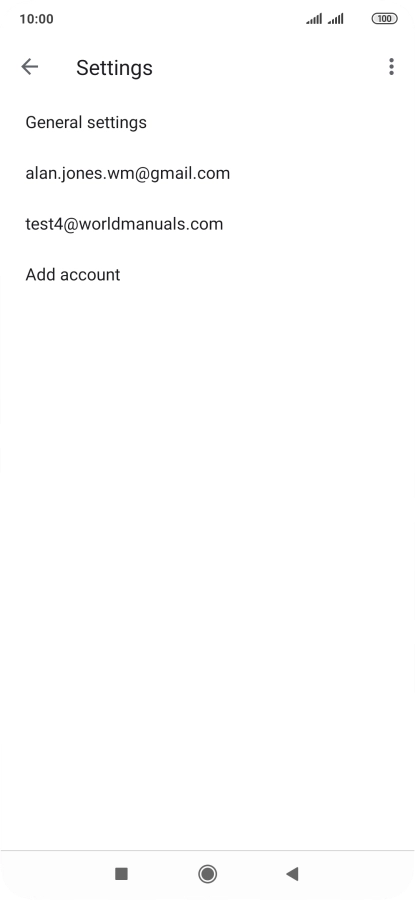
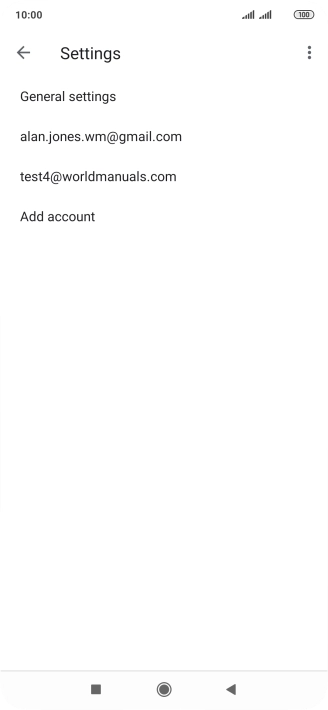
Enter email account name
Press the required email account.
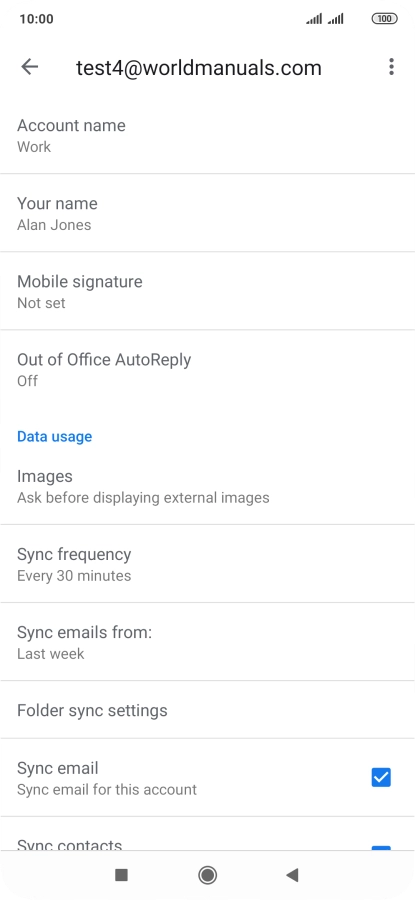
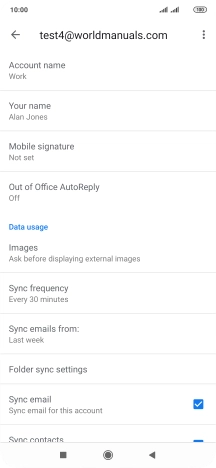
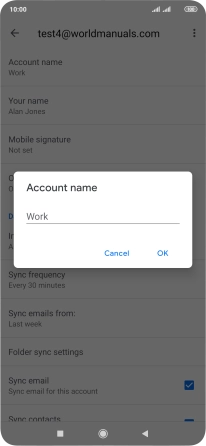
Enter email account name
Press Account name and key in the required name.
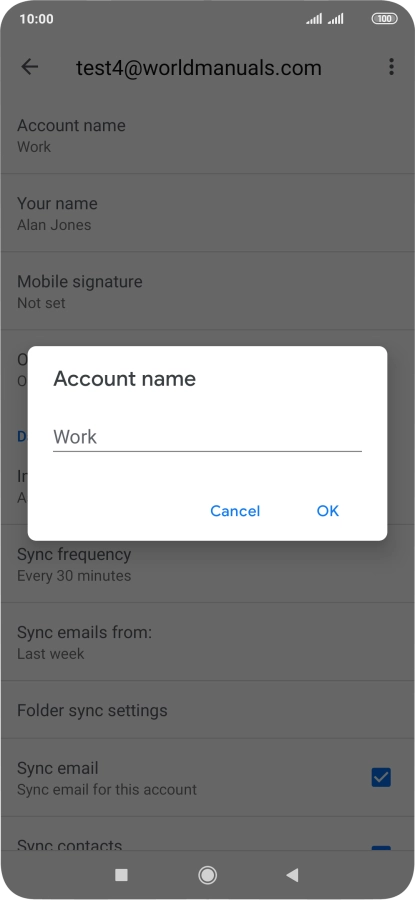
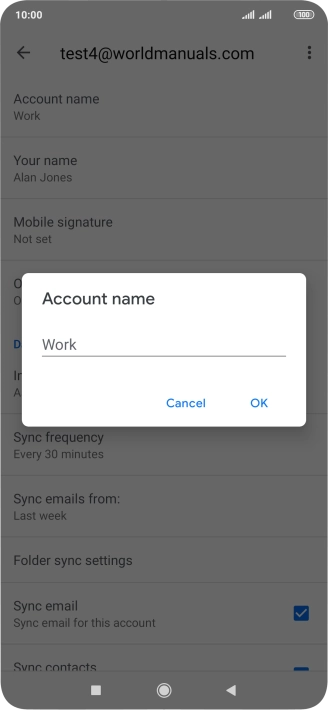
Enter email account name
Press OK.
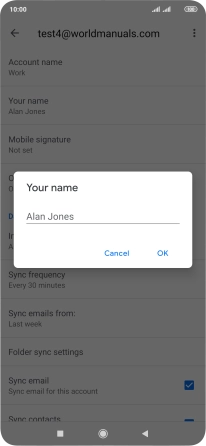
Enter sender name
Press Your name.
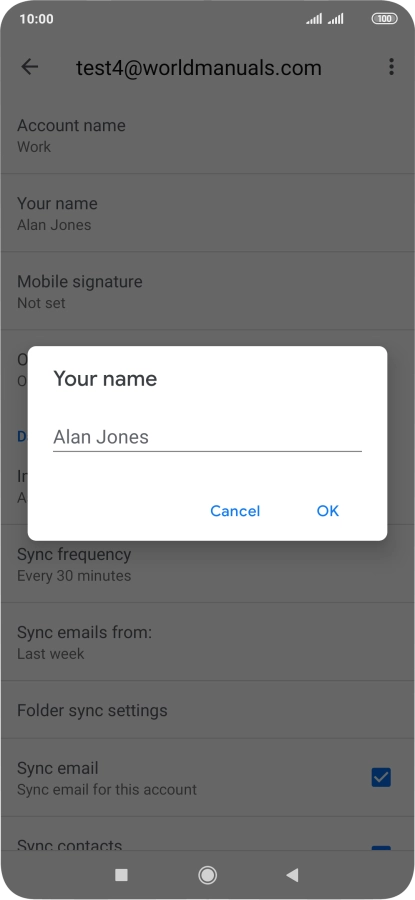
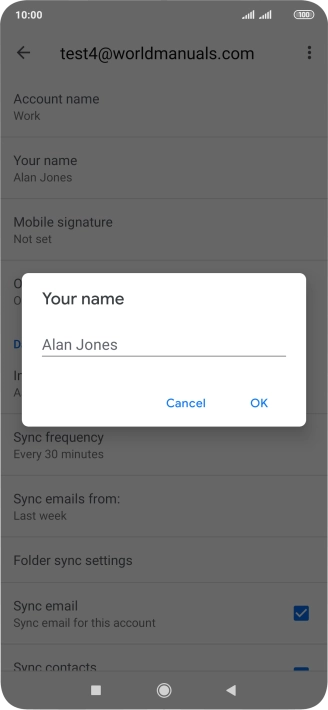
Enter sender name
Press OK.
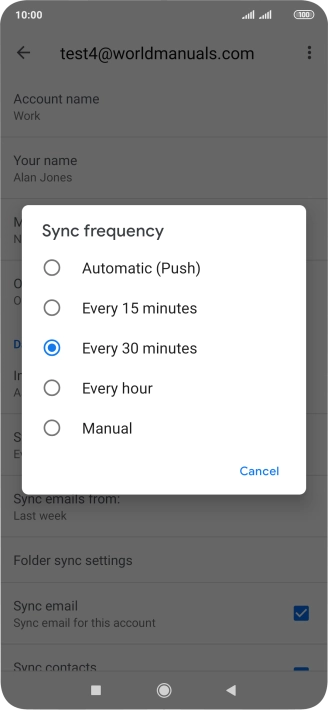
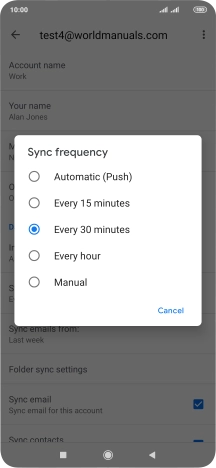
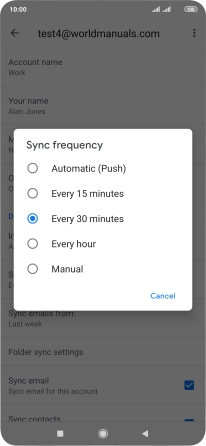
Select period for email message synchronisation
Press Sync frequency.
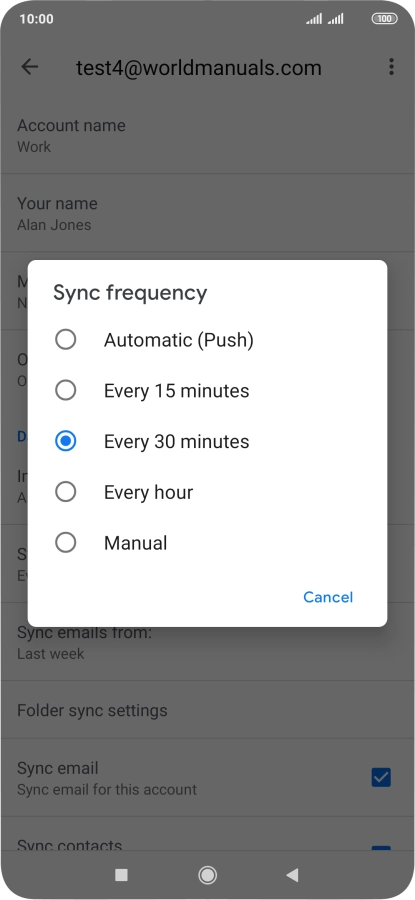
Select period for email message synchronisation
Press the required setting.
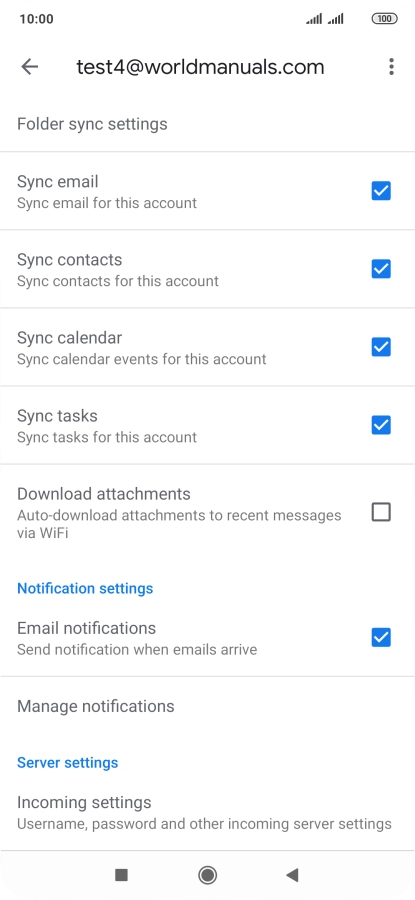
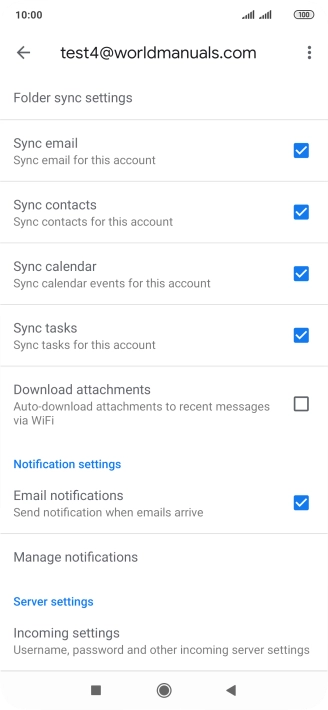
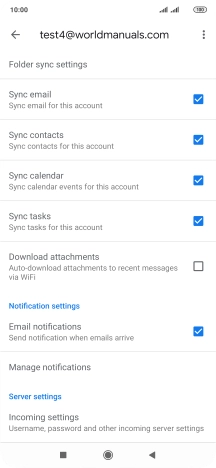
Turn on email message synchronisation
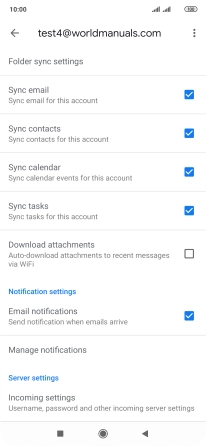
Press the field next to "Sync email" to turn on the function.
Turn contact synchronisation on or off
Press the field next to "Sync contacts" to turn the function on or off.
Turn calendar synchronisation on or off
Press the field next to "Sync calendar" to turn the function on or off.
Turn task synchronisation on or off
Press the field next to "Sync tasks" to turn the function on or off.
Turn email message notifications on or off
Press the field next to "Email notifications" to turn the function on or off.
Return to the home screen
Press the Home key to return to the home screen.
1 Find "Sync"
2 Create new email account
3 Enter email address
4 Enter password
5 Select client certificate
6 Enter domain name
7 Enter server name
8 Enter incoming port
9 Turn SSL encryption on or off
10 Enter email account name
11 Enter sender name
12 Select period for email message synchronisation
13 Turn on email message synchronisation
14 Turn contact synchronisation on or off
15 Turn calendar synchronisation on or off
16 Turn task synchronisation on or off
17 Turn email message notifications on or off
18 Return to the home screen